
Software house guide
A learning path for a software house, new or running: services, one project from quotation to handover, subscriptions, team practice and opening balances.
On this page
- A new business
- Who does what
- 1. Shop details and users
- 2. Master data
- 3. Opening capital
- 4. One project from the quotation to the handover
- 5. Hosting, domains and maintenance every period
- 6. Receivables and collecting
- 7. Expenses and salaries
- 8. Reports per job title
- 9. Checklist
- A running business
- 1. Master data
- 2. Practice for the team
- 3. Emptying the practice transactions
- 4. Opening balances on the first day
- 5. Checking before going live
- 6. Going live
This guide is for the team setting up Vende at a software house. It has two parts: A new business for a business just starting, with no receivables, subscriptions or projects from before, and A running business for a business moving to Vende, with team practice and opening balances. The example is Kode Cipta Studio. The names of the business, customers and people and all the figures are made up.
What the business looks like:
- Projects: websites and apps made to order. The price is agreed through a quotation, then paid in terms: a down payment at the contract, a second term when the design is approved, and the rest at handover.
- Recurring bills: hosting and domains per year, website maintenance per month.
- Team: the owner, one project admin who also does the marketing, one finance admin, and programmers and designers who record nothing in Vende.
Work through it from the top. Every step names its menu, who does it, what changes afterwards, and an example with figures. The business is already running and has receivables, subscriptions or unfinished projects? Work through the part A running business as well. Step-by-step practice for the team is in Practice for the team.
The features in this guide come with the Software house/IT services business type package, except those marked extra. The shop's features show under Settings → Subscription, section This shop's features. If a menu is missing, contact the Vende team.
Tip: Lost on a page? Press the ? button at the top of that page. A short tour shows every field.
A new business
Who does what
Everyone gets one job title in Vende. A job title ticks its roles at once, and everyone only sees the menus of their own work.
| Part of the business | Job title in Vende | What they do and open |
|---|---|---|
| Owner or director | Owner | Every menu: shop details, users, services, cash accounts, capital, opening balances, backups, and Reports → Profit & Loss |
| Project admin and marketing | Head Cashier | Customers, quotations, orders, the down payment of every term, the handover note, customer subscriptions, changing and voiding notes |
| Finance admin | Finance Admin | Customer payments, expenses, Reports → Receivables and Reports → Cash Balance |
| Programmers and designers | No account | Record nothing in Vende |
Worth remembering:
- One person may hold several jobs. In a small business the owner is often the project admin too: the Owner job title already covers everything.
- The Finance Admin does not see the profit. Someone in finance who reads Reports → Profit & Loss gets the Finance Head job title.
- The number of users follows the shop's subscription. See Settings → Subscription.
Every role is explained in Roles and permissions.
1. Shop details and users
Done by the Owner.
- Open Settings → Shop. Fill in the name, address, WhatsApp number and logo. All of them are printed on quotations, orders and notes. See Filling in the shop details and logo.
- Open Settings → Users, then make an account for every person. Choose the Job title from the table above. See Adding and managing users.
- Open Settings → Print, section Documents. Choose the Quotation document, then fill in Terms and conditions, for example "Paid in terms: term 1 at the contract, term 2 when the design is approved, and the rest at handover." Do the same for the Sales order. See Setting the print layout.
People at Kode Cipta Studio: Mas Dimas (owner, Owner), Sari (project admin and marketing, Head Cashier), and Bu Ratna (finance admin). Andi and Budi, programmers, need no account.
2. Master data
A shop of this business type already has the product categories App Development, Website Development, Hosting and Servers, Domains, Maintenance and Support, and Software Licences, the units Unit and Set for devices sold with a system, and the expense categories Internet and Phone Credit, Servers and Cloud, Software Subscriptions and Freelancer Fees. Services and customers are filled in by the shop.
Lots of data? Services, products and customers can be imported from Excel. See Importing data from Excel.
Services
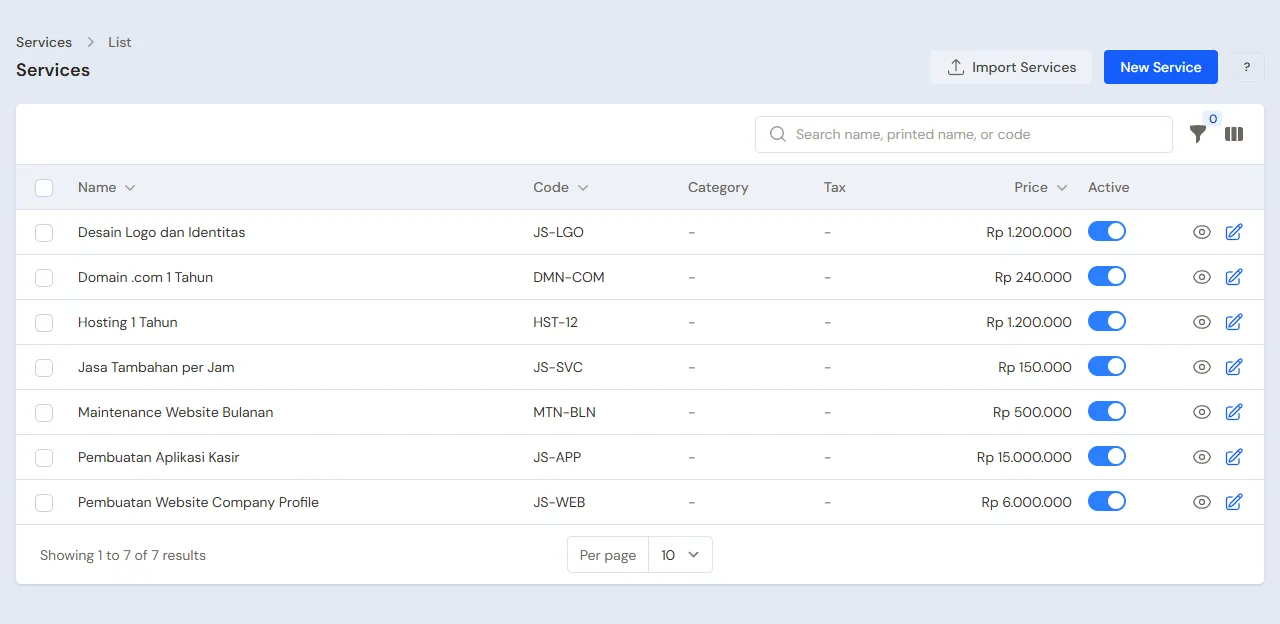
Done by the Owner in Master Data → Services, button New Service. Projects, hosting, domains and maintenance are all services: they have no stock.
| Service | Category | Price | Default subscription length |
|---|---|---|---|
| Company Profile Website | Website Development | Rp 6.000.000 | empty |
| Point of Sale App | App Development | Rp 15.000.000 | empty |
| Hosting 1 Year | Hosting and Servers | Rp 1.200.000 | 12 |
| .com Domain 1 Year | Domains | Rp 240.000 | 12 |
| Monthly Website Maintenance | Maintenance and Support | Rp 500.000 | 1 |
| Extra Work per Hour | Maintenance and Support | Rp 150.000 | empty |
Fill in Default subscription length only for services billed again and again. The value of a subscription service on a note is not income on the day: Vende spreads it evenly over every month of its period. Example: Hosting 1 Year at Rp 1.200.000 becomes income of Rp 100.000 a month for 12 months. A service sold on the 1st to the 15th starts counting that month, one sold from the 16th the next month. See Adding a service.
Project prices differ per customer? Fill in the most common price, then change it on the quotation line. Only users who are allowed may type a line price, the Head Cashier among them.
Services are sold in whole numbers. Three hours of extra work is written as 3 on the Extra Work per Hour line.
Licences and devices
Licences or devices bought for a customer, for example a Microsoft 365 Business Licence 1 Year or a receipt printer, are made by the Owner in Master Data → Products with the unit Pcs or Unit. These goods have stock and a cost price, so their profit is worked out. See Adding a product. Selling no goods? Skip this part.
Customers
Done by the Head Cashier in Master Data → Customers, button New Customer.
- Fill in the Name, WhatsApp number and address. Example: CV Maju Bersama.
- Fill in Payment Terms (days) when the customer usually pays later, for example 14. The due date of an unpaid note fills itself in.
- Press Create.
A prospect who has not decided yet need not be registered: a quotation can be written for a Prospect Name. See Adding and changing customers.
Cash accounts
Done by the Owner in Master Data → Cash Accounts. A new shop already has Kas Tunai Pemilik, Kas Tunai Kasir, Bank BCA and Bank BRI. Rename them or add more to match the business accounts. Projects are usually paid by transfer, so this example uses Bank BCA. See Cash accounts and bank accounts.
3. Opening capital
Done by the Owner in Transactions → Finance → Owner's Capital: Mas Dimas puts Rp 20.000.000 into Bank BCA. The Bank BCA balance becomes Rp 20.000.000. See Capital contributions and withdrawals (drawings).
A new business does not use Settings → Opening Balances. Opening balances are only for a business that already had money, receivables or projects before using Vende.
4. One project from the quotation to the handover
Example: CV Maju Bersama orders a company profile website, with hosting and a domain for the first year.
| Date | What happens | Done by |
|---|---|---|
| 2 November | The quotation is sent | Head Cashier |
| 3 November | The customer agrees, term 1 is paid | Head Cashier |
| 14 November | The design is approved, term 2 is paid | Head Cashier |
| 28 November | Handover, the note is made, the rest becomes a receivable | Head Cashier |
| 10 December | The rest of the bill is paid | Finance Admin |
Quotation
Done by the Head Cashier in Transactions → Quotations, button New Quotation.
- Choose the Customer CV Maju Bersama.
- Fill in the Quotation Date 2 November and Valid Until 16 November.
- Add Company Profile Website 1, Hosting 1 Year 1 and .com Domain 1 Year 1. The total is Rp 7.440.000.
- Press Save, then Print PDF and send the PDF on WhatsApp.
A quotation changes neither cash nor receivables. See Making a price quotation.
Contract and term 1
Done by the Head Cashier.
- Open the quotation, then press Convert to Order. Leave the Warehouse as it is, fill in the Pickup Date with the promised handover date, 28 November, then press Convert to Order.
- On the order page, press Receive Down Payment. Fill in the Amount Rp 3.000.000 (half the website price), choose the Cash Account Bank BCA and the Payment Method Bank transfer, fill in the Note "Term 1", then press Save Down Payment.
Bank BCA then grows by Rp 3.000.000, but there is no income yet: the order holds the down payment as an order down payment until its note is made. See Recording a sales order and Taking a down payment on an order.
Term 2
Done by the Head Cashier: on 14 November, open the order again, press Receive Down Payment, and fill in Rp 2.000.000 into Bank BCA with the note "Term 2". The Down Payment part of the order page now has two rows, and the Down payment remaining is Rp 5.000.000.
A down payment can be taken any number of times while the order is still Open or Ready for pickup, so every term is recorded the same way. Press Mark Ready for Pickup once the website is ready to hand over.
Handover and the note
Done by the Head Cashier on 28 November.
- Open the order, then press Convert to Sale. A draft note opens on the till with the three lines of the order.
- Press Pay. It says Taken from the order down payment Rp 5.000.000, and the rest is Rp 2.440.000.
- The customer pays later, so leave the payment empty. The Becomes receivable row shows Rp 2.440.000, due in 14 days (12 December).
- Press Save transaction. The order becomes Completed.
What the reports then show:
- Reports → Profit & Loss for November has service income of Rp 6.000.000 from the website.
- Hosting and the domain (Rp 1.440.000) are income spread over time: Rp 100.000 and Rp 20.000 every month, starting in December because the note is dated the 28th.
- Reports → Receivables has CV Maju Bersama at Rp 2.440.000.
Paying the rest of the bill
Done by the Finance Admin on 10 December in Transaction Details → Sale Payments, button New Sale Payment: choose CV Maju Bersama, the Cash Account Bank BCA, the Amount Rp 2.440.000, then press Create. The note is paid and the receivable is zero. See Recording payment of an unpaid note.
The project is called off? The Head Cashier presses Cancel Order on the order page and chooses whether its down payment is Refunded or Forfeited. A forfeited down payment becomes other income.
5. Hosting, domains and maintenance every period
Yearly hosting and domains
The hosting and the domain of CV Maju Bersama were sold on the handover note. So that the next year bills itself:
- The Head Cashier opens Transactions → Customer Subscriptions, then presses New Customer Subscription.
- Under From sale note, choose the Hosting 1 Year line of that note. The Customer, the Subscription service and the period fill themselves in.
- Leave the Status Active, then press Create.
- Do the same for the .com Domain 1 Year line.
Monthly maintenance
The maintenance contract of CV Maju Bersama starts on 1 December, Rp 500.000 a month.
- The Head Cashier sells the first month on the till through Transactions → Sales: customer CV Maju Bersama, Monthly Website Maintenance 1, paid by transfer into Bank BCA. The line is marked 1-month subscription.
- Then she registers the subscription in Transactions → Customer Subscriptions from that note line, like the hosting above. Next period starts becomes 1 January.
The bill drafts come by themselves
Three days before Next period starts, Vende makes a draft note for that customer. The users who finish notes at the till get a notice in the bell: Subscription note draft for CV Maju Bersama. The Head Cashier opens it, checks it, then saves it with a payment or as a receivable. A draft changes neither cash nor receivables until it is saved. See Billing customer subscriptions automatically.
Want every monthly maintenance billed together on the 1st? The Owner switches on Bill every subscription on the 1st, pro rata in Settings → Sales. A contract that starts mid-month is billed pro rata for its first month.
A customer stops? The Head Cashier changes the subscription's Status to Stopped. Only active subscriptions get drafts.
6. Receivables and collecting
- The Finance Admin reads Reports → Receivables every week: what every customer still owes, how old it is and when it is due. One customer's lines are in Reports → Receivable Card. See Setting and monitoring customer receivables.
- Receivables that fall due appear in the bell. See The notification bell and alerts.
- One transfer for several notes, for example three months of maintenance at once, is recorded once in Transaction Details → Sale Payments. Vende splits it over the notes, oldest first.
- A credit limit per customer and collecting by a collector are extra features.
7. Expenses and salaries
Done by the Finance Admin in Transactions → Finance → Expenses, button New Expense. November example:
| Expense | Category | Amount | Paid from |
|---|---|---|---|
| Monthly VPS rent | Servers and Cloud | Rp 900.000 | Bank BCA |
| Design and code tools | Software Subscriptions | Rp 300.000 | Bank BCA |
| Freelance designer for the CV Maju Bersama website | Freelancer Fees | Rp 1.500.000 | Bank BCA |
| Office internet | Internet and Phone Credit | Rp 400.000 | Bank BCA |
| Salaries of Andi and Budi | Salaries | Rp 9.000.000 | Bank BCA |
An expense lowers the cash when it is recorded and goes into Reports → Profit & Loss of that month. A bill paid later is recorded Unpaid, then paid off later. See Recording shop expenses.
Worth remembering:
- Hosting bought a year ahead from the provider, for example Rp 600.000, is recorded as a Servers and Cloud expense when it is paid. Spreading it over 12 months uses the Prepaid Expenses extra feature.
- Monthly salaries without payslips are recorded as expenses in the Salaries category. Payslips, PPh 21 and BPJS use the Payroll extra feature.
- Vende does not yet work out the profit per project from freelancer fees or salaries. Write the project's name in the expense's Note so it is easy to find.
8. Reports per job title
| Report | What it holds | Opened by | When to read it |
|---|---|---|---|
| Transactions → Sales Orders | The running projects, a tab per status, the down payments of every project | Head Cashier | Every day |
| Transactions → Customer Subscriptions | Active hosting, domains and maintenance with their next period | Head Cashier | Every week |
| Reports → Receivables | What every customer still owes and when it is due | Finance Admin | Every week |
| Reports → Cash Balance | The balance of every cash and bank account | Finance Admin | Every day |
| Reports → Profit & Loss | Service income, the subscription income of the month, and expenses | Owner | Every month |
How to read every report is in How to read Vende reports.
9. Checklist
Every day
- Head Cashier: new quotations sent, the terms that came in recorded as down payments on their orders, the subscription drafts in the bell saved.
- Finance Admin: the transfers that came in matched against Reports → Cash Balance.
Every week
- Finance Admin: customers past their due date in Reports → Receivables contacted.
- Head Cashier: projects in Transactions → Sales Orders past their Pickup Date checked and their date updated.
Every month
- Finance Admin: every expense of the month recorded, salaries and servers included.
- Owner: Reports → Profit & Loss read, then a backup downloaded in Settings → Backup.
A running business
This part is for the team moving a software house that is already running to Vende. The business already has money in the bank, customer bills not yet paid, projects whose terms were partly paid, and hosting, domain and maintenance customers billed every period. The order is always the same:
- Fill in the master data.
- Practise transactions until everyone is used to them.
- Empty the practice transactions.
- Enter the opening balances on the first day.
- Go live.
The opening balances are deliberately entered last, so the practice cannot spoil their figures. A software house just starting without old balances only needs the part A new business. The examples in this part use Kode Cipta Studio from that part.
1. Master data
Do the Who does what, 1. Shop details and users and 2. Master data parts of the new business part: users with their job titles, the payment terms on the prints, services with their default subscription lengths, licences and devices if any, customers with their payment terms, and cash accounts.
For a business already running, also:
- Register every customer who still owes a bill, every customer with a project not yet handed over and every hosting, domain or maintenance customer. All three are used in the opening balances.
- A different subscription price for every customer? One service per kind of work is enough, for example Monthly Website Maintenance at Rp 500.000. A customer who pays Rp 1.000.000 gets that price in the Price per period of their subscription (part 4). A customer who pays once a year also needs just that service: Billing period 12 and the yearly price. Make a new service only for work that really differs. See A price of its own for every subscription.
- Import many services and customers from Excel. See Importing data from Excel.
Master data is not deleted when the practice transactions are emptied later. Customer subscriptions are master data too, so the practice subscriptions are deleted by hand (part 3).
2. Practice for the team
The team works through this practice step by step with the Kode Cipta Studio data, in three parts in order: master data, transactions, then opening balances. Every step says who does it, the exact data, and what must show afterwards. If what shows is different, first find the step that was missed before going on. The full way of every step is in the new business part, in the part linked.
Do it in a practice shop, a shop of the Software house/IT services type made only for practice. The practice uses three accounts, the user limit of this package: Mas Dimas (Owner), Sari (Head Cashier, project admin) and Bu Ratna (Finance Admin). Every step may be done on the same day.
Practice 1: master data
The exact data is in the Master data part of the new business part.
- Owner: fill in the name Kode Cipta Studio in Settings → Shop, then make the accounts of Sari and Bu Ratna in Settings → Users with their job titles.
- Check: Sari and Bu Ratna sign in from their own computers. Bu Ratna does not see the Profit & Loss.
- Owner: fill in the Terms and conditions of the Quotation and Sales order documents in Settings → Print.
- Owner: make the six services in Master Data → Services, with Default subscription length 12 for Hosting 1 Year and .com Domain 1 Year, and 1 for Monthly Website Maintenance.
- Check: the Services list has six services, three of them with a default subscription length.
- Head Cashier: make the customer CV Maju Bersama with Payment Terms (days) 14 in Master Data → Customers.
Practice 2: one project and its subscriptions
The figures are those of One project from the quotation to the handover.
- Owner: put in capital of Rp 20.000.000 to Bank BCA in Transactions → Finance → Owner's Capital.
- Head Cashier: make a quotation for CV Maju Bersama in Transactions → Quotations with Company Profile Website, Hosting 1 Year and .com Domain 1 Year, then press Print PDF.
- Check: the quotation total is Rp 7.440.000, and the payment terms are printed on the PDF.
- Head Cashier: press Convert to Order, then Receive Down Payment of Rp 3.000.000 into Bank BCA with the note Term 1, and once more Rp 2.000.000 with the note Term 2.
- Check: the Down Payment part of the order page has two rows and the Down payment remaining is Rp 5.000.000.
- Head Cashier: press Convert to Sale, then save the note without a payment.
- Check: the till says Taken from the order down payment Rp 5.000.000 and Becomes receivable Rp 2.440.000. The order becomes Completed.
- Head Cashier: register the Hosting 1 Year and .com Domain 1 Year subscriptions from that note in Transactions → Customer Subscriptions.
- Head Cashier: sell Monthly Website Maintenance 1 to CV Maju Bersama on the till through Transactions → Sales, paid by transfer into Bank BCA, then register its subscription from that note. So that its bill draft comes during the practice, change Subscribed since and Next period starts to the start of this month.
- Check: the next morning Sari's bell has Subscription note draft for CV Maju Bersama, because Vende checks the subscriptions every night. The draft is saved with a transfer into Bank BCA.
- Finance Admin: record the payment of Rp 2.440.000 from CV Maju Bersama into Bank BCA in Transaction Details → Sale Payments.
- Finance Admin: record the expenses Monthly VPS rent Rp 900.000 in Servers and Cloud and Freelance designer Rp 1.500.000 in Freelancer Fees in Transactions → Finance → Expenses, both from Bank BCA.
What must show after Practice 2:
| Report | What shows | Opened by |
|---|---|---|
| Reports → Receivables | CV Maju Bersama with nothing left to pay | Finance Admin |
| Reports → Cash Balance | Bank BCA Rp 26.040.000: capital Rp 20.000.000, terms Rp 5.000.000, two months of maintenance Rp 1.000.000, the payment Rp 2.440.000, less expenses Rp 2.400.000 | Finance Admin |
| Reports → Profit & Loss | Service income from the website Rp 6.000.000 and the maintenance, expenses Rp 2.400.000. Hosting and the domain come in over time from the month of the note (a note dated the 1st to the 15th) or the next month | Owner |
Practice 3: opening balances
Do part 4 below with its example figures in the practice shop, after the practice transactions are emptied (part 3), then check with part 5.
3. Emptying the practice transactions
Done by the Owner in Settings → Empty Transactions, button Empty All Transactions. Vende makes a full backup first.
| What goes | What stays |
|---|---|
| Quotations, orders and the down payment of every term | Services, products and categories |
| Sale notes and subscription bill drafts | Customers with their payment terms |
| Sale payments and receivables | Cash accounts, users and settings |
| Expenses, capital and opening balances | Customer subscriptions |
Customer subscriptions stay, and their Next period starts has moved on during the practice. After emptying, the Head Cashier opens Transactions → Customer Subscriptions and deletes the practice subscriptions, then registers the real ones in part 4. See Emptying transactions or all data.
4. Opening balances on the first day
Example: Kode Cipta Studio goes live in Vende on Monday 2 November.
Old receivables
Done by the Owner in Settings → Opening Balances, tab Opening Receivables: one row for every bill not yet paid, with the old note date and its due date. Example: PT Sentosa Abadi Rp 1.000.000 for the September and October maintenance. See Entering opening cash, stock, receivables and payables.
Projects already running
Opening Balances has no tab for a project whose terms were partly paid. The way with what is there: the project is recorded as an order on the first day, and the terms already paid are recorded as down payments of that order into the cash account that now holds the money.
Example: the point of sale app of Toko Sinar Terang, Rp 15.000.000. Term 1 of Rp 6.000.000 and term 2 of Rp 4.500.000 were transferred before the first day. The handover is promised for 30 November.
- The Head Cashier makes an order for Toko Sinar Terang in Transactions → Sales Orders on the first day: Point of Sale App 1 at Rp 15.000.000, Pickup Date 30 November.
- She presses Receive Down Payment twice, Rp 6.000.000 and Rp 4.500.000, both into Bank BCA dated the first day, with the notes Term 1 and Term 2.
- The Opening Cash of Bank BCA below is the money counted less both terms, because the money is already in the account.
What follows:
- Bank BCA is back at the money counted in the account, and the order holds Rp 10.500.000 as an order down payment.
- At handover, the note made from the order takes off Rp 10.500.000, and the rest of Rp 4.500.000 is paid or becomes a receivable.
- Reports → Profit & Loss of the handover month records the whole project, Rp 15.000.000, the terms paid before the first day included. When the old books already recorded those terms as income, add up the year's profit of both records with care so the Rp 10.500.000 is not counted twice.
Running subscriptions
Done by the Head Cashier in Transactions → Customer Subscriptions, button New Customer Subscription, one for every running hosting, domain and maintenance. From sale note is left empty, because the old note is not in Vende.
- Choose the Customer and the Subscription service, then fill in the Billing period. A customer who pays another amount than the service price: fill in the Price per period with what they pay too.
- Fill in Subscribed since with the real start date, even when it is long ago.
- Fill in Next period starts with the start of the period not yet billed.
- Press Create.
Example:
| Customer | Subscription service | Billed until | Next period starts |
|---|---|---|---|
| PT Sentosa Abadi | Monthly Website Maintenance | October (the September and October bills in Opening Receivables) | 1 November |
| CV Lestari Jaya | Hosting 1 Year | 28 February next year | 1 March next year |
| CV Lestari Jaya | .com Domain 1 Year | 28 February next year | 1 March next year |
Next period starts is the start of this month at the earliest. Earlier periods not yet paid are recorded as opening receivables, like the PT Sentosa Abadi maintenance above. Periods paid before the first day are not recorded again: their income belongs to the old records.
Opening cash
Done by the Owner in Settings → Opening Balances, tab Opening Cash, for every cash and bank account. Example: the Bank BCA account holds Rp 30.000.000 on the morning of the first day, Rp 10.500.000 of it the terms of Toko Sinar Terang, so the Opening Cash of Bank BCA is Rp 19.500.000. Kas Tunai Pemilik gets the cash counted, for example Rp 1.500.000.
Licences or devices still at the office go in the Opening Stock tab with their cost price.
5. Checking before going live
| Report | What must show | Opened by |
|---|---|---|
| Reports → Cash Balance | Bank BCA Rp 30.000.000 and Kas Tunai Pemilik Rp 1.500.000, the same as the money counted | Finance Admin |
| Reports → Receivables | PT Sentosa Abadi Rp 1.000.000 | Finance Admin |
| Transactions → Sales Orders | The Toko Sinar Terang order Open with Rp 10.500.000 of down payment remaining | Head Cashier |
| Transactions → Customer Subscriptions | Three Active subscriptions with their next period as in the table above | Head Cashier |
The figures differ? The Owner corrects the row in Settings → Opening Balances before any real transaction is recorded. See Entering opening cash, stock, receivables and payables.
6. Going live
From that day on, every quotation, term, note and expense is recorded in Vende as in the new business part.
First week checks:
- Head Cashier: the November maintenance draft of PT Sentosa Abadi shows in the bell and is saved.
- Finance Admin: the payment of the old PT Sentosa Abadi receivable is recorded in Transaction Details → Sale Payments, and Reports → Receivables goes down.
- Owner: Reports → Profit & Loss of the first week holds only the income and expenses since the first day.