
Cash balance and cash flow
See what each cash account holds on a date, the cash flow statement, the cash book of an account, and the bank reconciliation.
On this page
These four reports read the real money in each cash account.
Cash Balance
- Open Reports → Cash Balance.
- Choose As of. The figures are the balance at the end of that day.
The report shows each cash account with its Type (Cash or Bank) and Balance, in the order of Master Data → Cash Accounts, then the sum of all accounts on the last row.
An account with children, such as budgeting pockets under their bank account, shows its own balance plus its children's, so it equals the balance on the bank statement. Its own part comes first below it, for example Kas BCA Hugo (own balance), then each child, indented. The sum on the last row counts each account once. See Budgeting pockets under a bank account.
A cash account shows when it is linked to the selected branch, or still has a balance in that branch. Today's balances also show in the Cash balances part of the Finance page.
Cash Flow
Cash Flow is an extra feature. If its menu is missing, contact the Vende team to switch it on. The same feature also opens the Cash Book.
Cash Flow is the standard cash flow statement (direct method) for all cash and bank accounts together. It answers: where did the shop's money come from and where did it go in one period.
- Open Reports → Cash Flow.
- Fill in From and Until, or press a period button.
It holds, from top to bottom:
- Cash and bank balance at the start: all cash and bank accounts together before the period;
- Cash flow from operating activities: receipts from customers, other income received, payments to suppliers, salaries and labor, operating expenses, loan interest and taxes;
- Cash flow from investing activities: buying and selling fixed assets, and loans given (a kasbon, for example) and paid back;
- Cash flow from financing activities: capital paid in by the owner, owner drawings, loans received and loan principal repaid;
- Net increase (decrease) in cash and bank;
- the Closing Balance, which equals the total of Cash Balance, the Kas dan Bank total of the Balance Sheet, and the sum of the Closing Balance of every Cash Book.
Only rows with an amount are shown. A positive figure is money in, a negative one money out.
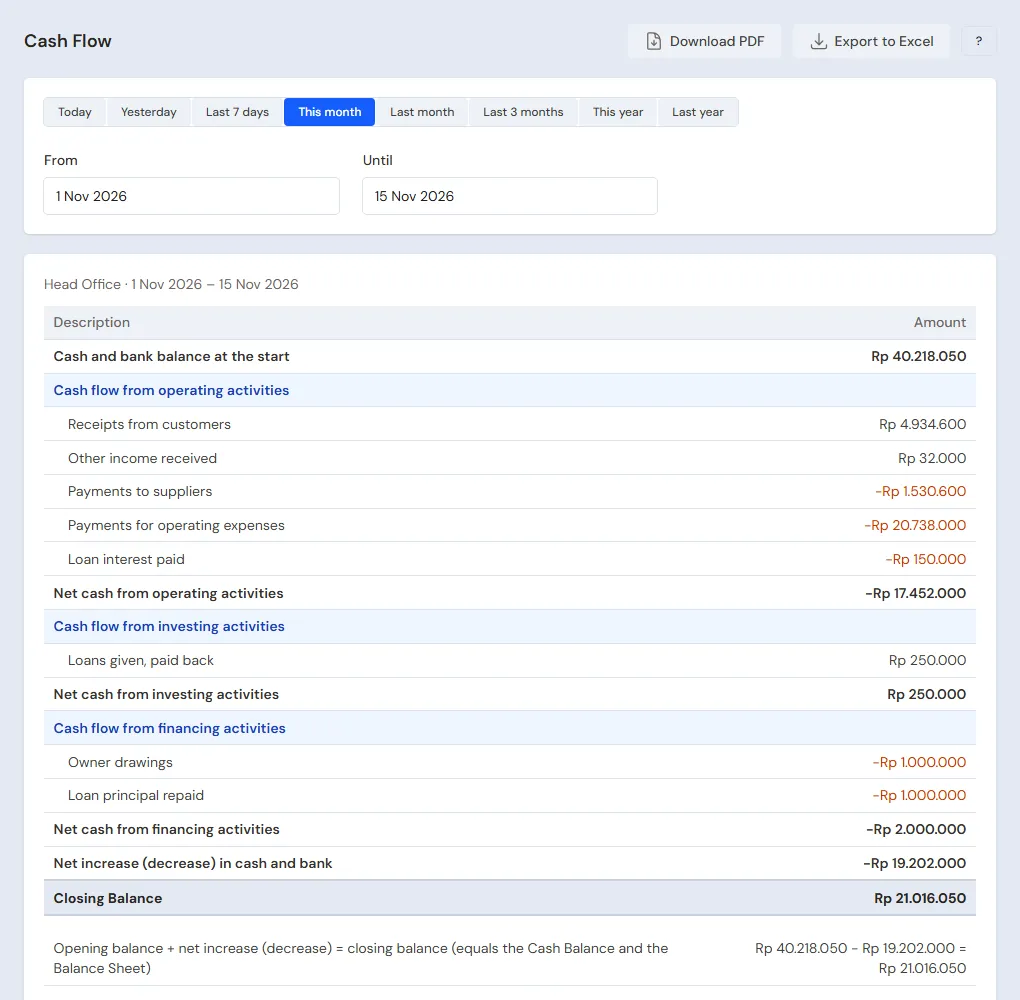
Vende groups from the journal, so there is nothing to fill in. Each movement of money is read by the account on its other side and the document that wrote it: a sales note goes to receipts from customers, paying a supplier to payments to suppliers, payroll to salaries, an Expense to operating expenses, and so on. Paying collected tax and handing out tips from a Cash Adjustment go to taxes and salaries. Transfers between cash accounts are not counted because the money only changes place. Opening cash entered in Settings → Opening Balances counts as the opening balance, not as capital paid in, even when its date falls inside the period. Money on an account the shop made itself that Vende does not know is counted as operating activities, and the report names the account under the table.
You can also ask "cash flow this month" in Ask Vende or the AI connected through AI access. The answer uses the same figures as this screen and links to the report, but only for roles that may open Cash Flow. Questions about the movements of one account are answered from the Cash Book.
See also How Vende keeps the books.
Cash Book
The Cash Book (earlier called Cash Flow) shows the history of one cash account over one period. It is the same extra feature as Cash Flow.
- Open Reports → Cash Book.
- Choose Cash account, for example Cashier Cash. The choices are in the order of Master Data → Cash Accounts, and a budgeting pocket carries its parent's name, for example Kas BCA Hugo › Budgeting P1.
- Fill in From and Until.
It holds:
- the Opening Balance before the period;
- every money In and Out, with its date, document, description and Running Balance;
- the Total for this period;
- the Closing Balance.
Press a document number to open the document it came from. A transfer between cash accounts shows here as money out of the source account and money in to the target account.
The Cash Book reads one account only. For a bank account split into budgeting pockets, its Cash Book holds only the money recorded on the bank account itself, transfers to and from its pockets included. Look at the pockets one by one.
Matching with the bank statement
- Choose the bank account in Cash account.
- Turn on Unchecked only. The running balance stays right even though some rows are hidden.
- Compare each row with the bank statement.
- Tick Checked on each row that matches.
Only users with the permission, usually the owner and the Finance Manager, can tick it. The same mark can also be given from that account's Cash Book in Cash Accounts. To see the balance difference, use the Bank Reconciliation.
Bank Reconciliation
Bank Reconciliation compares the balance on the bank statement with the Cash Book balance of that account on one date, then shows the difference that is not yet explained. It is an add-on feature, the same one as Cash Flow and the Cash Book.
- Open Reports → Bank Reconciliation.
- Choose the Cash account. Only accounts of type Bank are listed. The cash in a drawer is counted with Cash Count.
- Choose As of, then type the Bank statement balance on that date, from the bank statement or the banking app.
What it shows:
- the Bank statement balance you typed, and the Cash Book balance at the end of that day;
- Money in not checked yet and Money out not checked yet: Cash Book movements you have not ticked Checked, meaning they are not on the bank statement yet;
- Expected bank statement balance: the Cash Book balance minus the money in not checked yet, plus the money out not checked yet;
- Unexplained difference: the balance you typed minus the expected balance. When it is zero, the report says it matches;
- the list of movements not checked yet, with date, document, description and a Checked box.
Tick Checked right in that list for each row already on the bank statement. The row leaves the list and the difference is worked out again. A positive difference means the bank holds more than your records, for example interest or a deposit not recorded yet. A negative difference means the bank holds less, for example a bank fee or interest tax not recorded yet. Record the event in Vende first (a bank fee as an expense, interest as other income), then tick its row. A difference also appears when a row is ticked although it is not on the bank statement yet. Transfers between the account and its budgeting pocket are not listed, because the money never leaves the bank. The report uses the ticks as they are today, so reconcile each statement as soon as you receive it and keep the PDF; opening an old date again after newer ticks can show a difference.
An account with budgeting pockets counts as one bank balance: its balance and movements include its pockets. The bank statement holds the money of every branch, so pick All branches in the branch switcher for the difference to match. The balance you type is printed in the PDF and the Excel export but is not stored in Vende. Importing a bank statement file does not exist yet. Only users who may tick Checked can tick here.
How it differs from Profit & Loss
- Cash Flow and the Cash Book read the money that really came in and went out.
- Profit & Loss reads events, including unpaid notes.
Example: buying stock for Rp 5.000.000 in cash reduces the cash at once, but does not reduce the profit yet. The profit only goes down when the goods are sold. The other way round, an unpaid note of Rp 2.000.000 already adds to sales, but does not add to the cash yet.
Tip: A cash account balance below zero? Check whether that account's opening balance has been filled in under Settings → Opening Balances, on the Opening Cash tab.
Supporting reading
Articles on the background and the arithmetic.
- Arus Kas Toko: Cara Mencatat dan Membacanya Laporan arus kas mencatat uang masuk dan keluar menurut kegiatannya. Cara menyusunnya dan cara membaca saldo yang menipis.
- Untung Tapi Uang Tidak Ada: Kenapa Laba dan Kas Bisa Beda Laba di laporan dan uang di tangan adalah dua angka berbeda. Lima sebab yang membuat toko terlihat untung tetapi kasnya kosong.