
Recording a purchase note
Copy the supplier's note into Vende, then the stock goes up, the cost price is updated and what you owe the supplier is recorded by itself.
On this page
Every time you buy goods from a supplier, record the note in Vende. The stock goes up, the cost price is updated, and whatever is not paid yet becomes a payable.
Recording a purchase
- Open Transactions → Purchases, then press New Purchase. The New Purchase screen opens.
- Choose the Supplier. The Due Date fills in by itself from the supplier's payment terms.
- Check the Date and the Receiving warehouse the goods go into.
- Fill in Supplier Invoice No. so the note is easy to find. Vende tells you when the same number has been recorded before.
- Under Line Items, type the product's name, code or rack, or scan its barcode. Choose the product, fill in the quantity, choose the unit when the product has more than one (Enter moves from the quantity to the unit, Enter on the unit adds the line).
- Check the Unit, Quantity, Price and Discount of each line. A discount can be written as 10%, 5000, 5000/pcs (a cut on each unit, times the quantity) or 10%+5%. On a narrow screen some columns such as the price and discount move to the line's details. The price still shows under the product name, and so does a discount once filled in; what you can change has a pencil mark. Tap or click the product name to change them.
- When the note is paid now, fill in Payment Now. When it is paid later, leave it empty.
- Press Save.
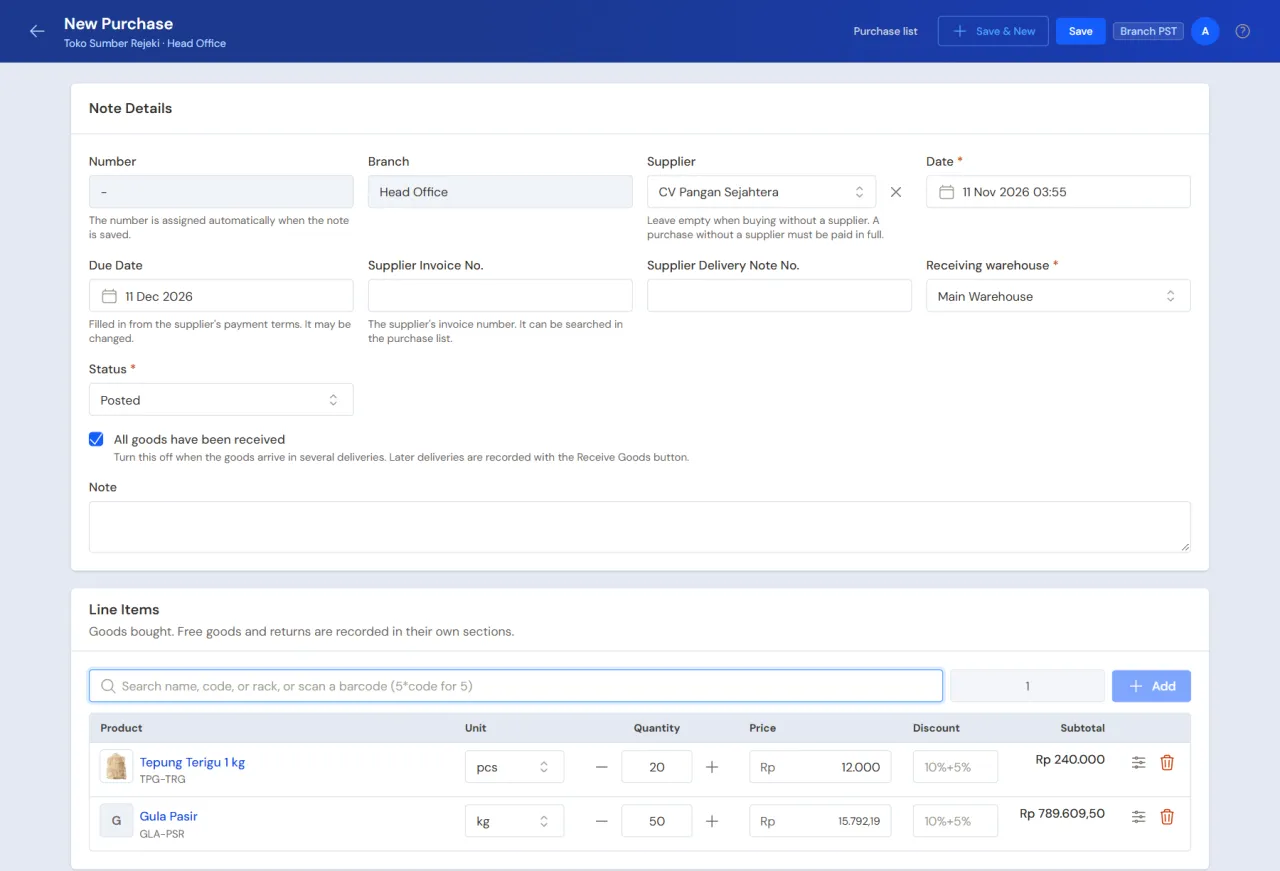
The starting price of each line is the last purchase price from that supplier. When there is none yet, the agreed price or the cost price is used.
Supplier not listed yet? See Adding a supplier.
Tip: Type 5*code in the search box to fill in a quantity of 5 at once. Many notes? Press Save & New. The supplier, warehouse and date stay filled in for the next note. With the keyboard: F2 goes to the product search box, F4 to the supplier, F8 to the payment when it is paid now, F9 or Ctrl+Enter saves; the (i) button in the top bar (or ?) shows every key, the same as in Invoice mode.
Other sections of the purchase screen
- Free Goods: goods the supplier gives free of charge. They add stock without adding to the note's value. The section is folded while empty; press + Free Goods to open it. Goods already under Line Items can be moved with Move to Free Goods on their line (on a narrow screen, in the line's details), for example when the supplier gives 1 free per 10. The quantity to move can be changed; the rest stays as goods bought.
- Returns to Supplier: goods sent back. Folded while empty; press + Returns to Supplier to open it. See Purchase returns.
- Selling Prices: when the purchase price goes up, fill in the new selling price here. The margin shows, and is flagged when it is negative. The new price is saved to the product together with the note. When the cost goes up and the selling price is still the old one, the bell tells whoever may change prices. See From the Cost rose notice.
- Note Photos: photos of the supplier's original invoice as proof.
- Summary: Items Subtotal, Returns Total, Note Discount, Bill Total, Paid and Outstanding.
A discount on the whole note goes in Note Discount in the Summary, in rupiah (50.000) or as a percentage (5%).
Freight or unloading costs are recorded after the note is posted, as a purchase cost. That way the cost goes into the cost price of the goods.
Filling in the payment now
- Choose the Payment Method: Cash, Bank transfer, QRIS or Card.
- Choose Paid from Cash Account, for example Owner Cash.
- Fill in the Amount paid, for example Rp 500.000.
What is not paid yet becomes a payable. Later payments are recorded through Transaction Details → Purchase Payments. See Paying what you owe suppliers.
Draft or Posted
Choose the Status before saving:
- Draft does not add stock or record a payable yet. Suits a note that still needs checking.
- Posted adds stock, updates the cost price and records the payable.
When not all goods have arrived
Turn off All goods have been received. The note is still posted, but the stock only goes up when the goods are received. See Receiving goods that arrive in parts.
Buying without a supplier
The Supplier field may stay empty, for example for small shopping at the market. A note without a supplier must be paid in full when it is saved.
Changing or deleting a note
Open the note under Transactions → Purchases. Press Edit to open the note on the purchase screen. The Delete button is on the note page too. The buttons shown depend on the state of the note and on your permissions.
Important: When the supplier's note includes VAT and the VAT feature is on, fill in the Input VAT section with its tax invoice number.