
Taking payment at the till
Take cash, bank transfer, QRIS or card, split it over several payment methods, and put the rest on the customer's receivable.
On this page
Once the note is right, press Pay (or F8). The Payment window opens. At the top it says To pay, which is what the buyer has to pay now.
Paying cash
-
The first row is already filled with the cash account and the exact amount.
-
The buyer hands over more? Type the money received, for example 100.000. Or press a quick button: Rp 20.000, Rp 50.000 or Rp 100.000.
-
Check Change.
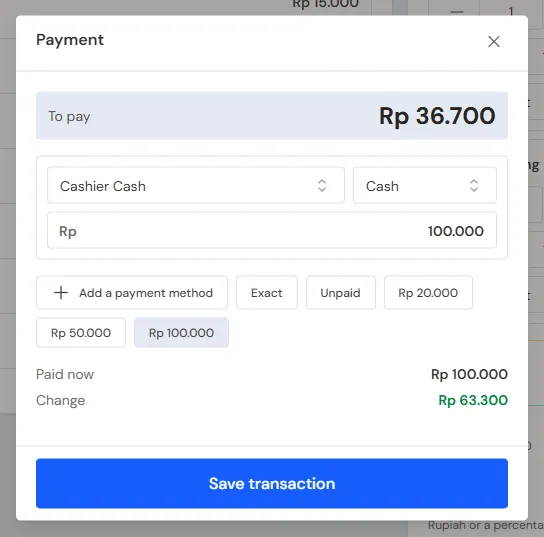
Rp 100.000 received, the change is worked out at once -
Press Save transaction.
The Exact button fills the cash row with the exact amount again.
Example: the shopping comes to Rp 85.000 and the buyer hands over Rp 100.000. Change shows Rp 15.000.
Paying by bank transfer, QRIS or card
- On the payment row, choose the cash account the money goes into, for example the shop's bank account. The payment method switches to Bank transfer by itself.
- Change the payment method to QRIS or Card if needed.
- Check the amount, then press Save transaction.
Vende is not connected to the card machine or QRIS. Make sure the money has arrived, then choose the right bank account so its balance matches. Bank accounts are made as in Cash accounts and bank accounts.
Change can only be given from cash. Non-cash payments may not be more than the amount to pay.
Paying two ways
Example: the shopping comes to Rp 150.000, paid Rp 50.000 in cash and the rest by transfer.
- Fill the cash row with 50.000.
- Press Add a payment method. The new row is filled with the rest, Rp 100.000.
- Choose the bank account and the payment method on the second row.
- Press Save transaction.
Remove a wrong row with the bin icon at its end.
Paying part or nothing yet
A registered customer may pay part or nothing at all. The rest becomes that customer's receivable.
- Make sure the customer is chosen on the note.
- Type the amount paid now. For nothing paid at all, press Unpaid.
- Check the Becomes receivable row. When the customer has payment terms, below it says in how many days it is due.
- Press Save transaction.
A walk-in customer must pay in full. To record a receivable, choose a customer first.
The rest of the receivable is paid off later as in Recording payment of an unpaid note.
Paying with the customer's credit balance
A customer with a credit balance, for example money they left earlier, can pay with it.
- Make sure the customer is chosen on the note.
- Press Use credit balance. The credit balance left is written on that button.
- The amount fills in with what is to be paid, at most the credit balance left. Lower it if needed.
- Pay the rest with the rows below it, or leave it as a receivable, then press Save transaction.
The button does not show for a walk-in customer or a customer without a credit balance. See Using a credit balance while selling.
Credit limit
While the Customer credit limits extra feature is on, a customer or their group may have a credit limit: the number of unpaid notes, the total receivable, or the age of the oldest note. When this note goes past the limit, the payment window shows a message.
- Ask the customer to pay in full, or ask a manager for permission.
- A user who is allowed can still save by filling in Reason for passing the credit limit. The reason is recorded in the note's history.
- A note corrected without raising what it leaves owed can still be saved while the customer is past a limit, since the receivable does not grow.
Credit limits are set on the customer or the customer group. See Setting and monitoring customer receivables.
Rounding the total
The bill total can be rounded, for example to the nearest Rp 500, so change is easy to give. A holder of the Settings role sets it in Settings → Sales, in the Rounding section: choose Note Total Rounding (Up, Down, or Nearest), then fill in Multiple, for example 500. The difference is recorded as Rounding Difference and shown on the receipt.
Example: a total of Rp 12.300 rounded to the Nearest multiple of 500 becomes Rp 12.500.
Unit prices from the price list can be rounded too, with Line Price Rounding, before they are multiplied by the quantity. A price typed by a manager is not rounded.
What is also counted
- Already paid elsewhere: payments of this note recorded in Transaction Details → Sale Payments. This row is shown when the note is being corrected.
- Taken from the order down payment: the down payment when the note is made from a sales order. See Taking a down payment on an order.
- Use credit balance: the part of the customer's credit balance that pays this note. Only the rest is rounded.
- Becomes the customer's credit balance: appears when the shop has to give money back, for example because of a return, and not all of it is handed back. See Keeping and applying a customer's credit balance.
Important: The figures on the screen are only an estimate. Vende works out the prices, discounts and total again when the note is saved.