
Recording a sales return
Record goods a customer brings back from their original note, refund the money or keep it as a credit balance, and swap goods on one note.
On this page
Returns are recorded in the Returns part of the note, on the Till or in Invoice mode. Returned goods go into the Return warehouse chosen in the note's head. Quick sale cannot record returns.
A return from the original note
This way is the safest, because the return price is taken from the original note.
-
Open the till, then press Add return on the note.
-
Search for the original note by its number or words from its Note field. When the window has two tabs, use the From the original note tab. The latest notes of the chosen customer, or the latest notes at this branch, are shown at once.
-
Choose the note. Each product shows the quantity bought and what can still be returned.
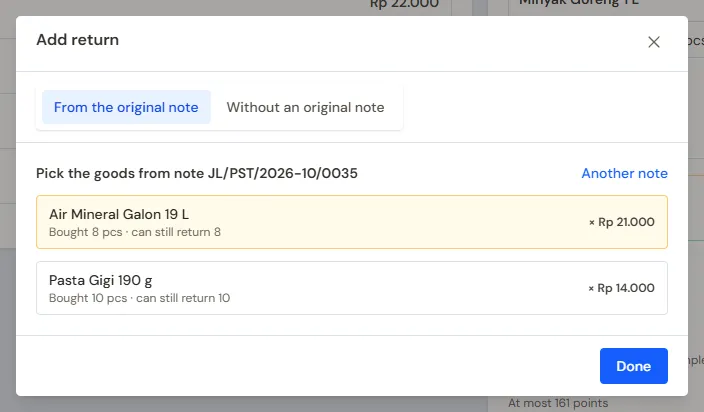
Picking products from the original note -
Tap the goods being brought back, then press Done.
-
Set their quantity on the return line of the note.
When the original note is under a customer's name and this note has no customer yet, that customer is chosen at once. A return must be recorded for the same customer as the original note.
Returned goods are shown in the Returns part with a mark of their original note. Their value lowers the amount to pay.
The return price is the price actually paid on the original note, after its discount. The return quantity cannot be more than what was bought on that note.
Refunding the money
When the note only holds returns, the bottom of the note shows To refund.
- Press Pay.
- Fill in the money handed back, usually from cash.
- Press Save transaction.
A walk-in customer must get the full amount back. For a registered customer, money not handed back is written as Becomes the customer's credit balance and can be applied to another note. See Keeping and applying a customer's credit balance.
Swapping goods
The customer swaps an item for another? Record both on the same note.
- Add the item brought back with Add return.
- Add the replacement item like an ordinary sale.
- Press Pay. The amount to pay is the difference.
Example: Pak Budi brings back a shirt of Rp 90.000 and takes another shirt of Rp 120.000. He only pays Rp 30.000.
A return without the original note
The customer lost their note? Only a user with the permission (ReturnWithoutNote:Sale), for example a Cashier Manager, can record a return without an original note.
- Press Add return, then choose the Without an original note tab.
- Search for the product and choose it.
The price is the current selling price. A service cannot be returned.
Customer points
When the original note was partly paid with points, the points go back to the customer in proportion to the goods returned. The Points back row shows how many. When the total of the return note is negative, the points earned on that purchase are taken back too, and the Points taken back row shows it.
Returned goods follow
A customer asked for a return but the goods will only arrive later? Record the return now and let the goods follow.
- Add the return line to the note, then tick Returned goods follow (in the head of the Invoice mode note, or in the Till's top bar). The option only shows when the note has a return line.
- Save the note as usual. The refund or the lower receivable is booked at once, and the profit already counts the return. Stock does not grow yet: the cost of the returned goods waits in the Goods Not Yet Received account (visible on the Balance Sheet).
- When the goods arrive, open the note and press Receive Return. Fill in the date, the warehouse (by default the note's return warehouse) and the quantity that arrived. Part of it is fine; the rest keeps waiting, and the sales list marks the note Return not received or Return partly received.
Recorded by mistake? Delete Return Receipt cancels one receipt. A receipt cannot be deleted once its goods were sold or moved; the refusal names the document that used the goods and has a button to open it.
While a note has a Return Receipt, it cannot be changed or voided: delete the Return Receipt first. Serial-numbered goods, compound items and the materials of a menu made when ordered cannot follow; turn the option off for those.
After the return is recorded
- The goods go back into the stock of the note's Return warehouse. The field appears as soon as there is a return line and goes away when there is none; it starts as the branch's return warehouse, or the note's sales warehouse when the branch has none. A note without a return line has no return warehouse.
- The original note cannot be corrected or voided while its goods are returned on another note. Correct or void the return note first.
- Every returned product can be seen in Transaction Details → Sale Lines, on the Returned tab.
Tip: Damaged returned goods still go into stock first. Take them out of stock with Transactions → Stock Adjustments so the stock matches reality. See Stock adjustments.