
Recording shop expenses
Record expenses such as electricity, wages and rent, whether you pay them now or later in instalments.
On this page
An expense is money spent to run the shop, for example electricity, wages and rent. Expenses reduce the profit in Profit & Loss.
Goods for resale bought from a supplier are not recorded here. They are recorded as a purchase, and only become cost of goods sold when they are sold.
Expense categories
Every expense has a category. A new shop already has two top categories: Operating Expenses and Non-operating Expenses. Under Operating Expenses sit Electricity, Water, Rent, Salaries, Transport and Other, plus the categories that fit its business type. You may rename, move or (when empty) delete any of them.
Manage the categories under Master Data → Expense Categories. Each category shows as its own line in Profit & Loss, so create a category for anything you want to follow separately.
Categories under categories
A category may have a parent, and its children may have children of their own. Example: there used to be only Salaries, and now you want to record pay per person.
- Open Master Data → Expense Categories and press New Expense Category.
- Fill in Name: Salary Andi.
- Under Parent, choose Operating Expenses › Salaries.
- Press Create, then create Salary Budi the same way.
Salaries can still be used to record. In Profit & Loss, Salaries adds up its children, and the older expenses recorded on Salaries itself show as the line Salaries (no breakdown). Totals and profit do not change. When you choose a category you see its path, for example Operating Expenses › Salaries › Salary Andi.
Other charges (outside the business)
Expenses outside the day-to-day business can be kept apart from business expenses. Only a top category has this choice. The easiest way: choose Non-operating Expenses as the category's parent. Or open a top category, turn on Under other charges (outside the business), then press Save changes. In Profit & Loss the category and its children then show in the Other charges part, not under Expenses. Expenses already recorded move with it, and the net profit stays the same. The Block column in the category list shows where each category sits.
Fixing categories
- Change parent: open the category and choose another Parent, or tick several categories in the list and choose Change parent. Their children move with them.
- Move category: chose the wrong category when recording? In the Expenses list, tick the expenses and choose Move category. Their numbers, dates and amounts stay.
- Merge: two categories that are really the same are joined with the Merge (in the More menu) button. Expenses, children and budgets move to the target category, the staff salary profiles too while Payroll is on, then the first one goes to the bin.
- Delete: a category that still has children or records cannot be deleted. Move what is in it first. A category in the bin can only be restored once its parent is restored.
Merge is refused when the first category has records in a locked month, has a prepaid expense, has more than 500 records, or has a record that cannot be written again as it is (one of a deleted branch, for example). Move category also refuses expenses in a locked month. For such a category, make it a child of the target category with Change parent instead: the reports are the same.
Categories from an old program keep their parents when the import package carries them. See Moving from Doctor Accounting or another program.
Expenses paid now
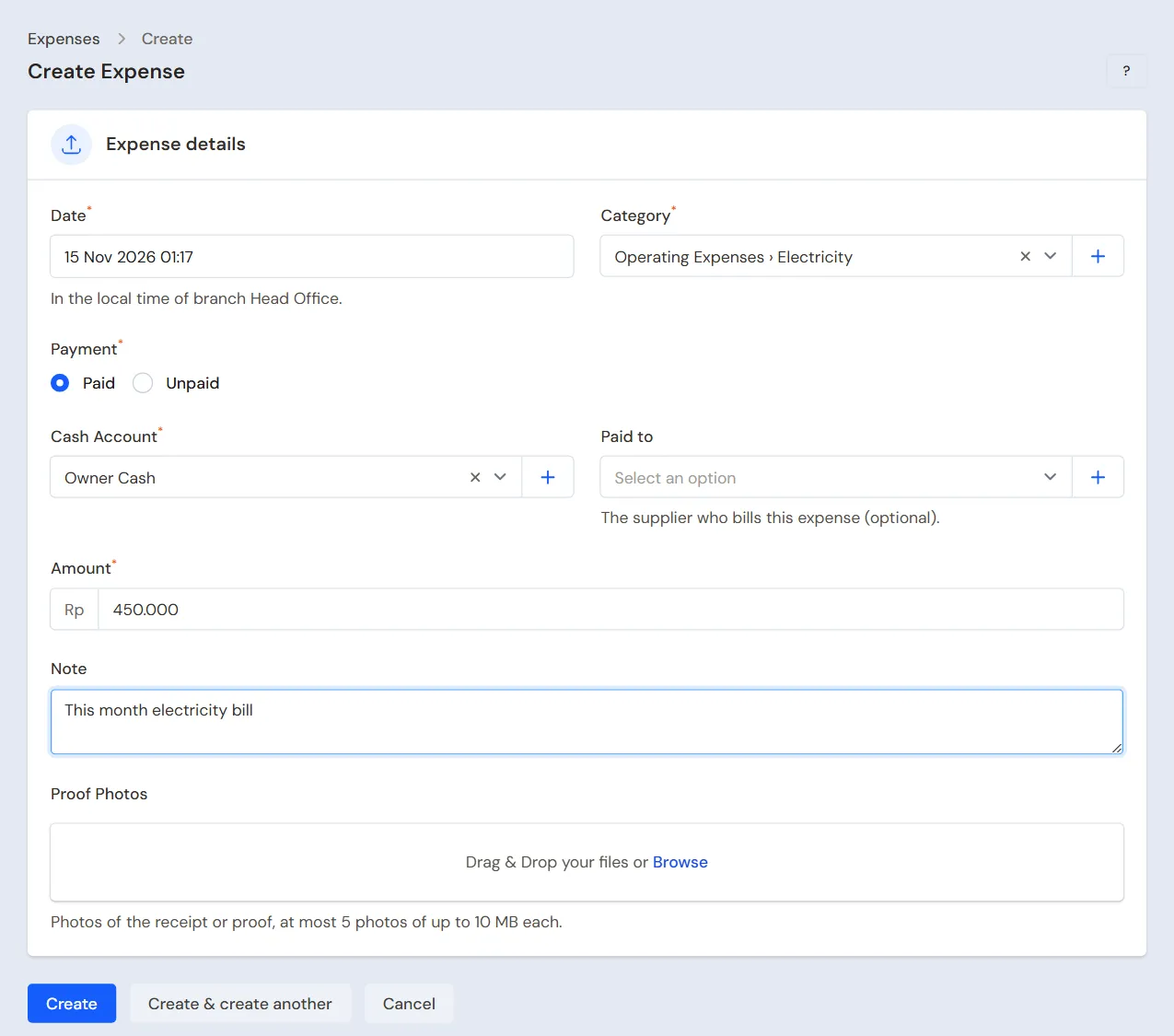
Example: Toko Berkah pays Rp 450.000 for electricity from Owner Cash.
- Open Transactions → Finance → Expenses.
- Press New Expense.
- Fill in Date.
- Choose Category, for example Electricity. Not there yet? Press + Create New next to it to create a new category on the spot.
- Under Payment, leave Paid selected.
- Choose the Cash Account the money leaves from.
- Fill in Amount: Rp 450.000.
- Fill in Note, then attach Proof Photos if you have them, for example a photo of the electricity receipt.
- Press Create.
The cash account balance drops right away. To record the next expense without going back to the list, press Create & create another.
Unpaid expenses
Example: the air conditioner technician bills you Rp 600.000 and you pay at the end of the month.
- Record the expense as above, but choose Unpaid under Payment.
- Choose Paid to, the supplier who bills you. This field may stay empty.
- Fill in Due date, when the expense must be paid.
- Fill in Amount: Rp 600.000.
- Press Create.
The expense goes into Profit & Loss on its date, even though the money has not left yet. What is left is recorded as a payable and shows in the Payables report, under its category, with its Note as the Description. The bell reminds you of expenses that are almost due or overdue. The dashboard also shows overdue expenses.
Paying it off
- Open the expense from the list.
- In the Payments part below, press New Expense Payment.
- Fill in Payment date and choose Cash Account.
- Check Amount. It is already filled in with what is still unpaid. Change it if you pay only part.
- Press Create.
The expense status becomes Partly paid or Paid. The Print menu on a payment row makes its receipt.
Editing and deleting
- Press Edit on the expense's row.
- Correct the fields, then press Save changes. The cash balance and the reports are updated too.
- An expense recorded by mistake is removed with Delete on the edit page. The money goes back to the cash balance it came from.
An expense that has instalments cannot be deleted or changed to Paid. Delete the instalments first. The expense amount also cannot be lower than the instalments already paid.
Expense list
The Expenses list has the tabs All, Unpaid and Paid. Press the funnel icon to filter by payment status, category, cash account, date or branch. Filtering by a parent category also shows its children's expenses. The total below the list follows the filters. Tick several rows to Move category at once, at most 500 at a time.
Want to cap each category's spending per month? See Expense budgets and sales targets.
Tip: An expense paid at once for several months, such as a year of rent, is better recorded as a prepaid expense.
Supporting reading
Articles on the background and the arithmetic.