
Choosing a sales screen
Vende has three screens for recording sales, the Till, Invoice mode and Quick sale, and you can choose the one that suits you best.
On this page
Every sale is recorded on one of three screens. The result is the same: a sales note, less stock, and the money recorded. Only the way you fill it in differs.
Three sales screens
| Screen | Suits |
|---|---|
| Till | Shops that serve buyers at a counter. The product catalogue and the note are side by side, and you can use a barcode scanner. |
| Invoice mode | Building supply shops, distributors and wholesalers. The note is filled in from top to bottom with the keyboard, like typing an invoice. |
| Quick sale | Selling one or two items from a phone, for example out in the field. |
Returns, free goods and shipping can be recorded on the Till and in Invoice mode. A few things are on the Till only: redeeming points, compounds, menu options and service staff. Sending in several deliveries with delivery notes is only in Invoice mode. Quick sale is for one or two items: returns, free goods and shipping are recorded on another screen.
Invoice mode, redeeming points, shipping and delivery notes are extra features. If one of them is missing, contact the Vende team to switch it on.
Opening a sales screen
- On the Dashboard, press New sale.
- Or open Transactions → Sales, then press New sale.
Vende opens the screen chosen for you right away. This button is only there when you may make sales.
Which screen opens
Vende chooses the screen in the order below. The highest choice wins.
- Your personal choice in your profile, or the one set for you in Settings → Users.
- The choice of the device in use.
- The shop setting in Settings → Till display. A new shop whose package holds Invoice mode (wholesale/distributor, building supply, and food, drug and plastic factories; a water depot keeps the till) starts with Invoice mode here, so a phone opens Invoice mode too. A shop that is already running does not change.
- The kind of device: a phone opens Quick sale, while a tablet, laptop or computer opens the Till.
Edit this note on a note's page follows the same order: the note opens on the Till or in Invoice mode as you chose. When your choice is Quick sale, which is for new notes only, the note opens on the Till. See Correcting a wrong note.
Changing the screen on this device
-
On the Till or Quick sale screen, press the How sales are entered button (the two-arrow icon) at the top. In Invoice mode, the button reads Invoice mode.
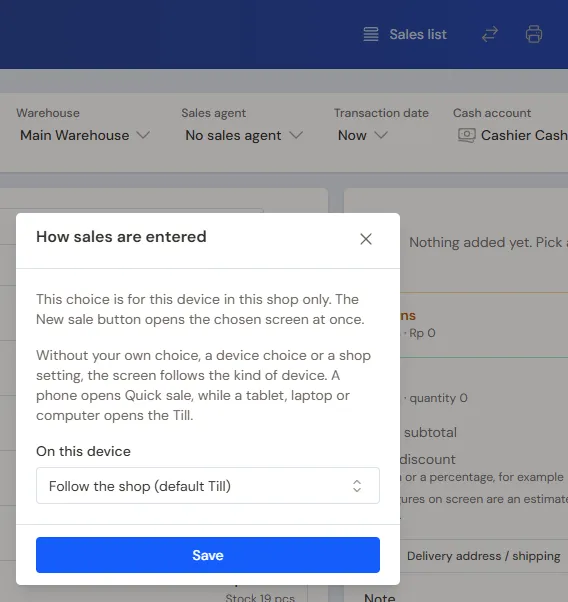
The two-arrow icon at the top of the screen opens this window -
In the On this device field, choose Till, Invoice mode or Quick sale. The top choice (Follow the shop setting or Follow the shop) makes this device follow the shop.
-
Press Save.
This choice only applies on this device, for this shop. When you have a personal choice, your personal choice still wins.
Switching screens while changing a note or finishing a draft
The How sales are entered button is also there while you finish a draft or change a note. The screen you choose opens the same note, and a draft stays a draft. When the screen holds entries that are not saved yet, Vende asks before switching.
A screen that cannot write that note stays in the list, cannot be chosen, and its reason is written below the list. Examples are Quick sale, which is for new notes only, and Invoice mode for a note with redeemed points, a compound item, menu options or service staff. See Correcting a wrong note.
Setting it for every cashier
- Open Settings → Till display.
- In the How sales are entered section, choose the screen for every cashier of the shop.
- Press Save changes.
Your personal choice is set in your profile, in the Sales Input & Till Display section. Open your profile from the account menu at the top right corner.
Tip: Lost on one of the screens? Press the ? button at the top of that screen. Vende explains each part of it.
Continue with Recording a sale on the till, Selling from a phone with Quick sale, or Making a note in invoice mode.