
Choosing the print paper for each document
Choose A4, A5, a thermal receipt, or dot matrix continuous form for each kind of document, and learn how to print to a dot matrix printer.
On this page
Each kind of document can be printed on a different paper. For example, sale notes on a thermal receipt, notes not yet paid (invoices) on A5 landscape, and delivery notes on continuous form. Set this in Settings → Print, the same page as the receipt content and the print layout.
Choosing the paper
-
Open Settings → Print.
-
In the Documents section, pick the document, then choose its Default paper. For Sales note, a note not yet paid has its own paper in When not yet paid (Invoice).
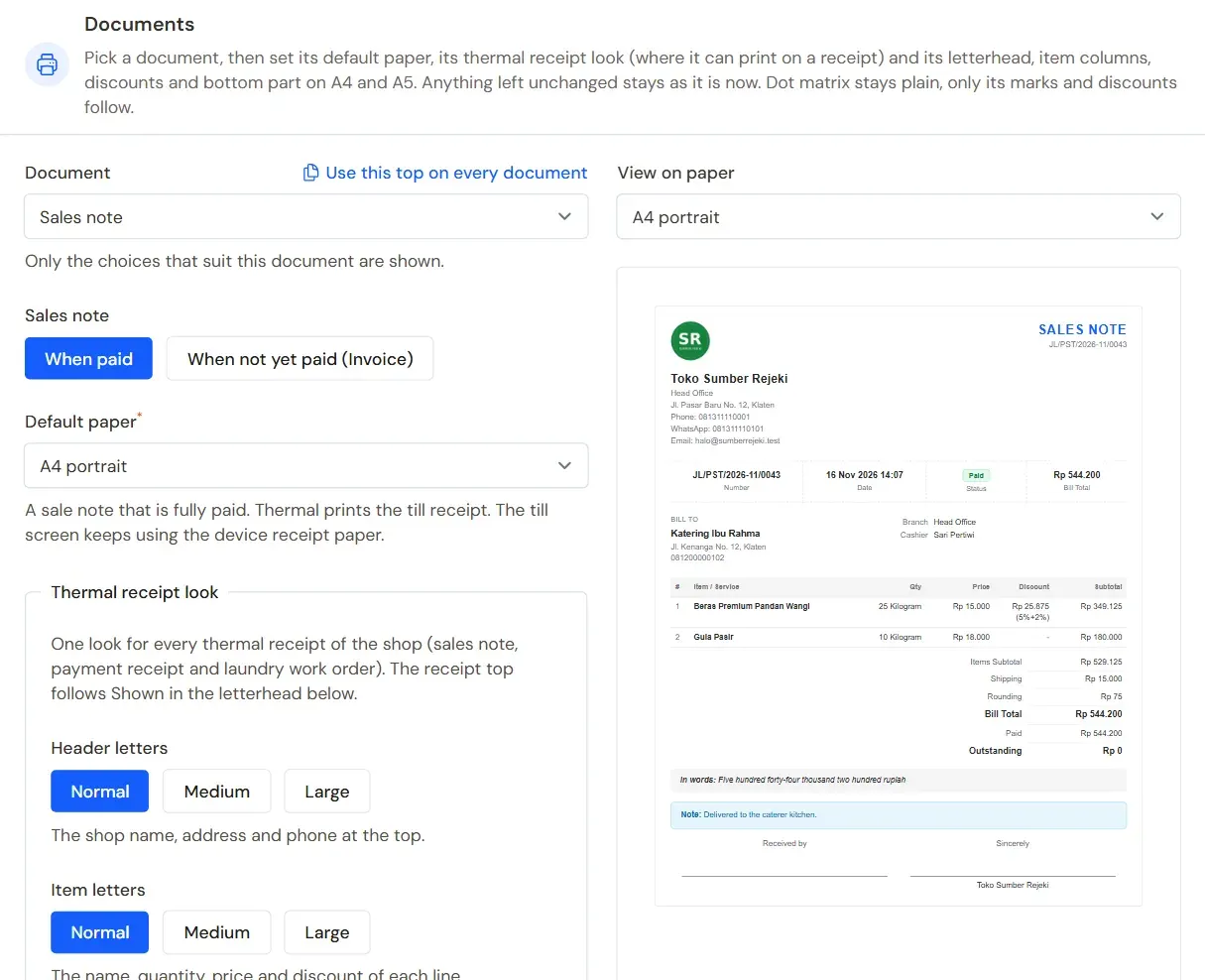
One default paper for each kind of document -
Press Save changes.
Documents you do not change keep A4 portrait.
Paper choices
- Thermal receipt 58 mm and Thermal receipt 80 mm: for till receipt printers. Only offered for Sales note (also while not yet paid), Payment receipt, and in a laundry also for Laundry order, which then prints the laundry slip with its bag tag.
- A4 portrait, A4 landscape, A5 portrait, and A5 landscape: for ordinary printers. Landscape gives wider columns. Rows that do not fit continue on the next sheet.
- Dot matrix, full continuous form (9.5 x 11 in) and Dot matrix, half continuous form (9.5 x 5.5 in): for dot matrix printers with multi-part paper.
Kinds of document
- Sales note: a sale note that is fully paid. The When not yet paid (Invoice) part of the same entry sets the sale note that is not fully paid (Sales invoice): its own paper and look, bank accounts printed, and receipt paper too.
- Delivery note: from sales, orders, stock transfers, and purchase returns.
- Payment receipt: customer and supplier payments, loan instalments, and advance repayments.
- Purchase note, Purchase order, Sales order, and Quotation.
- Work order: work orders and workshop estimates.
- Stock transfers and adjustments: sheets for the warehouse to sign.
Tip: For a receipt printer, choose Thermal receipt 58 mm or Thermal receipt 80 mm for Sales note. Other documents may stay on A4. The letter size and unit prices of the thermal receipt are set under its default paper, the blank lines and copies in the Printer section. See Setting up the receipt.
A choice on each device
The choices on this page are used by every device of the shop. When printing, a device may still choose another paper. Turn on Remember on this device so that device uses that paper straight away next time.
Printing to a dot matrix printer
- Open the document, press Print, then choose Print PDF.
- Choose a continuous form size in Paper Size, then press Print PDF.
- Open the PDF and print it to the dot matrix printer at 100% scale (actual size), not "fit to page".
- Set the same paper size in the printer settings of the computer.
Dot matrix prints are plain on purpose: bold letters, black only, no colour and no shading. That way the text stays clear on multi-part paper. A long document continues on the next sheet with the document header repeated.
Setting the print layout
The letterhead, the item columns, the signatures, and marks such as COPY are set on the same page, under the document you pick. See Setting the print layout.