
Paying what you owe suppliers
See how much you owe each supplier and when it falls due, then record the payment for one or several notes at once.
On this page
A posted purchase note that is not paid in full becomes a payable to the supplier. Vende records what is left and reminds you when the due date comes near.
Seeing what you owe
- Master Data → Suppliers: the Payable column shows what you still owe each supplier.
- Reports → Payables: what you owe per supplier by how long it is past or before its due date, then the list of unpaid notes.
- Reports → Payable Card: every note, payment and return of one supplier in one period, with a running balance.
Recording a payment
- Open Transaction Details → Purchase Payments.
- Press New Purchase Payment.
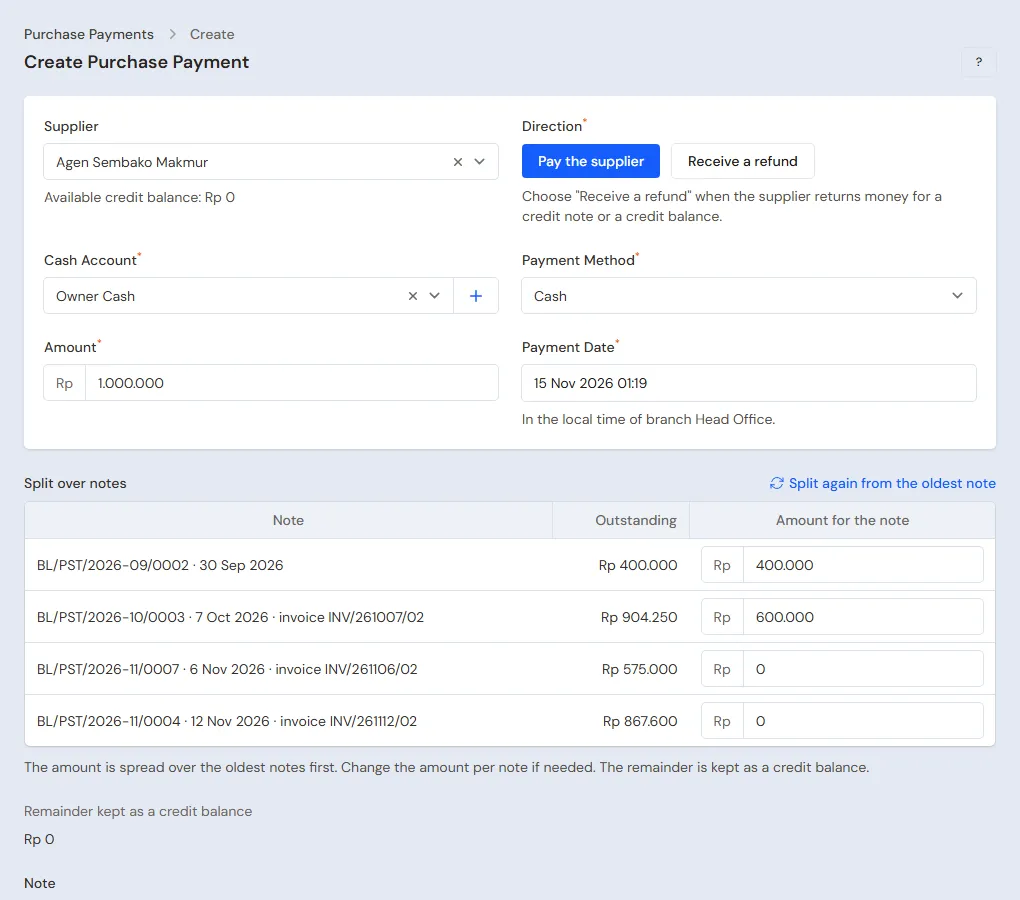
- Choose the Supplier. The unpaid notes show below at once.
- Set Direction to Pay the supplier.
- Choose the Cash Account the money leaves from, then the Payment Method.
- Fill in the Amount and check the Payment Date.
- Check Split over notes, then press Create.
The amount is spread automatically over the oldest notes first. Change the amount per note when you want another split, or press Split again from the oldest note.
Example: you owe CV Sumber Makmur on two notes, Rp 300.000 and Rp 500.000. You pay Rp 600.000. The first note is paid in full, the second note has Rp 200.000 left.
Straight from the note or the supplier
The Pay button opens the same screen already filled in, so the supplier and the note need not be looked up again:
- On the purchase note page and the money icon on a row of the Purchases list: the supplier and that note are chosen, Amount holds what is still owed on it.
- On the supplier page and the money icon on a row of the Suppliers list (while something is owed): everything unpaid is filled in, Amount holds all that is owed.
- Pay the courier on a purchase cost page and Pay the shipping to the courier on a sale note page: the courier and that cost or shipping are chosen.
- Pay What Is Owed on a Consignment Settlement page: the consignor and the settlement's purchase note are chosen.
Choose the Cash Account, change Amount when paying part of it (from the button of a note or a cost, that one is still paid first; from the supplier, the oldest first), then press Create. The button shows only while something is still owed and only for those who may record Purchase Payments.
Paying too much becomes a credit balance
Money that is not split over notes becomes the supplier's credit balance. A credit balance is used for later notes:
- Open the payment that has a credit balance.
- Press Apply credit balance to a note.
- Choose the note and fill in Amount applied.
A wrong offset can be undone with Undo applied credit.
When the supplier pays money back
For a credit note from a return, or a credit balance paid back to you, set Direction to Receive a refund. See Returning purchases to the supplier.
Printing a payment receipt
Open the payment, then press Print. Choose Payment receipt PDF (A4, A5 or dot matrix) or Print payment receipt for a receipt printer.
Due date reminders
The bell reminds you of payables that are about to fall due and those already overdue. How many days before is set under Settings → Alerts, in the Due Date Reminder field.
Tip: A note paid when the goods arrive only needs Payment Now on the purchase screen. See Recording a purchase note.