
Recording payment of an unpaid note
Record money from a customer who pays a note later, split it over several notes at once, then print the payment receipt.
On this page
A note that is not fully paid is paid later through the Sale Payments menu. One payment may pay off several notes at once.
Recording a payment
- Open Transaction Details → Sale Payments, then press New Sale Payment.
- Choose the Customer. That customer's unpaid notes are shown below at once.
- Leave Direction on Receive money.
- Choose the Cash Account the money goes into and the Payment Method.
- Fill in Amount, which is all the money received.
- Check the Payment Date.
- Check Split over notes, then press Create.
The outstanding amount of each note goes down at once. A note with nothing left outstanding becomes paid.
Straight from the note or the customer
There is no need to look the customer and the note up again. The Receive payment button opens the same screen already filled in:
- On the note page and the money icon on a row of the Sales list: the customer and that note are chosen, Amount holds what the note still owes, and the customer's other notes are at 0.
- On the customer page and the money icon on a row of the Customers list (while they still owe): all their unpaid notes are filled in, Amount holds everything they owe.
Choose the Cash Account, change Amount when the customer pays part of it (from a note's button that note is still paid first; from the customer, the oldest note first), then press Create. The button shows only while something is still owed and only for those who may record Sale Payments.
Split over notes
Vende splits the amount over the notes, starting from the oldest. You may change the amount per note when the customer wants to pay off a particular note first. Press Split again from the oldest note to go back to the first split.
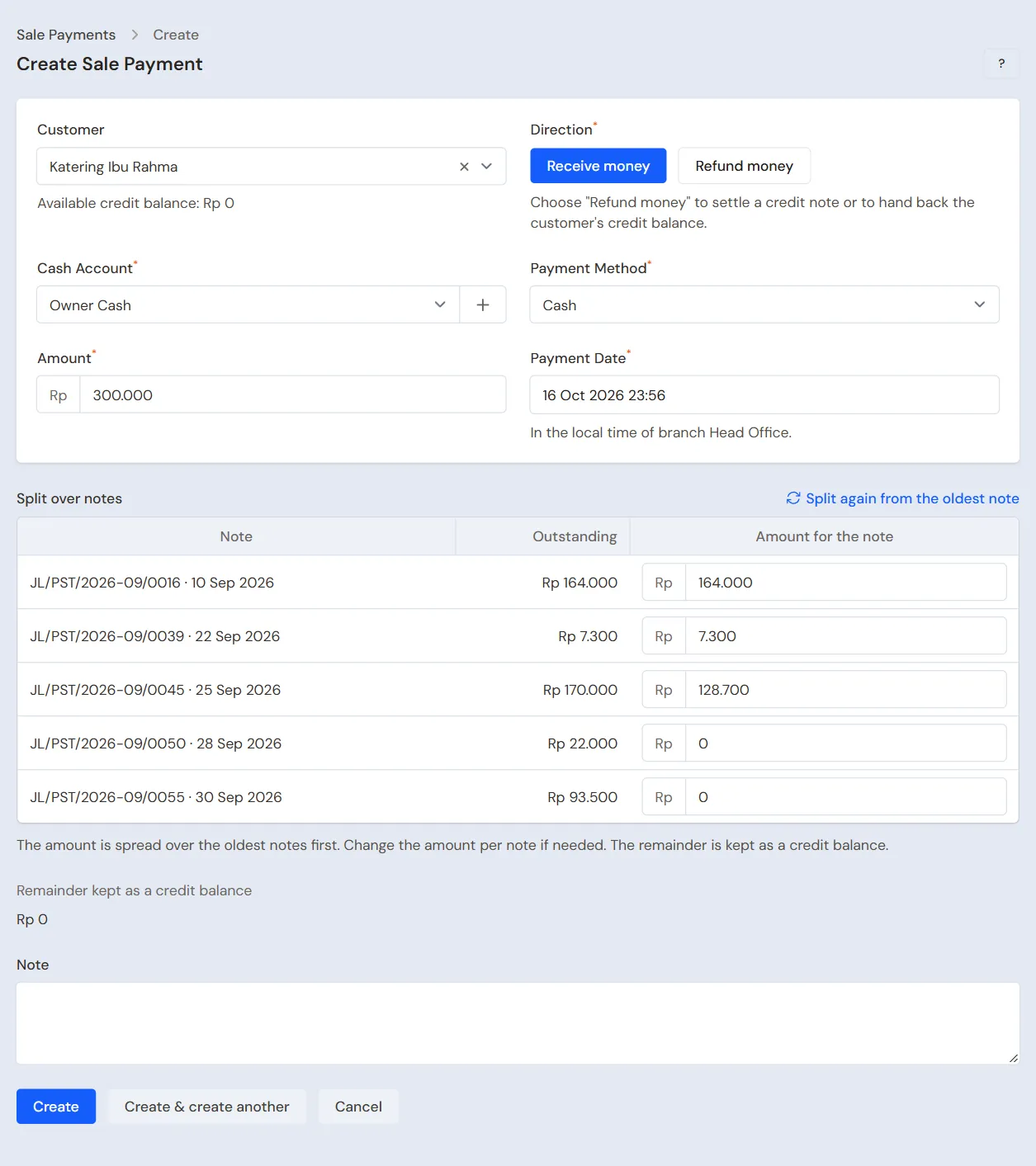
Example: Pak Budi has two unpaid notes, Rp 90.000 and Rp 60.000. He pays Rp 100.000.
- The first note gets Rp 90.000 and becomes paid.
- The second note gets Rp 10.000 and has Rp 50.000 left.
When there is money left over
Money not split over the notes becomes the customer's credit balance. The amount is written on the Remainder kept as a credit balance row. A credit balance can be applied to the next note. See Keeping and applying a customer's credit balance.
A payment without a customer (Walk-in) must be split in full over the notes, because a credit balance can only be kept under a customer's name.
Printing the payment receipt
- Open the payment from the list.
- Press Print.
- Choose Payment receipt PDF for A4, A5 or dot matrix paper, or Print payment receipt for the receipt printer.
Changing or deleting a payment
Open the payment from the list. Change it and press Save changes, or press Delete if it was recorded wrongly. The notes' outstanding amounts are adjusted too.
A payment made from a collector deposit can only be changed or deleted through that deposit. See Collecting receivables through collectors.
Payments at the till and here
A payment made when the note is created is recorded straight on the sales screen. Later payments are recorded here. Both are shown in the Payments part of the note page.
Important: A note that has a payment from this menu cannot be voided. Delete the payment first, then void the note.
Supporting reading
Articles on the background and the arithmetic.