
Printing price labels and barcodes
Print labels with the name, barcode, price and unit of your goods, taken from a purchase note or warehouse stock, or added one by one.
On this page
The Print Labels screen makes barcode labels for your goods. Labels can be printed on a label roll printer or on A4 sticker sheets.
This is an extra feature. If its menu is missing, contact the Vende team to switch it on.
Printing labels
- Open Master Data → Print Labels.
- In the Take Goods section, choose a Source:
- Purchase note, Stock adjustment (in) or Stock transfer: then search for the document by its number or words from its Note field;
- Stock in a warehouse: then choose the warehouse;
- One rack: then choose the warehouse and the rack.
- Choose Number of labels, for example One label per product or By quantity (unit on the document). Code kind narrows the goods taken: All codes, Shop code or Factory barcode.
- Press Take Goods. The goods go into the Label List.
- Check the list. Change the unit or the number of labels, or remove rows you do not need.
- In the Print section, choose the Label size that fits your paper.
- Tick what goes on the label: Show the price, Show the unit, Show the date received (ddmmyy), Show the brand.
- Press Preview & Print, then print from the preview.
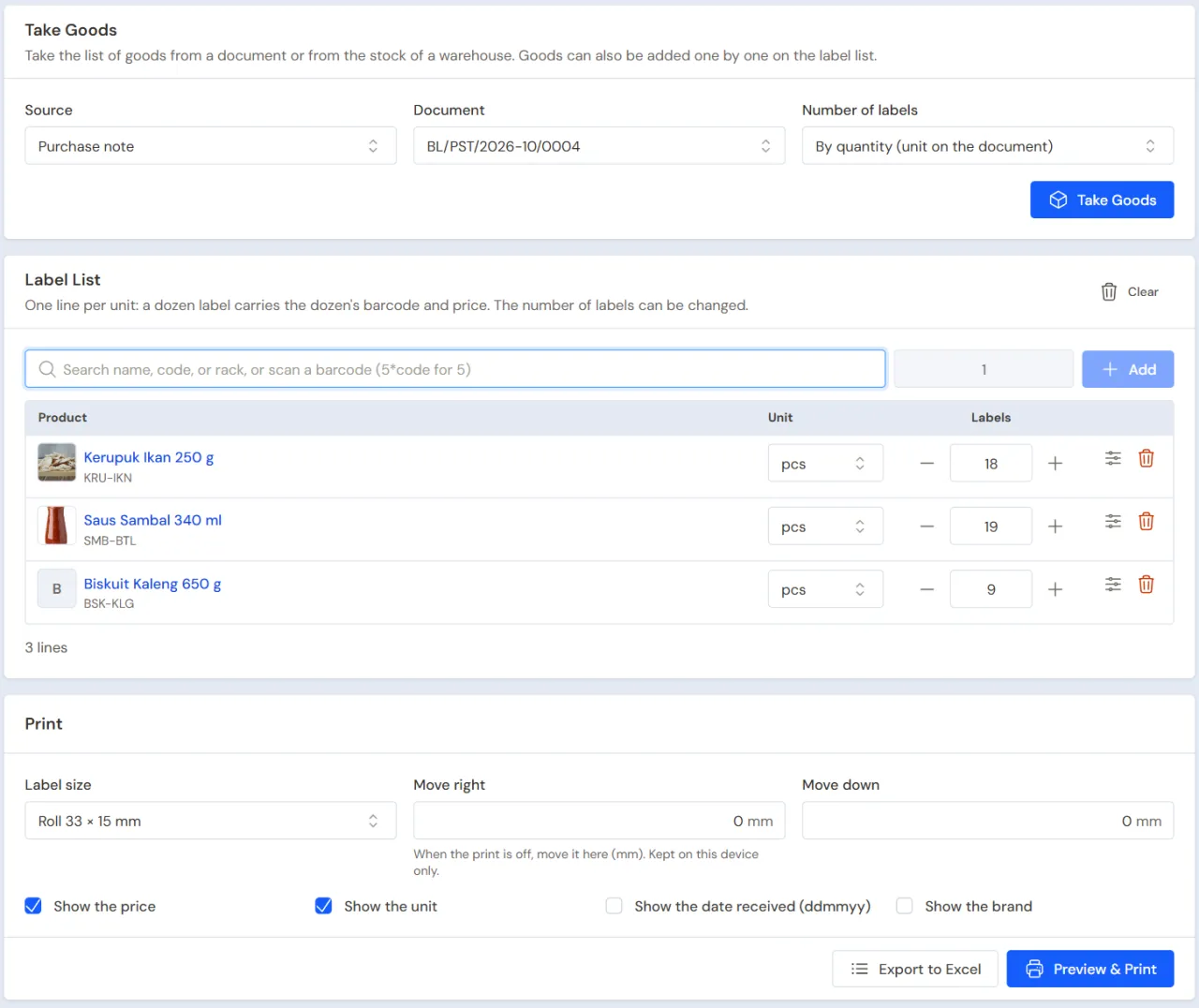
Goods can also be added one by one: type the name or code, or scan the barcode, fill in the number of labels, then press Enter.
Goods with a factory barcode
The pack of goods whose code is a factory barcode already has a barcode, so its label is rarely needed. That is why goods taken from a purchase note, a stock adjustment, a transfer, a warehouse's stock or one rack whose code is ticked as factory still come onto the list but start at 0 labels, with a "Factory barcode" mark under the name. Fill in a number when you still need labels. The mark belongs to one unit only: the Box line can be marked while its Piece line uses the shop's code.
Goods added one by one can also be narrowed with Code kind.
Paper sizes
- Roll 33 × 15 mm
- Roll 50 × 30 mm
- A4 sheet Tom & Jerry 103 (64 × 32 mm)
- A4 sheet Tom & Jerry 107 (50 × 18 mm)
Everything you tick always fits on the label. A name or brand that is too long is written a little smaller, then cut off. When the product has a Printed Name, the label uses that name.
Prices and units on the label
- One row in the Label List is one unit. A Box label uses the Box barcode and price.
- The price on the label follows the branch you are using now.
- Goods with a main unit start in that unit.
When the print is off
Use Move right and Move down (in mm) until the print sits right in the label box. This shift is kept on that device only.
When the preview is empty
This often happens on a phone. Press Download PDF above the preview, then print from a PDF app.
Tip: Does your label printer use its own program? Press Export to Excel to download the label list, one row per label, then open it in that printer's program.