
Finding and opening sales notes
Every sales note is in Transactions → Sales, with search, filters, and a note page to print or correct it.
On this page
Notes from the till, Invoice mode, Quick sale and orders all go into the same list.
Opening the sales list
Open Transactions → Sales. From a sales screen, you can also press the Sales list button at the top.
Each row is one note: number, date, customer, total, and what is still unpaid. The unpaid figure is yellow, and turns red once it is past its due date. The Items Subtotal and Due Date columns can be shown with the columns button above the list. The icons at the end of a row (View, Edit this note, Receive payment, Make Delivery Note, Print) show their name when pointed at. The bottom row adds up the posted notes that match the filters.
Finding a note
- Tabs above the list: All, Draft, Posted, Unpaid and Void. Unpaid holds the notes that still have something outstanding.
- Search box: type the note number, the customer's name, or words from the note's Note field.
- Filter (the funnel icon): filter by customer, sales agent, sales channel, status, date or Follow-up (see below). A branch filter appears when you are viewing all branches.
- Period buttons in the date filter: Today, Yesterday, This week, This month, Last month and This year. One tap fills From and Until and the list follows. The same buttons are in similar lists such as Purchases, Expenses and Payments.
The active filters are shown above the table and can be removed one by one.
Note status
| Status | Meaning |
|---|---|
| Draft | Not in effect yet. The stock and cash have not changed. |
| Posted | In effect. The stock has gone down and the payment is recorded. |
| Void | Voided. The note stays in the list. |
Follow-up badges
The Follow-up column puts a clock badge on a note whose next step is not finished. Amber means nothing done yet, blue means done in part.
| Badge | Meaning | The step |
|---|---|---|
| Not sent yet | A note sent in several deliveries, with no delivery note at all yet. | Make Delivery Note |
| Partly sent | Some of its goods have left by delivery note. | Make Delivery Note for the rest |
| Serial to follow | A line still waits for its serial numbers (Serial numbers feature). | Fill In Serials on the note page |
| Return not received | A note marked Returned goods follow, with no Return Receipt at all yet. | Receive Return on the note page |
| Return partly received | Some of the returned goods have come back. | Receive Return for the rest |
Point at a delivery badge to see the goods left, for example "Left: Semen 50 kg 240 sak". On a phone they are written under the badge. The truck icon on that note's row opens Make Delivery Note at once. The Follow-up filter shows the notes with one badge only, for example every note Not sent yet. A badge goes away by itself once its step is done.
The same badge, in the same colours and with the same icon, is used on other lists: Sales Orders, Purchases and Purchase Orders.
The note page
Press a row to open its note page. It holds:
- Note: number, date, customer, branch, warehouse, due date, status, follow-up (when there is one) and notes.
- Summary: items subtotal, returns, note discount, tax, bill total, what has been paid, and what is still unpaid.
- Line Items: goods and services with quantity, price, discount and subtotal.
- Payments: every payment for this note, from the till as well as later settlements.
Buttons on the note page
The buttons shown follow the state of the note and your permissions.
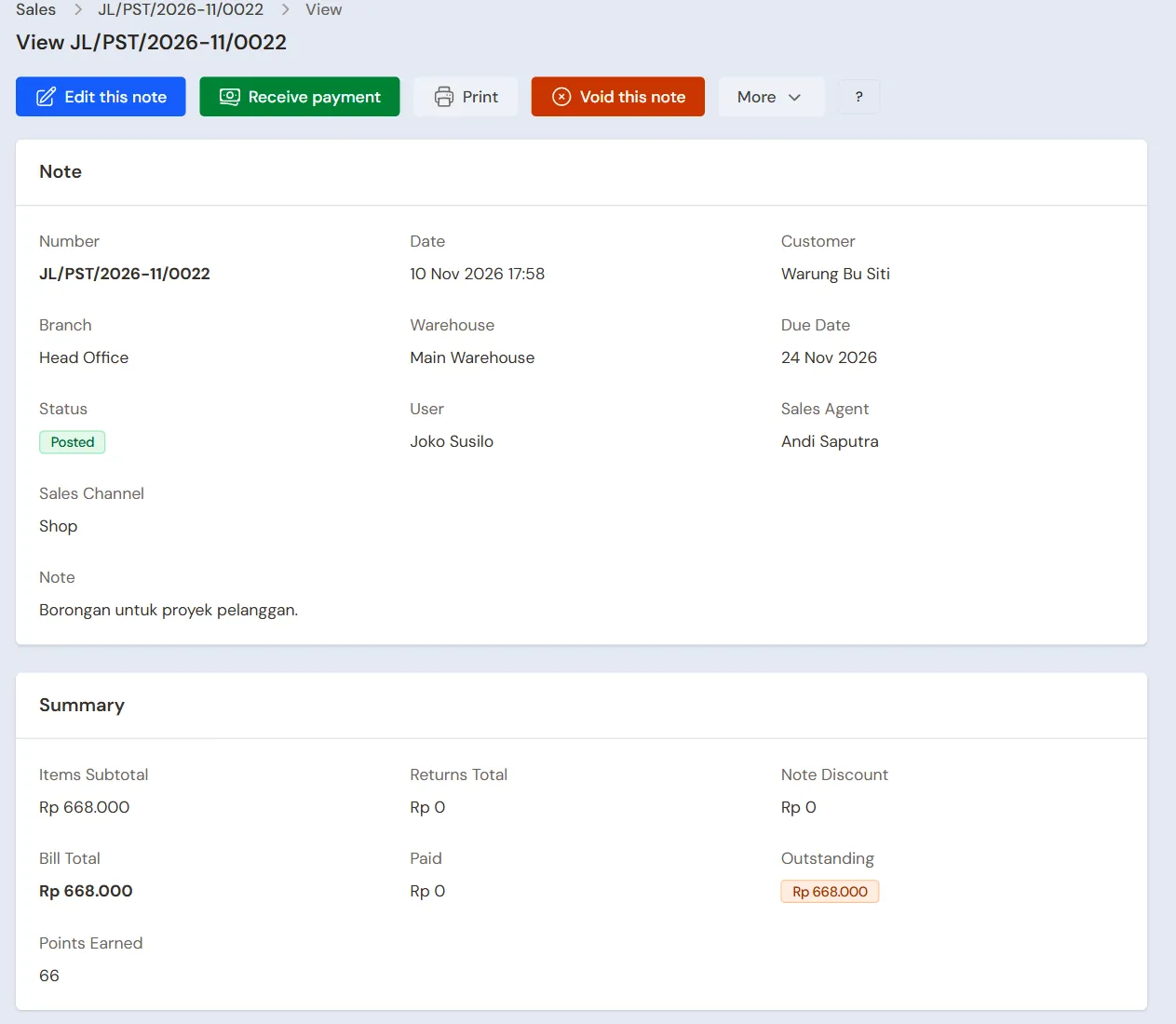
- Print: the PDF note or invoice, the delivery note, the till receipt, or sending it by WhatsApp. See Printing receipts and notes.
- Receive payment: shown while the note still owes something. Opens Sale Payments with the customer, this note and what it still owes filled in. The same money icon is on the note's row of the list. See Straight from the note or the customer.
- Pay the shipping to the courier: shown when the shipping of this note is still owed to its courier. Opens Purchase Payments with the courier and this shipping filled in.
- Edit this note: opens the note on the screen you use for New sale (the till or invoice mode), or the till for a note only the till writes. The same pencil icon is on the note's row in the list, only for those who may change that note now. See Correcting a wrong note.
- Void this note and Delete Note: see Voiding and deleting a note.
- Change due date (in the More menu): move the due date of a customer note that is not fully paid.
- Make Delivery Note: for a note sent in several deliveries. See Sending goods in several deliveries with delivery notes.
- Change note (in the More menu): write or correct the note's remark without changing its contents. See Correcting a wrong note.
- Apply to another note (in the More menu): appears when this note is overpaid because of a return. See Keeping and applying a customer's credit balance.
- Ask for permission: appears when you may not change or void the note and the Ask a manager's permission feature is on. Choose the permission, write the reason, then press Send request. Your manager is notified.
Viewing by product line
Want to see every product sold, not per note? Open Transaction Details → Sale Lines. Each row there is one product on a note. The Sold tab holds the goods sold, the Returned tab holds the goods customers brought back. This list opens on the current month. Draft and void notes are not shown, unless you choose them in the status filter.
The sales summary and the profit per product and per note are in Seeing your sales results.
Tip: The sales list can be downloaded with the Export to Excel button when the extra Excel export feature is on. Its content follows the active filters.