
Setting and monitoring customer receivables
Set the payment terms and credit limits of customers, see who has not paid and since when, then collect and record the payments.
On this page
A receivable is money a customer has not paid the shop yet. A receivable appears when a registered customer pays part of a note or has not paid it yet. A walk-in customer must always pay in full.
Payment terms and due date
Fill in Payment Terms (days) on the customer record, for example 30. An unpaid note then gets a due date 30 days after the note date.
- Leave it empty when the customer has no payment terms.
- The due date of one note can be moved through Change due date (in the More menu) on the note page. See Correcting a wrong note.
Credit limit
Credit limits are an extra feature. If the Credit Limit section is missing, contact the Vende team to switch it on.
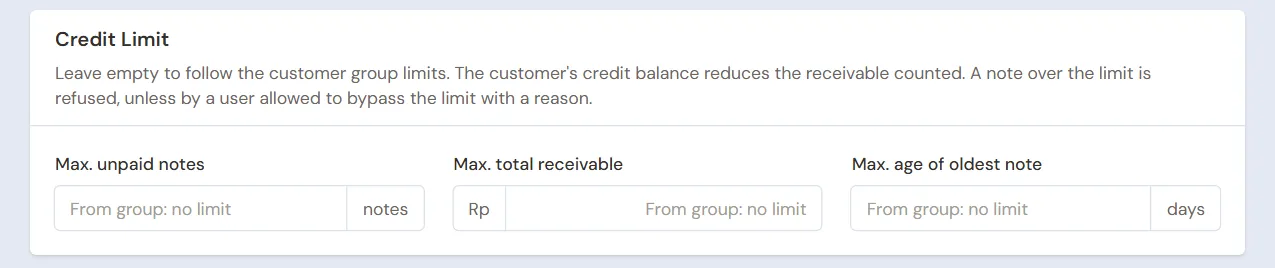
A credit limit stops a customer from owing too much. There are three limits, and all of them may be left empty:
| Field | Meaning |
|---|---|
| Max. unpaid notes | How many notes may be unpaid at the same time. |
| Max. total receivable | The largest total receivable. |
| Max. age of oldest note | How many days the oldest note may stay unpaid. |
The limits can be set in two places:
- On the customer group, for all its members. See Setting up customer groups.
- On the customer record, in the Credit Limit section. Leave it empty to follow the limits of the group.
The customer's credit balance reduces the receivable that is counted.
When a note passes the limit
When a note is saved, Vende checks the credit limit. When it is passed, the payment window shows a message, for example that the oldest unpaid note is older than its limit.
- The cashier can ask the customer to pay in full, or ask a manager for permission.
- A user allowed to pass the limit can still save by filling in Reason for passing the credit limit. The reason is recorded in the note's history.
Viewing receivables
| Where | What it shows |
|---|---|
| Master Data → Customers | The Receivable column of each customer. |
| Transactions → Sales, tab Unpaid | Every note that still has an amount to pay. |
| Reports → Receivables | The receivables per customer by age, then the list of unpaid notes. |
| Reports → Receivable Card | Every note, payment, and return of one customer in one period, with a running balance. |
The Dashboard also shows the receivables due this week and the receivable notes already overdue. How to read the reports is in Receivables and payables reports.
Due date reminders
Vende reminds you on the notification bell of receivables that are almost due and of those already overdue.
- Open Settings → Alerts.
- In the Due Dates section, fill in Due Date Reminder, for example 3 days before the due date. Enter 0 for overdue ones only.
- Press Save changes.
Collecting and recording payments
- The customer pays at the shop or by transfer: press Receive payment on the note page or the customer page (or the money icon on its row of the list): Sale Payments opens with the customer, the note and the amount filled in. See Recording payment of an unpaid note.
- The shop has collectors who visit customers: see Collecting receivables through collectors.
Receivables from before Vende
A customer already owed the shop money before it started using Vende? Record it in Settings → Opening Balances, on the Opening Receivables tab. Opening balance notes can be paid and offset like ordinary notes. See Entering opening cash, stock, receivables and payables.
Tip: The Receivable Card of one customer can be downloaded as a PDF, then sent to that customer to help you collect.
Supporting reading
Articles on the background and the arithmetic.
- Cara Mencatat Bon atau Kasbon Pelanggan di Warung dan Toko Cara mencatat bon warga di warung dan toko supaya jumlahnya jelas, pembayaran sebagian tercatat, dan hubungan baik tetap terjaga.
- Piutang Pelanggan Macet: Cara Menagih Tanpa Merusak Hubungan Urutan menagih piutang yang sopan tapi tegas, dari pengingat sebelum jatuh tempo sampai kapan sebuah tagihan perlu dianggap macet.
- Kapan Piutang Boleh Dihapus karena Tidak Tertagih Kriteria piutang yang dianggap tak tertagih, langkah yang perlu dilakukan sebelum menghapusnya, dan cara mencatatnya sebagai kerugian tanpa merusak laporan.