
Quantity prices
Give a cheaper price for buying in quantity, for example a lower price per piece from 12 pieces, also across products with a Bulk Price Group.
On this page
Quantity prices lower the price per unit when the buyer buys more. The till applies them by itself, by the quantity on the note.
This is an extra feature. If the quantity price table is missing from the product form, contact the Vende team to switch it on.
Filling in the quantity prices table
- Open the product under Master Data → Products.
- Find the Quantity prices table right below Selling Price.
- Fill in From quantity, for example 12, then its Price, for example Rp 9.000.
- Press Enter to move to the next field, and then to a new row.
- Add more rows if needed, for example from 50 at Rp 8.500.
- Press Save changes below the form.
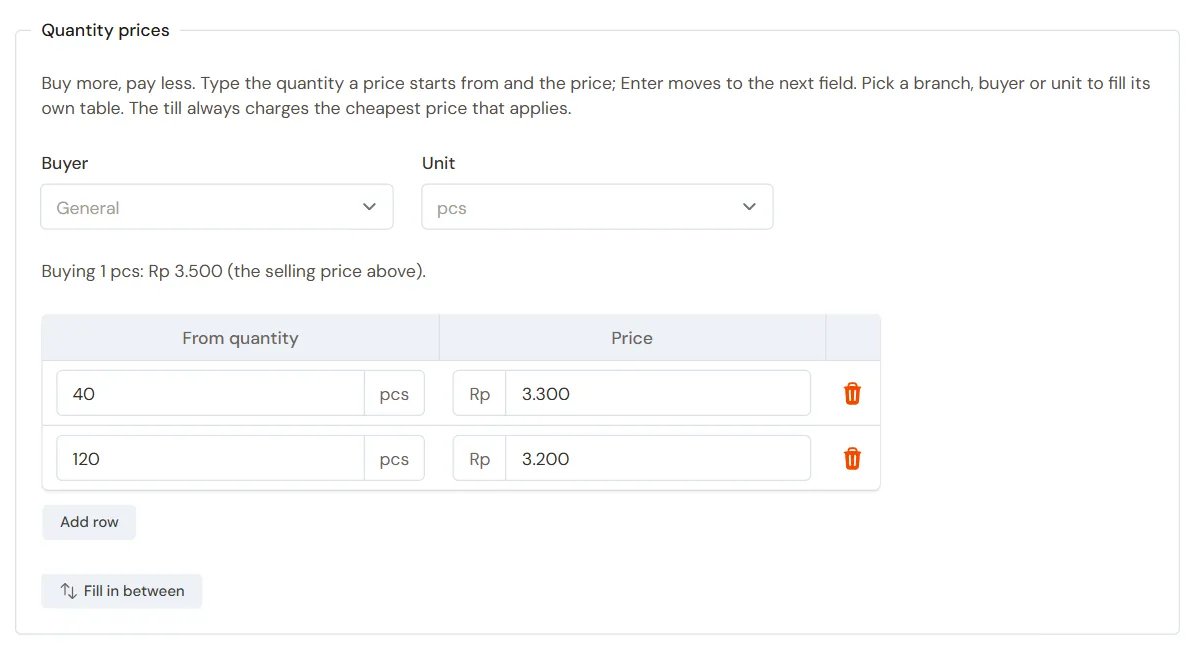
In the General table for every branch, buying 1 uses the Selling Price above the table. That is why this table starts from a quantity above 1.
Example: Selling Price Rp 10.000. The table holds from 12 at Rp 9.000 and from 50 at Rp 8.500.
- Buying 5: Rp 10.000 each.
- Buying 12 to 49: Rp 9.000 each.
- Buying 50 or more: Rp 8.500 each.
Tables for a branch, a buyer or another unit
Above the table are three choices. The General table applies to every buyer.
- Branch: fill in a table that only applies in one branch.
- Buyer: fill in a table for one customer group, for example Wholesale.
- Unit: fill in a table for another unit, for example from 5 Boxes. Buying 1 Box uses the Box selling price under Other Units.
All tables are saved together when you press Save changes.
Filling in the rows in between
Do not want to work out each row? Fill in only the last row, then press Fill in between.
Example: Selling Price Rp 10.000 and the last row from 100 at Rp 8.000. Vende adds from 25 at Rp 9.500, from 50 at Rp 9.000 and from 75 at Rp 8.500. The prices follow the shop's price rounding. Check them, then press Save changes.
Copying a price to a group
While the table of one group is open, for example Wholesale, a button like "Copy the price from 12 pcs to Wholesale" shows. This button gives Wholesale customers the price for 12 pieces, from buying 1. Press Save changes afterwards.
Several products added together: Bulk Price Group
A factory sometimes gives the bulk price for the quantity of several products together. The Bulk Price Group is an extra feature of its own, Bulk price groups, which builds on Quantity prices. It is already on in the Hardware/building supply store package. In other shops, contact the Vende team to switch it on. Example in a hardware store: spandek roofing sheet in 3M and 4M is sold per metre, Rp 40.000 a metre, and Rp 36.000 a metre from 2,000 metres. A buyer who takes 1,000 metres of 3M and 1,000 metres of 4M has reached 2,000 metres, so both lines get Rp 36.000.
How to set it up:
- Open the product Spandek 3M in Data Master → Products.
- At the top of the form, fill in Bulk Price Group with the name of the group, for example Spandek Pandawa 0.25. Not there yet? Press + Create New beside it, fill in the name and save.
- Give Spandek 4M the same Bulk Price Group and save.
- Fill in the Quantity prices table of each product as usual.
The Data Master → Bulk Price Groups menu, the Bulk Price Group field on the product form and the bulk_price_group column of the product import and export only exist while the Bulk price groups feature is on. The rules:
- What is added up is every goods line of one note whose product is in the same group, in the base unit. One line of 334 sheets of Spandek 3M counts as 1,002 metres.
- Each product still uses its own price table. The combined quantity only decides which row of the table applies.
- Return lines and free goods from a promotion are not added up.
- Products of one group must have the same base unit. If not, Vende refuses and names the product that already uses the group.
- In the example, 1,000 metres of 3M plus 900 metres of 4M is only 1,900 metres, so both stay at Rp 39.000 a metre.
- Old notes do not change. The till, Invoice Mode, Quick Sale, quotations, orders and imports use the same rule, and the price on screen matches the one the server saves.
Deleting a group does not delete its products. They are counted on their own again. The group can also be filled in with the bulk_price_group column of the product import, and it comes along in the product export.
When the Bulk price groups feature is switched off, the groups and their products are not deleted, but they are not used: every product on a note is counted on its own, and the menu, the field and the columns are hidden. When the feature is on again, the old groups apply again. A shop that already used Bulk Price Groups before this feature became separate keeps it on automatically.
Notes under the table
Vende shows a note when:
- the price of a row is below the cost price;
- a row is never used, because a smaller row is already cheaper.
These notes do not stop you saving. The till always uses the cheapest price that applies.
Tip: Quantity prices can also be filled in on the Quick Price Edit screen, with the Quantity prices button under the unit name. See Bulk Price Change and Quick Price Edit.
Supporting reading
Articles on the background and the arithmetic.