
Product variants: sizes, colours and more
Record one parent product with its sizes or colours. Every combination has its own stock, price, code and barcode.
On this page
Goods that come in sizes, colours or other options, for example Kaos Polos in sizes S, M, L and colours Black and White, are recorded as one parent product. Every combination becomes a variant with its own stock, selling price, cost price, code and barcode. This is an extra feature. If the Variants section is missing from the product form, contact the Vende team to switch it on.
Variants differ from the add-on options of a café (a sugar level, say): an add-on option has no stock of its own, a variant has.
Making a parent product and its variants
- Open Master Data → Products, then press New Product.
- Fill in the parent's Name, for example Kaos Polos, then Category, Brand and Base Unit. Every variant takes these.
- In the Variants section, switch on Has variants (size, colour and more).
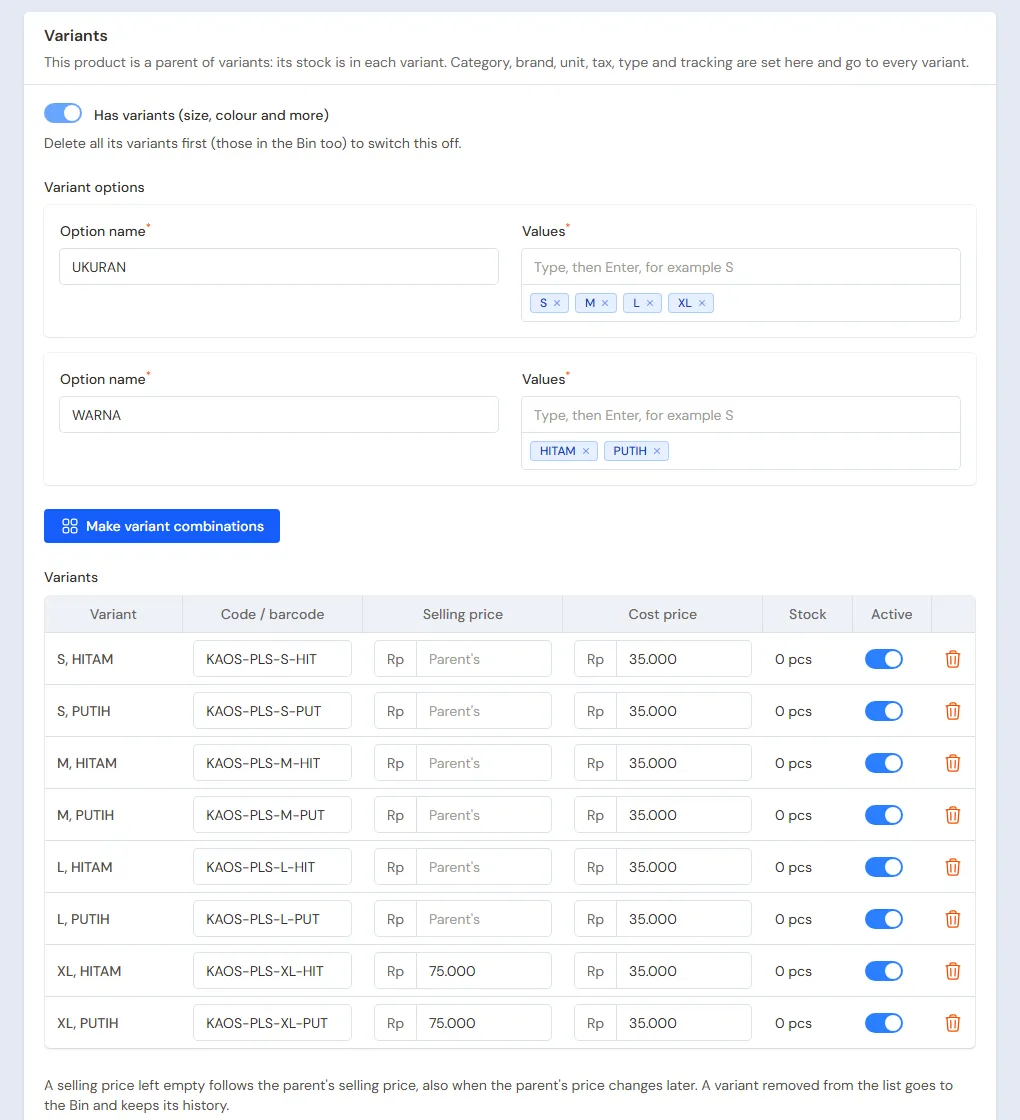
- Under Variant options, fill in the Option name, for example Size, then type each Value and press Enter: S, M, L. Press Add option for the next option, for example Colour. At most three options.
- Press Make variant combinations. Every combination shows as a row under Variants, for example S, Black.
- Fill in the Code / barcode of each variant, or press Fill in empty codes to use the shop's numbering.
- Fill in the parent's Cost Price and Selling Price. A variant whose Selling price is left empty takes the parent's selling price.
- Press Create.
Each variant's name is made from the parent's name and its values, for example Kaos Polos - S, Black. That name shows on the till, notes, receipts and reports.
When the parent has a Printed Name, each variant prints that name with its values on the buyer's note. See Printed name.
Price, cost and stock of each variant
- A Selling price left empty follows the parent's selling price, also when the parent's price changes later. Type a price of its own for a variant that differs, for example XL Rp 60.000.
- Typing another price for that variant in Quick Price Edit, Bulk Price Change or an import makes it its own too. On the variant's page, switch Follow the parent's selling price back on to follow the parent again.
- Changing the parent's price in Bulk Price Change moves the variants that follow it too. Bulk Price Change for one branch changes that branch's price on each variant, as the parent is never sold.
- Someone who may only change their branches' prices cannot change the selling price of a saved variant, as with any other product's selling price.
- Quantity (wholesale) prices count per variant: 6 S and 6 M count as 6 and 6, not 12.
- The Cost price in the list of variants is only the starting cost. After that every variant has the running average cost of its own purchases.
- Stock is kept per variant. The parent has no stock of its own and is never sold. On the product list, a parent's stock is the stock of all its variants added up.
Every variant is also a row on the product list. Open its row and press Edit to set that variant's price list, suppliers, rack locations, minimum stock and pictures. Name, category, brand, unit, tax, type, tracking, registration number and halal certificate are set on the parent product and go to every variant. To see each product once, switch on the Hide variant rows filter.
Selling and buying variants
- Till: a parent product shows how many variants it has. Tap the product, then tap the variant in the Choose a variant window. Scanning a variant's barcode puts that variant on the note at once.
- Quick sale: tap the parent product, then choose its variant.
- Purchases, stock adjustments, stock counts, stock transfers, returns and label printing: type the parent's name. All its variants show with their full names, for example Kaos Polos - M, White.
- Special Prices and service packages: pick the variant. For all variants at once, make the Special Price per category or brand of the parent.
- Online catalog: a parent product shows once with its price range. Its page lists every active variant with its price, available or out of stock, and its own cart button.
Adding a new size or colour
- Open the parent product.
- Under Variant options, add the new value, for example XL.
- Press Make variant combinations. Only the combinations not there yet are added.
- Fill in their codes and prices, then press Save.
A new option (Material, say) cannot be added once there are variants. A value still used by a variant cannot be removed either: delete the variant's row first. A variant removed from the list goes to the Bin and keeps its history. Switch Active off when a variant is only not on sale for now.
Adding variants takes the permission to add products, and removing a variant from the list the permission to delete products. A variant in the Bin can be restored, unless its parent already has another variant with the same values or its value was removed from the variant options.
Reports per variant and per parent
Every stock and sales report counts each variant on its own. To add them up per parent:
- Reports → Stock: switch on Sum variants per parent.
- Reports → Profit by Item: choose Parent product (variants summed) under Group by. Press the parent's name, or pick the parent in the Item field, for the sales history of all its variants.
- Reports → Stock Card: pick the parent product (marked all variants). Each line names its variant.
- In Transaction Details, picking a parent product in the product filter shows the lines of all its variants.
Importing from Excel
Variants can be imported with Import Products. Fill the Variant Parent column with the parent product's code or name, and the Variant column with its values, for example Size: S; Colour: Black. A parent that is not there yet is made from its first row. See Importing and exporting products with Excel.
Tip: A product that already has stock history or is on a note cannot become a parent. Make a new parent product with its variants, then move the old stock with a stock adjustment.