
Sending goods in several deliveries with delivery notes
Send the goods of a note or an order in several trips, record the stock leaving per delivery, then bill the delivery notes later with one note.
On this page
A delivery note records the goods that go out to a customer in one delivery, without prices. The stock leaves the warehouse on the delivery date of the delivery note.
There are two ways to use it:
- Note first, goods sent in several deliveries. A customer buys 100 sacks of cement, but 40 sacks are sent today and 60 sacks next week.
- Goods sent first, note later. The goods of an order are sent in several trips, then billed with one note.
This is an extra feature. If its menu is missing, contact the Vende team to switch it on.
Note first, goods sent in several deliveries
-
Write the note in Invoice mode, then tick Send in several deliveries with delivery notes. See Making a note in invoice mode.
-
Fill in the payment as usual, then press Post. The stock does not leave yet.
-
When the goods are sent, open the note, then press Make Delivery Note.
-
Fill in the Delivery Date, From Warehouse, and if needed the Driver and Vehicle.
-
In Goods Sent, fill in the Sent column for the goods leaving today. The Not sent yet column shows what is left.
-
Check the Delivery Address, then press Save Delivery Note.
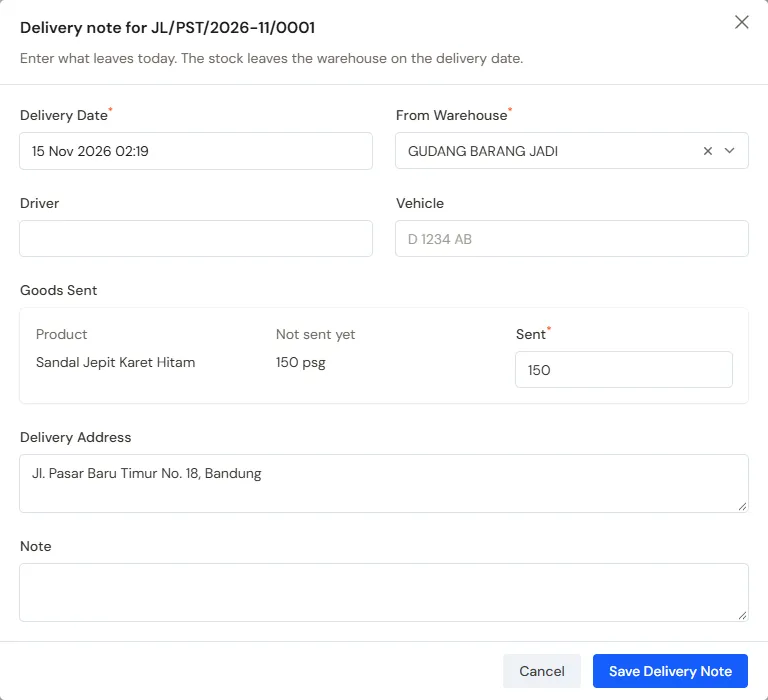
The Sent field starts with what is left to send; lower it when only part goes today -
Press Print in the notice that appears. The delivery note page opens, then print it as in the Printing a delivery note part below.
Repeat steps 3 to 7 for the next delivery. The Deliveries part on the note page shows how much has and has not been sent, with the list of its delivery notes. On the Sales list the note carries Not sent yet or Partly sent with the goods left, until all its goods have gone. See Follow-up badges.
A note sent in several deliveries cannot hold returns or serial-numbered goods.
While the Gallon exchange feature is on, the empties swapped on the note go into stock with each delivery note, for the goods it carries, and the delivery note's page writes them under its goods. See A note whose goods are sent later.
Goods sent first, note later
- Record the order in Transactions → Sales Orders. See Recording a sales order.
- When the goods are sent, open the order, then press Make Delivery Note. Fill it in as in the steps above.
- When it is time to bill, press Make Note from Delivery Notes.
- Choose the delivery notes to bill, then press Make Draft Note.
- The draft note opens on the sales screen at the order prices. Check it, then post it.
One note may combine several delivery notes, as long as the customer is the same. The order's down payment is taken off the note when the note is posted.
On the Sales Orders list, an order sent in part carries Partly sent, and an order whose delivery notes are on no note yet carries Waiting for a note.
The delivery note list
Every delivery note is in Transactions → Delivery Notes.
- Press Make Delivery Note, choose a note or an order whose goods are still waiting, then press Continue. The warehouse staff usually make delivery notes from here.
- The Waiting for a Note tab holds order delivery notes that have no note yet. The Billed tab holds order delivery notes that have been billed. Delivery notes of a note sent in several deliveries are in the All tab.
- To bill at once, tick several delivery notes of the same customer, then choose Make Note from Delivery Notes.
One driver's deliveries of the day
For one driver's delivery sheet with the shops in route order, make a delivery run: each shop's delivery note is made when the run is printed. See Delivering goods with a daily delivery run.
The funnel icon filters this list by the delivery date (From and Until), Status (Waiting for a note, Billed, or Delivery of a note), Packing (Not packed, Partly in boxes, or All in boxes), Driver and Vehicle. Press Apply filters after choosing. The Driver and Vehicle choices hold the names written on delivery notes so far, so write a name the same way every time.
For example, fill in today in both dates and pick the driver Pak Wawan. The list holds every shop he delivers to that day. Open each delivery note and print it for the driver. Goods without a delivery note yet show in Make Delivery Note: its choices are the notes and orders whose goods still wait to be sent.
Printing a delivery note
Open the delivery note, then press Delivery Note. The driver's name and the vehicle are filled in from that delivery note. Choose A4, A5 or dot matrix paper, then press Print PDF.
A delivery note can also be printed for an ordinary note that is not sent in several deliveries: open the note, press Print, then Delivery Note.
Packing into boxes, sacks or parcels
Goods sent in bulk are usually packed per box, sack or parcel. A delivery note can record what is in each one, print a label to stick on it, and print a packing list for the customer and the driver. Packing is optional: a delivery note with no box works as before.
The Warehouse Admin does it once the delivery note is made, while the goods are still in the warehouse:
- Open the delivery note and press Packing. The page is made to be used on the warehouse phone.
- Under New box, pick the type (box, sack or parcel), fill in Weight (kg), Size and Note on the label (for example "Fragile, do not drop") if you want, then press Make Box. The numbers run in order: box 1, 2, 3.
- On a box card, pick the goods, fill in the quantity and press Put in this box. One line of goods may be split over several boxes: 120 buckets can be 70 in box 1 and 50 in box 2. The All button puts in everything that is left of those goods.
- Or pick a box under Scan goods, then scan or type a product code. Each scan puts one unit of those goods in. A code that is not goods on this delivery note, or goods that are all in boxes already, is refused with the reason.
- The Goods on this delivery note part at the top of the page shows what is not in a box yet, goods by goods.
Put something in by mistake? The bin icon on a goods row takes it out of the box, and Delete box removes the box: its goods become not in a box again and the boxes after it move up one number.
Once all the goods are in boxes, on the delivery note page:
- Print Box Labels: one label per box with the box number (for example Box 1 of 5), the delivery note number, the customer's name and address, a short list of contents, the weight and a QR code. Pick one label per 100 x 150 mm page for a label printer, or four labels on an A4 sheet. The QR code opens the contents of that box on a phone without signing in; the page shows no prices, customer or address.
- Print Packing List: the contents of every box without prices and the box count, with a box for the receiver to sign after matching the count.
While some goods are still outside the boxes, both prints are refused and the message names the goods not in a box yet. On the delivery note page the Packing part (it appears once there is a box) shows the same, and the Packing column of the delivery note list (hidden at first, switch it on with the column picker) reads Not packed, Partly in boxes or All in boxes.
A delivery note the customer received only in part (the result of a delivery list) also takes goods out of the boxes: the goods that came back leave the last box first.
Deleting a delivery note
Recorded it wrongly? Open the delivery note, then press Delete. Its goods go back into stock and wait to be sent again.
A delivery note that has been billed on a note can only be deleted after that note is voided.