
Printing receipts and notes
Set the receipt printer on each device, print through the browser or a Bluetooth printer with RawBT, reprint receipts, and print A4 or dot matrix notes.
On this page
Receipts are printed from the sales screen to the printer of the device in use. A4, A5 or dot matrix notes are printed from the note page as a PDF.
Setting this device's printer
Each device keeps its own printer choice.
- On the till, press the Device settings button. In Quick sale, the button is This device's printer and warehouse.
- Choose the Printer:
- Bluetooth thermal (RawBT) for a Bluetooth thermal printer connected to an Android phone;
- Regular printer (browser) for a printer already installed on the computer, laptop or tablet.
- Choose the Paper width: 58 mm or 80 mm, to match your printer's paper roll.
On an Android phone, the starting choice is RawBT. On other devices, the starting choice is the regular printer.
Printing to a Bluetooth printer with RawBT
RawBT is an Android app that passes receipts from Vende on to a Bluetooth thermal printer. The app must already be installed on the cashier's phone and connected to its printer. How to connect it follows the instructions of the RawBT app.
- In Vende, choose the Bluetooth thermal (RawBT) printer and its paper width.
- When you print, Vende sends the receipt to RawBT, and RawBT prints it.
Till receipts, payment receipts and laundry slips through RawBT start with the shop logo in black and white (when Show the logo is on and the logo is a PNG, JPG or WebP). The logo's height (Small, Medium or Large), the letter size, bold total, blank lines before cutting, and copies through RawBT are set in Settings → Print.
Printing the receipt after a sale
On the till, the receipt appears once the note is saved.
-
Check the Printer and Paper width in the receipt window.
-
Press Print.
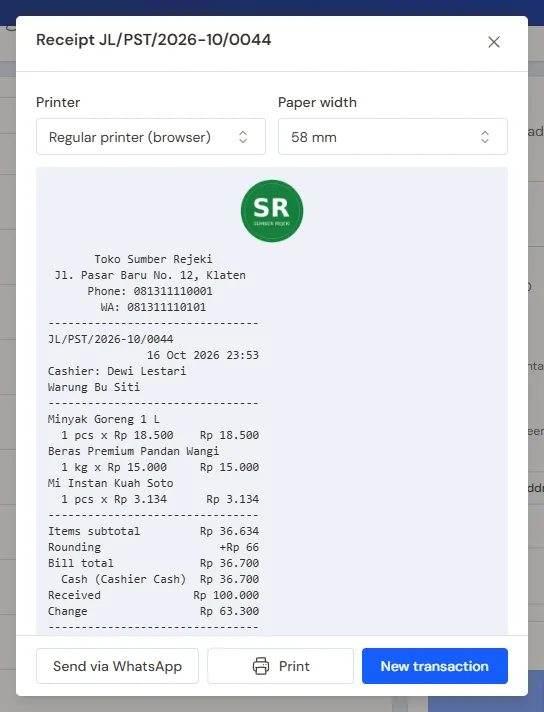
The receipt window on the till -
Press New transaction for the next buyer.
Want it printed straight away? Press F12 to save and print at once. In Quick sale, the receipt is printed straight after Save & print.
Printing right after saving
In Mode Faktur, tick Print beside the Post button (or press F12 for this once only). The note is posted, then its page opens and prints the note at once, without the paper dialog. The paper's name is written beside the tick: tap it to change it on this device. The tick and the paper are remembered per device. The paper is taken in this order: this device's choice (Remember on this device or the tap above), then the shop's default paper in Settings → Print, then A4. The PDF opens in a new tab, ready to print; on a phone, the PDF is downloaded. When the default paper is a receipt roll, the receipt window opens. If the browser holds the new tab back, press the Open PDF link in the notice.
This print goes on the note's history like any other, and the next print is marked COPY. Another paper is still chosen with Print on the note's page. A note saved as a draft is not printed. The same Print tick is on the sales order, quotation and purchase order screens, beside Save. With Post & New, the note prints in a tab of its own and the empty screen stays in the first tab; if the browser holds that tab back, the print opens in this tab.
Reprinting a receipt
- On the till, press the Reprint a receipt button at the top.
- Search for the note number, the customer's name, or words from its Note field. The latest notes at this branch are shown at once.
- Choose the note, then press Print a copy. When the copy mark is switched off, the button is Print again.
A receipt can also be reprinted from the note page: press Print, then Print receipt. In the sales list, the printer icon (Print) at the end of a row holds the same prints as the Print menu on the note page (PDF, delivery note, receipt and Send via WhatsApp), so you need not open the note first. The lists of other documents, such as orders, purchases, stock transfers and payments, have a Print icon too, with the same content as the document's page.
Every reprint is logged on the note's history and marked COPY. This mark can be switched off in Settings → Print, in the Documents section, for the Sales note document (a note still owed on follows its When not yet paid (Invoice) part). The print history is still logged. The Cashier Manager and the shop owner can reprint one receipt without the mark from the note page: press Print without the COPY mark in the receipt window. See Reprinting without the COPY mark.
Printing an A4, A5 or dot matrix note
- Open the note in Transactions → Sales.
- Press Print, then Print PDF.
- Choose the Paper Size: A4, A5, or continuous form for a dot matrix printer.
- Tick Remember on this device when this device always uses that paper.
- Press Print PDF. The PDF opens in a new tab, ready to print or save. On a phone, the PDF is downloaded.
A note that is not fully paid prints as a Sales Invoice, with the shop's bank account when one is set. A fully paid note prints as a Sales Note.
For a dot matrix printer, open the PDF and print it at 100% scale (actual size), not "fit to page".
Setting the content of receipts and notes
- Settings → Print: the closing words, the WhatsApp number on receipts, unit prices and the logo. There is a preview before saving.
- Settings → Shop: the shop's name, address, phone and logo.
- Settings → Print: the default paper for each kind of document and the layout of PDF documents.
Each branch can use its own name, address, phone, WhatsApp and closing words in Master Data → Branches.
See Setting up the receipt, Choosing the print paper for each document, and Setting the print layout.
Receipts can also be sent without paper. See Sending a receipt by WhatsApp.