
Making a price quotation
Write a price quotation for a customer or a prospect, print its PDF, then turn it into an order or a sale once it is accepted.
On this page
A quotation is a list of goods and prices you send to a customer before they buy. A quotation does not change the stock or the cash.
This is an extra feature. If its menu is missing, contact the Vende team to switch it on.
Making a quotation
-
Open Transactions → Quotations, then press New Quotation.
-
Choose the Customer. Prices follow that customer's price list.
-
Not a registered customer yet? Leave Customer empty, then fill in Prospect Name.
-
Fill in Quotation Date and Valid Until, the last date these prices hold.
-
Choose the Sales Agent if there is one. Filled in automatically with the Sales Agent linked to your login (Linked User on the sales agent); you can still change it.
-
Search for goods by name, code or rack, or scan the barcode. Fill in the quantity and choose the unit when the product has more than one, then press Enter. To quote a raw material, tick Show raw materials under the search box. See Selling raw materials.
-
Change the unit, quantity or discount on each line if needed. Only users who are allowed to can type a price. When the quotation is opened again, a line left as it was keeps its price and tax. On a narrow screen some columns such as the price and discount move to the line's details. The price still shows under the product name, and so does a discount once filled in; what you can change has a pencil mark. Tap or click the product name to change them.
-
Fill in Note Discount if there is one: rupiah (50.000) or a percentage (5%).
-
Press Save.
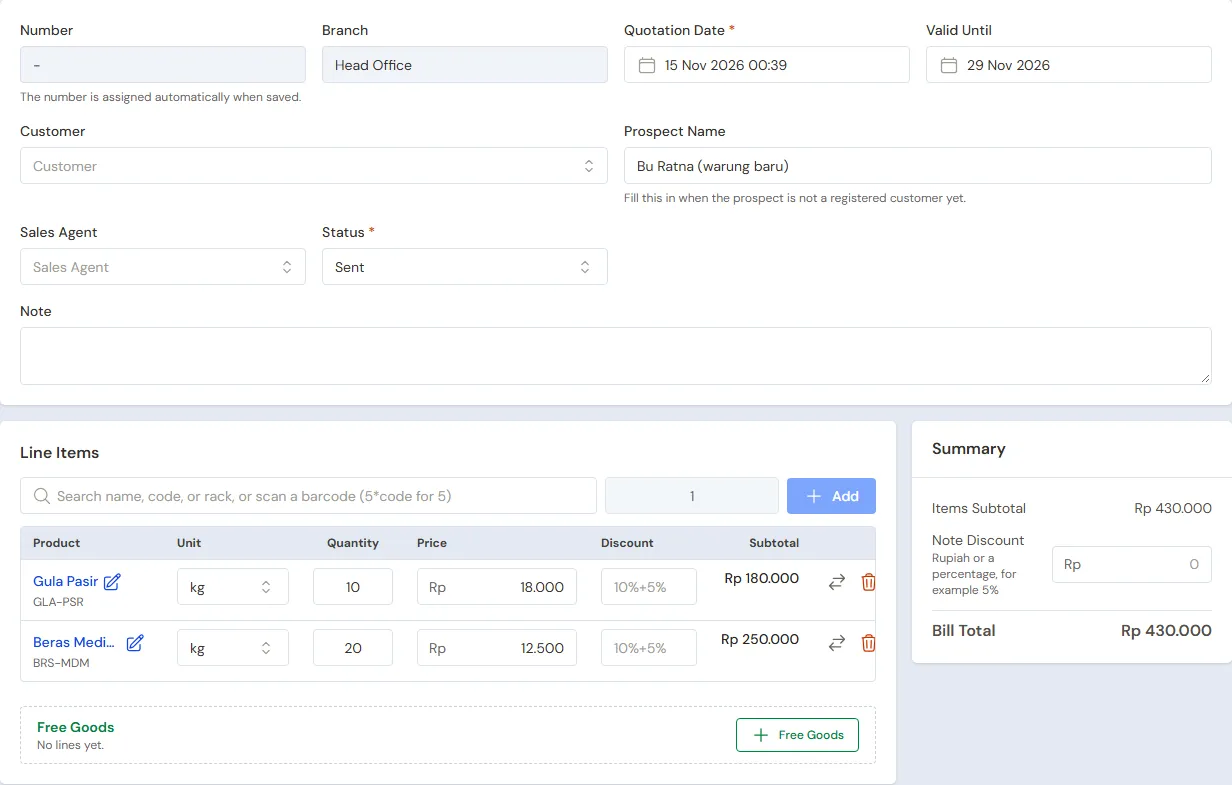
A quotation for a prospect who is not a registered customer yet
The quotation page then opens. Save & New saves, then opens an empty quotation with the customer and date still filled in. Tick Print beside Save to print the quotation right after it is saved; tap the paper name to change it on this device (F12: save and print this once).
Goods given at no charge are recorded in the Free Goods part. The part is folded while empty; press + Free Goods to open it, or Make it free on a line already written. Free goods count as a 100% discount and follow your discount limit.
VAT on a quotation
A quotation has no VAT field of its own. The VAT on each line follows the tax set on its product, and it only counts when Settings → Sales → Collect tax on notes is on. When it is on, the quotation shows the tax per line and in the total, the tax is printed on the quotation PDF, and the order and note made from it use the same tax.
To make VAT appear:
- Open Master Data → Taxes, then make or open the VAT tax and switch on This tax is VAT. Choose Tax is added or Price includes tax.
- Set that tax in the Tax field of each product that carries VAT.
- Switch on Collect tax on notes in Settings → Sales.
The full steps are in Setting up VAT for a PKP shop.
Important: Only a PKP shop (Pengusaha Kena Pajak, a VAT-registered business) may charge VAT. A shop that is not a PKP should not put VAT on a quotation. See Who may charge VAT.
Printing and sending
- On the quotation page, press Print PDF.
- Choose the Paper Size, then press Print PDF.
- The PDF opens in a new tab. Print it, save it, or send it to the customer. On a phone, the PDF is downloaded.
The letterhead, logo, item columns, terms and signatures follow Settings → Print, in the Documents section.
Quotation status
| Status | Meaning |
|---|---|
| Sent | Sent, waiting for the customer's answer. |
| Accepted | The customer agrees. |
| Rejected | The customer has decided against it. |
| Expired | The Valid Until date has passed. |
| Converted | Already turned into an order or a sale. |
Change the status with Edit, in the Status field. Expired is also set by itself once the Valid Until date has passed. Converted is set by itself when the quotation is carried forward.
While the Sales feature is on, the Sales filter on the quotation list (funnel icon) shows the quotations of one sales person only.
Turning it into an order or a sale
A quotation that is Sent or Accepted can be carried forward.
- Convert to Order: when the goods are collected or delivered later. Choose the Warehouse and the Pickup Date, then press Convert to Order. The order page opens. Without the May Order Beyond Stock role, a quotation asking for more than can be sold cannot be converted to an order. See Recording a sales order and Orders within stock.
- Convert to Sale: when the customer buys straight away. Vende makes a draft note and opens it on the till to be checked and paid.
The prices and discounts written on the quotation are kept on the order and its note.
The validity has passed but the prices are still agreed? Change the Valid Until date first, then turn it into an order or a sale.
Tip: A quotation already turned into an order or a sale cannot be changed any more. Change the order or its note instead.