
Recording a sales order
Record goods a customer orders to collect or have delivered later, get them ready, then turn the order into a sales note when the customer comes.
On this page
A sales order records goods a customer has ordered but not yet received. An order does not change the stock or the cash yet. The stock only goes down when the sales note from that order is saved, or when the goods are sent with a delivery note.
This is an extra feature. If its menu is missing, contact the Vende team to switch it on.
Making an order
- Open Transactions → Sales Orders, then press New Sales Order.
- Fill in Order Date. You may fill in Pickup Date when you already know when the order is collected or delivered.
- Choose the Customer. Their delivery address is filled in too and can be changed: the customer's main delivery address, or the customer's Address when they have no delivery address. This address is printed on the delivery note.
- Choose the Warehouse the goods come from and the Sales Agent if there is one. Filled in automatically with the Sales Agent linked to your login (Linked User on the sales agent); you can still change it.
- Search for goods by name, code or rack, or scan the barcode. Fill in the quantity and choose the unit when the product has more than one, then press Enter. To order a raw material, tick Show raw materials under the search box. See Selling raw materials.
- A new line starts in the product's Selling Unit (empty = the base unit). Change the unit, quantity or discount on each line if needed. Prices follow the customer's price list. On a narrow screen some columns such as the price and discount move to the line's details. The price still shows under the product name, and so does a discount once filled in; what you can change has a pencil mark. Tap or click the product name to change them.
- Press Save. Tick Print beside Save to print the order right after it is saved; tap the paper name to change it on this device (F12: save and print this once).
The order page then opens. An order can also be made from a quotation with Convert to Order. See Making a price quotation.
Stock already booked
Once products are picked, Stock shows under the lines for each product: the stock in the order's warehouse, what other sales orders have booked, and what can sell, for example Stock 50 Sak · booked 20 Sak · can sell 30 Sak. When this order asks for more, the shortfall is shown in red, for example This order 40 Sak, short by 10 Sak. When an existing order is changed, only the orders placed before it count as booked, as on the order's page.
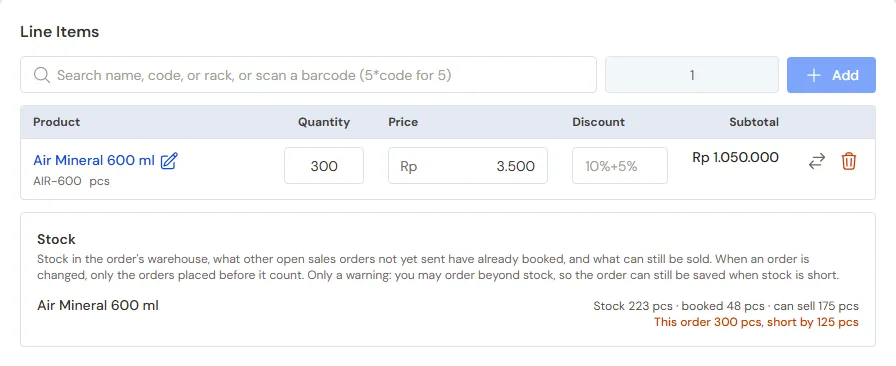
What counts as booked is the goods of orders that are Open or Ready for pickup, not yet sent and not yet billed on a note. When part was already sent with a delivery note, only the rest counts. An order with a draft note still counts until the note is saved. When the note made from an order is voided, the order waits again and counts again. An order Awaiting review from the buyer portal, the online store or a sales person (when the shop asks for admin approval) does not count until it is accepted. Services do not count.
Real stock only goes down when the goods are sent or billed on a note.
Orders within stock
Who may save an order beyond what can be sold is set with the May Order Beyond Stock role under Settings → Users (Cashier Operator includes it):
- With that role the figures are only a warning. The order can still be saved when stock is short, and the admin decides which orders become sales.
- Without that role, for example a salesperson with the job title Salesperson (within stock), an order beyond what can be sold cannot be saved. The Stock section says so before saving, for example This order 480 Btl, short by 360 Btl. It cannot be saved beyond stock, and on saving the product's line is marked Not enough stock of ...: short by 360 Btl. Lower the quantity to what can be sold, or ask a supervisor who holds the role.
Lowering a quantity or removing a line is always allowed, even while stock is still short. Services are not checked. The rule applies whenever someone writes or changes a sales order: on the order screen, through Convert to Order from a quotation, through a sales visit's order on the phone, and through Tanya Vende and AI Access as that person. A visit sent later without signal and then refused is marked Needs fixing on the phone: lower the quantity, then send it again. Sales notes, the till, Convert to Sale and delivery notes do not change.
Before turning an order into a sale, the admin can check its stock:
- In the order list, the Stock column says Enough or Short for orders not yet made into a sale. The products that are short are written under Short.
- On the order's page, the Stock for This Order section shows per product: what is not yet sent, the stock in the warehouse, what was booked earlier, and Enough or Short.
Earlier orders are served first. The order follows the Order Date; orders with the same date and time go by which was recorded first. Example: 50 Sak in stock, a first order of 30 Sak and a second order of 30 Sak. The first order is Enough, the second is Short by 10 Sak.
Orders from sales visits use the same count: when what can be sold is not enough, the order of a salesperson holding May Order Beyond Stock is still saved and the salesperson is told, while the order of a salesperson without that role is refused as above. So does the online store: a product whose stock is all booked shows Sold out in the catalog, and a buyer cannot order more than can be sold.
Order status
| Status | Meaning |
|---|---|
| Awaiting review | An order from the buyer portal or the online store that the shop has not accepted yet, or an order from the sales phone when the shop asks for admin approval. |
| Open | The order is being prepared. |
| Ready for pickup | The goods are ready. |
| Completed | Already turned into a sales note. |
| Cancelled | Called off. |
| Expired | An order from the buyer portal or the online store that got no response within 3 days. An order from sales does not expire. |
The tabs above the order list filter the orders by status.
While the Sales feature is on, the Sales filter on the list (funnel icon) shows the orders of one sales person only, like the sales list.
When the goods leave by delivery note before their note, the Follow-up column adds a clock badge: Partly sent (the goods left show when you point at the badge, and are written under it on a phone) and Waiting for a note when its delivery notes are on no note yet. The buttons are on the order page: Make Delivery Note and Make Note from Delivery Notes. The Follow-up filter shows only the orders with that badge. See Sending goods in several deliveries with delivery notes.
Getting the goods ready
- On the order page, press Print, then Print Pick List.
- The pick list opens in a new tab. The goods are sorted by rack location so they are easy to gather in one walk.
- Press Print, then take the sheet to the warehouse.
- Once the goods are ready, press Mark Ready for Pickup on the order page.
Press Mark Not Ready to put it back to Open.
The Dashboard tells you about orders due to be collected by tomorrow at the latest.
Taking a down payment
The customer pays a down payment first? Press Receive Down Payment. The steps are in Taking a down payment on an order.
Turning it into a sales note
When the customer comes to collect the goods:
- Open the order, then press Convert to Sale.
- A draft note opens on the till, holding the goods and prices of the order.
- Check it, then press Pay and save as usual.
The order's down payment is taken off the note's bill automatically. Once the note is saved, the order becomes Completed.
A draft note was made but not paid yet? The button changes to Open Draft Sale.
The ordered goods may also be sent first with a delivery note, with the note made later from that delivery note. See Sending goods in several deliveries with delivery notes.
VAT on an order
VAT on an order follows the product's tax, the same as on a quotation: it counts only when Collect tax on notes is on, and the note made from the order uses the same tax. Only a PKP shop may charge VAT. See Who may charge VAT.
Changing, cancelling and deleting
- Edit: change the goods, quantities or pickup date as long as the order has not been turned into a sale. A line left as it was keeps the price, discount and tax the order was saved with, even when the price list changed. Only users who are allowed to can type a price.
- Cancel Order: for an order that is called off. When there is a down payment, choose whether it is refunded or forfeited.
- Reopen: opens a cancelled order again.
- Delete: only for an order with no note and no down payment.
Not allowed to do it? When the Ask a manager's permission feature is on, press Ask for permission and write the reason. Your manager is then notified.