
Receiving goods that arrive in parts
Record purchased goods that arrive bit by bit, so the stock only goes up by the goods that have really arrived.
On this page
Sometimes a supplier sends the goods in several deliveries. In Vende the note stays one note, but every delivery is recorded on its own.
Recording a note whose goods have not all arrived
- Record the note as usual under Transactions → Purchases. See Recording a purchase note.
- Choose Posted as the Status.
- Turn off All goods have been received.
- Press Save.
What you owe the supplier is recorded at once. The stock does not go up until the goods are received.
On the Purchases list the Follow-up column puts a clock badge on that note: Not received yet (amber) until the first goods come, then Partly received (blue) until all have come. Its note page shows the same badge, and the Follow-up filter shows only those notes. A note marked Returned goods follow has badges of its own, Return not shipped and then Return partly shipped, until all its returned goods are shipped with Ship Return (Returning goods to a supplier).
Recording the goods that arrive
- Open Transactions → Purchases.
- Press the Receive Goods icon (a box with a down arrow) on the row of that note. The same button, labelled, is on the note page.
- Fill in Date Received and choose the Warehouse.
- Fill in Quantity Received for every product that arrived today. It may not be more than what has not been received yet.
- Fill in the batch or the serial numbers when the goods use them.
- Press Save Receipt.
The stock goes up on the date the goods are received. Goods that have not arrived yet wait for the next receipt.
Example: a note holds 100 boxes of mineral water. Today 60 boxes arrive. Fill in 60 and save. When the other 40 boxes arrive next week, press Receive Goods again and fill in 40.
Serial numbers when the goods arrive
A serial-numbered product needs one number for every unit that enters the warehouse. A note saved with All goods have been received turned off does not ask for serial numbers yet, because no unit has been received. Fill them in at Receive Goods when the goods arrive:
- In the Serial numbers box on that product's row, see how many are already recorded on the note.
- Add the serial numbers of the units that arrived today, one number per line. The numbers can be scanned.
- Press Save Receipt.
If serial numbers are missing for the units that arrived, the receipt is refused with a message giving the units and the serial numbers recorded. Add the numbers, or lower Quantity Received. A number that belongs to another unit already in stock is refused too.
In contrast, goods received together with the note (All goods have been received on) need a serial number for every unit when the note is saved. See Serial numbers and IMEI.
The warehouse receives goods without seeing prices
Warehouse staff who receive goods do not need to see purchase prices. Give them the Warehouse Operator role (the Warehouse Admin job title already holds it). They open Transactions → Receive Goods on a phone or a PC, without being allowed to open purchases.
That screen shows only the supplier, the note or order number, the date, the product, the unit, and how much was ordered, has been received and is left. Prices, discounts, note totals, payables and cost prices are not shown.
- Open Transactions → Receive Goods.
- Search for a note number, an order number, a supplier name or a product name when the list is long.
- Press Receive on the document whose goods arrived.
- Choose the Warehouse, then fill in the quantity that arrived for each product.
- Fill in the batch or the serial numbers when the goods use them.
- Press Save Receipt.
The list holds purchase notes whose goods have not all arrived and, while the Purchase orders feature is on, orders whose goods may arrive before the note (marked Order, note to follow). Serial-numbered goods of an order are received once their note is recorded. Only documents of the branches the person may use are shown. A note card carries Not received yet or Partly received, as on the Purchases list.
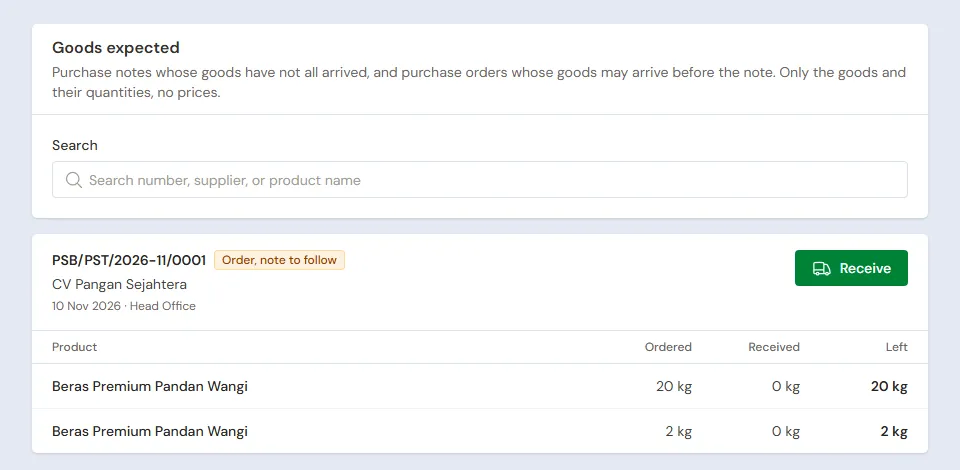
On an order card, the ordered quantity is the part of the order not on a note yet. The part already on a note waits on that note's card. Example: an order of 100 bags of cement, 60 bags already on a note. The note card shows 60 ordered, and the order card shows 40 ordered.
A receipt is dated when it is saved. Only someone who may change a purchase's date (Purchasing Manager) can choose another date. When the chosen date changes the cost of goods sold of earlier months, the screen names those months first, and the receipt can still be saved. A wrong receipt is undone by someone who may change its note or order, on the note or order page.
Seeing the receipts
On the note page, the Goods Received section shows every delivery: its date, warehouse and quantities. The line items show how much of each line has been received.
Undoing a wrong receipt
- Open the note page.
- Open the More menu, then press Undo Receipt.
- Choose the wrong receipt, open the More menu, then press Undo Receipt once more.
The stock from that receipt is taken back, and its goods are recorded as not received again.
Goods that arrive before the supplier's note
When you ordered through a purchase order and the goods arrive before the note, use Receive Goods (Note to Follow) on the order page. See Purchase orders.
Tip: Need price labels for goods that just arrived? Under Master Data → Print Labels, choose the Purchase note source. See Printing price labels and barcodes.