
Adding and managing users
Invite staff, pick their job title and roles, set branches, discount limit and default cash account, then deactivate or remove them when they leave.
On this page
Everyone who can sign in to your shop is listed in Settings → Users, with their Job title and roles. Each person has their own account. Roles decide what they may do. Branches decide where.
Only holders of the User Manager role can open this page. This is usually the shop owner.
Adding a user
There are two buttons above the list:
- Invite a user: fill in the email, pick a job title or roles, then Vende sends an invitation link that is valid for 7 days.
- New User: create the account straight away, with a first password.
The full steps are in Inviting staff to use Vende.
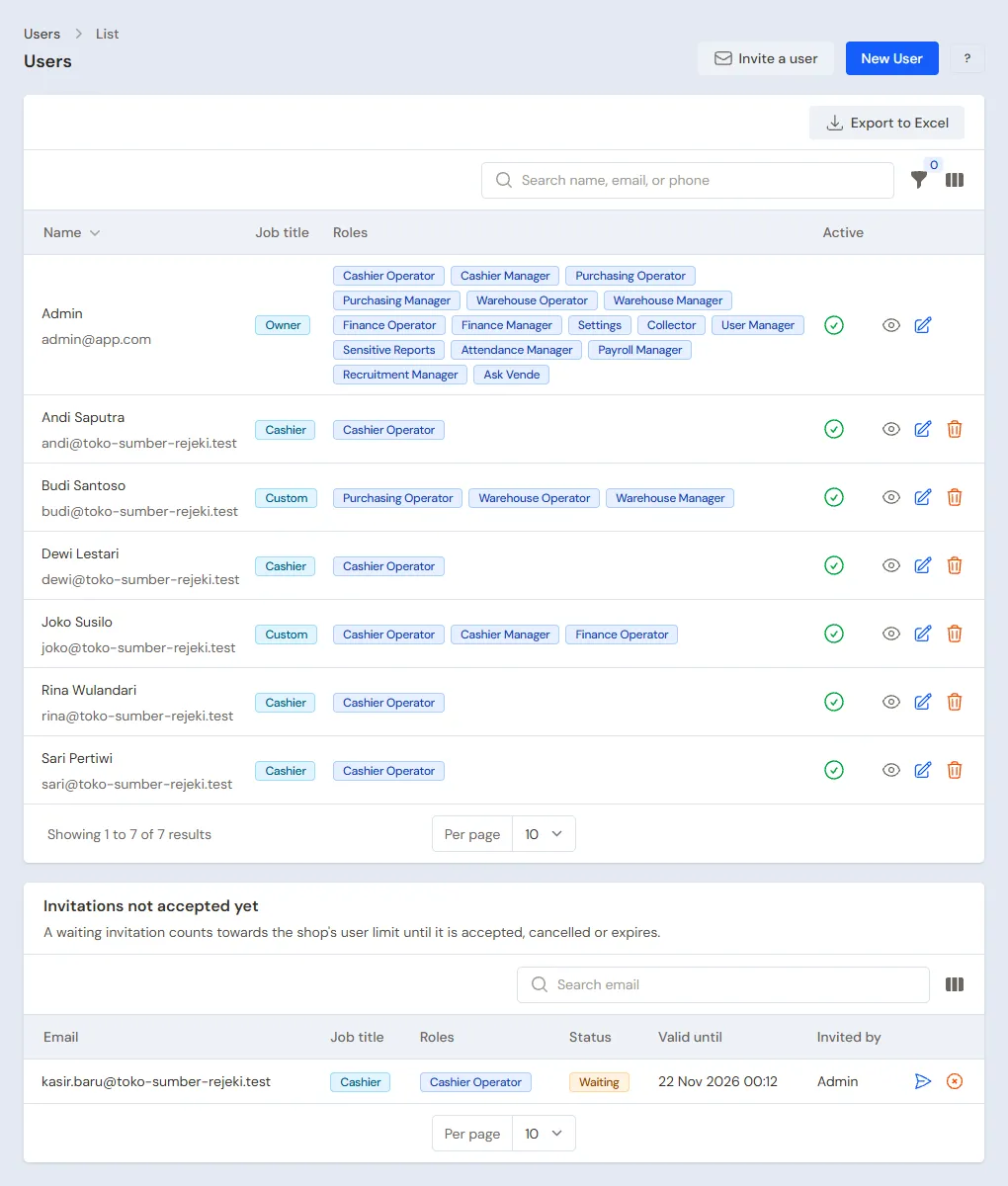
Invitations not accepted yet
Below the list of users is Invitations not accepted yet.
- Press Send again when the link was lost or has expired. The old link stops working.
- Press Cancel when you no longer want to invite that person.
Waiting invitations count towards the shop's user limit.
When you ask the Vende team to invite staff, the invitation email names the Vende team as the one who invited. The invitation is also recorded in Activity History.
Changing a user's details
Press a user's name in the list to open their form.
- Account: Name, Email, Phone, and Password. Leave the password empty when you do not want to change it.
- Access: pick a Job title, then check the ticks of this person's Roles and Branches. Picking a job title ticks its roles at once. Every role has a short description. When you change the ticks so that they match no job title, the title becomes Custom. Roles of a feature that is off are not shown, but whoever already holds them keeps them.
- Sales (optional): the Default Cash Account for Cash Sales for the cash from their sales, and their own Discount Limit in percent.
- Sales Input & Till Display (optional): this person's choice of sales screen and catalog layout.
- Sign-in Hours (optional): the days and hours they may sign in. See Limiting staff sign-in hours.
- Cash Accounts in Charge: the cash accounts this person is responsible for. Only these can be counted by them on the Cash Count screen.
Press Save changes when you are done.
The email is used to sign in, and staff cannot change it themselves. A staff member forgot their password? Fill in a new Password on their form, then give it to them.
Important: An account that is also used in another shop cannot have its email, password, or active status changed from your shop. That person changes their password themselves through Profile or Forgot password? on the sign-in page. If they no longer work at your shop, use Remove from shop.
A staff member stops working
- Holding them back for a while: turn off Active on their form, then save. They can no longer sign in, but their records are kept.
- Taking them out of the shop: press Remove from shop at the top of their form. Their roles and branches in this shop are revoked. The notes and records they made stay, under their name.
You cannot deactivate or remove your own account from this page. To leave a shop yourself, use Leave this shop in the account menu. See Leaving a shop. The shop must also keep at least one active user with the Settings role and one with the User Manager role. See Roles and permissions.
The shop's user limit
The number of active users is limited by your shop's user limit, shown in Settings → Subscription. When you invite someone, waiting invitations count too. Users deactivated in this shop do not count, even when their account is still used in another shop. When the limit is full, the Invite a user or New User button turns grey. Deactivate staff who no longer work for you, cancel invitations that are not needed, or contact the Vende team to raise the limit.