
Using Vende on a phone
Open Vende in your phone's browser, install it on the home screen like an app, then sell with Quick sale.
On this page
Vende runs in the browser, so you can use it on a phone, tablet, laptop or computer. There is no app to download from the Play Store. Just open the Vende address and sign in with your account.
Vende needs an internet connection and a recent browser (see Supported browsers).
Installing Vende on your phone's home screen
To open Vende like an ordinary app, install it on your phone's home screen.
Android phone (Chrome):
- Open Vende in Chrome, then sign in.
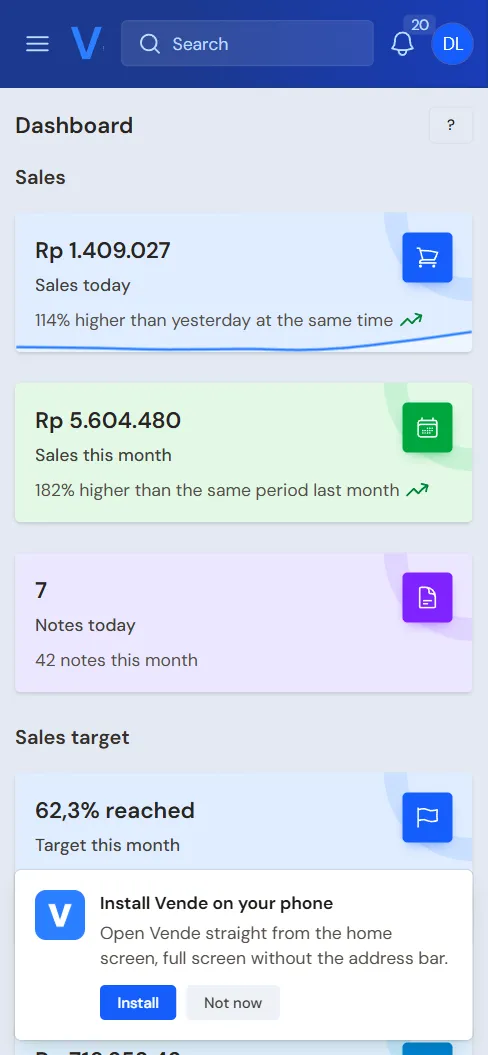
- On the Dashboard, the Install Vende on your phone box appears at the bottom of the screen.
- Press Install.
iPhone or iPad (Safari):
- Open Vende in Safari, then sign in.
- Press the Share button in Safari.
- Choose Add to Home Screen.
Once installed, Vende opens full screen without the address bar. Press Not now if you do not want to install it yet. The box does not appear again for 30 days.
If Vende cannot open, the app shows Vende could not open: at once when the phone is not connected, or after at most about 25 seconds when the signal is very weak or the server is busy. The text names the matching cause. Your shop data is safe. Press Reload once the signal is better; there is no need to close and reopen the app.
Opening the menu on a phone
On a phone screen, the side menu is hidden to give the page more room. Press the menu button at the top left to open it. The notification bell and your account menu (a circle with your initials) are at the top right.
Buttons on each row of a list
In every list (Sales, Purchases, Products, Customers, and the others), the buttons at the end of a row are icons only, in the same order in every list: the eye for View, the pencil for Edit, then the document's own steps (for example the money icon for Pay or Receive payment), the printer for the Print menu, the red bin for Delete, and the hand for Ask for permission. Rarely used ones sit in the three dots menu (Actions) at the far right. Point at an icon to see its name; on a phone each row becomes a card and its icons are big enough for a finger. Labelled buttons are on the document's own page and above the list, such as Create and Export. The same red bin removes an unsaved line on the till and the entry screens; a cross closes a window or clears a choice, such as the customer.
Selling from a phone
By default, the new sale button on a phone opens Quick sale, except in a new wholesale, building supply or factory shop whose package holds Invoice mode: that shop starts with Invoice mode as its choice, and it applies on a phone too. Quick sale is made for fingers: pick the goods, enter the quantity, choose how to pay, then press Save & print. See Selling from a phone with Quick sale.
- A long note? Switch to the Till or Invoice mode with the button for how sales are entered on that screen.
- Tablets, laptops and computers open the Till, except in those new shops with Invoice mode.
- You can set the screen choice for that device only, per person in Profile, or for every cashier in Settings → Till display. A personal choice comes first, then the device choice, then the shop setting. See Choosing a sales screen.
Receipts from a phone
Once a note is saved, the receipt can be sent to the customer's WhatsApp or printed.
- For a Bluetooth thermal printer on an Android phone, use the RawBT app. See Printing receipts and notes.
- Sending a receipt without paper is explained in Sending a receipt by WhatsApp.
- The printer, paper width and warehouse are set on the sales screen. That choice only applies on that phone, so every cashier's phone sets its own.
The content of the receipt itself, such as the closing words and the WhatsApp number, is set in Setting up the receipt.
Other work that is easy on a phone
- Count Stock for a stocktake: count the goods on the shelf while holding your phone. See Counting stock with a stocktake.
- Cash Count to count the money in the drawer at the end of the day. See Counting the drawer with Cash Count.
- Viewing reports and approving Access Requests from staff.
Tip: Lost on a screen? Press the ? button at the top of that screen. Vende explains its content step by step.
Supported browsers
Vende needs Chrome or Edge 111, Safari 16.4 (iPhone and iPad with iOS 16.4), or Firefox 128, or newer. In an older browser Vende does not open: you see the page Vende needs a newer browser instead. Vende is not broken, and your shop data is safe.
How to update:
- Android phone: open Google Play Store, search for Google Chrome, then tap Update. Update Android System WebView too.
- Computer: type
chrome://settings/helpin the Chrome address bar. Chrome installs the update itself, then asks to restart. - iPhone or iPad: update iOS in Settings, General, Software Update.
- Device too old to update: on Android or a computer, install another browser that still gets updates, such as Firefox or Microsoft Edge. On iPhone and iPad every browser uses the engine of iOS, so the only way is to update iOS or use another device. On Windows 7 and 8.1 no current browser can be installed: update Windows or use another device.
Still cannot open it after updating? Contact us with the WhatsApp button on that page.