
Giving discounts and free goods
Give a discount per line or on the whole note, record free goods so their stock still goes down, and set each staff member's discount limit.
On this page
There are three ways to give a price cut on the till: a line discount, a note discount, and free goods. All of them follow your discount limit.
Discount on one line
-
On the product line, open the discount choice.
-
Choose Discount (Rp) for a rupiah cut, Discount (%) for a percentage, or Stacked discount for stacked percentages.
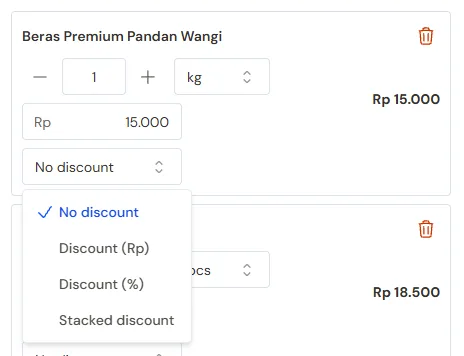
The discount choices of one line -
Type the value. Example of a stacked discount: 10%+5%.
The line subtotal changes at once. To remove it, choose the first option again, which is No discount (or Group discount for a customer with a group discount).
Discount per unit
Discount (Rp) cuts the line subtotal once. For a cut on every unit, for example Rp 5.000 off each pcs, write the number with a slash and the unit name: 5000/pcs. The cut is multiplied by the line quantity, so 3 pcs take Rp 15.000 off.
- On the till, choose Stacked discount, then type 5000/pcs.
- In Mode Faktur, quotations, orders, service notes and purchases, type 5000/pcs in the Discount column.
- The name after the slash is the line's unit, as written on the line, for example 5000/kg for a line in kg. Upper or lower case and spaces do not matter. When it names another unit, for example 500/dus on a line in pcs, the field is refused and Vende names the right unit, so the cut and the note are not wrong. For a cut per dus, first change the line's unit to dus.
- It can be stacked: 5000/pcs+10% means Rp 5.000 off each pcs, then 10% of what is left.
Example: 3 shirts at Rp 100.000 with the discount 5000/pcs+10%. Rp 300.000 less Rp 15.000 is Rp 285.000, then less 10% is Rp 256.500. The receipt, the printed note and the note page write the discount text with what it took off, Rp 43.500.
A discount per unit is for item lines only. The note discount and special prices do not take it, because a special price is already worked out per unit.
Promos whose loss the supplier replaces
The buy X get Y free promotions and the discounts above are carried by the shop. When the supplier replaces the difference of a promo price, use Supplier promos: the promo price is used by itself on the till while it runs, and the claim on the supplier is worked out from what sold.
Customer group discount
Group discounts come with the extra customer group prices feature. If you cannot choose them, contact the Vende team to switch it on.
A customer from a group with a discount gets the group discount at once on every line that has no discount of its own. The line discount choice then shows, for example, Group discount 5%.
A line at a Special Price does not get the group discount on top. Group discounts are set as in Setting up customer groups. Special Prices are explained in Special Prices for customers and groups.
Note discount
A note discount takes a cut off the whole note at once.
- In the totals, fill in Note discount.
- Write rupiah, for example 50.000, or a percentage, for example 5%. Stacked percentages are allowed too, for example 5%+2%.
A percentage is worked out from the items subtotal, then saved as rupiah. The receipt prints the rupiah.
Example: an items subtotal of Rp 200.000 with a 5% note discount gives a cut of Rp 10.000.
Free goods
Goods given at no charge, for example a gift, are recorded in the Free part so their stock still goes down.
- On the note, press Add free item.
- Search for the product and choose it.
- Set its quantity on the line that appears in the Free part.
Free goods count as a 100% discount. The Add free item button is only there for users with no discount limit or a limit of 100%. A service cannot be given free. In Invoice Mode, Quotations and Sales Orders, the free part is folded while empty (press + Free), and a line already written can be moved with Make it free; the quantity to move can be changed.
Automatic promotions
When the shop has a buy X get Y free promotion, the free goods are worked out automatically when the note is saved. They are shown in the Promotions part of the note. Promotions are set in Master Data → Promotions. Promotions are an extra feature. If the menu is missing, contact the Vende team to switch it on.
Discount limits
A discount limit makes sure a price cut does not go beyond what is allowed. The limit applies to line discounts and to their share of the note discount.
| Limit | Set in |
|---|---|
| The limit for every user who has no limit of their own | Settings → Sales, field Default Discount Limit |
| The limit of one user | Settings → Users, field Discount Limit |
| The limit of one product or one category | Master Data → Products or Master Data → Product Categories, field Discount Limit |
A product limit replaces the limit of its category. When both a user limit and a product limit exist, the stricter one applies. Users with the Cashier Manager role are not limited.
Once a discount type is chosen, your limit is written on the line, for example Max 10%. When a discount goes past the limit, the note cannot be saved and Vende shows the message "The discount is above your limit". Lower the discount, or press Ask a manager so a manager approves the note from afar. See Selling outside the limits with a manager's approval. Without the Ask a manager's permission feature, ask a manager who holds the Bypass Discount Limit permission to record it.
Tip: A 0% limit on the cigarettes category, for example, means ordinary cashiers cannot discount cigarettes.