
Counting stock with a stocktake
Count the goods in a warehouse with a phone or a barcode scanner, then compare the result with the stock recorded in Vende.
On this page
A stocktake is counting the goods that are really in the warehouse. The result is compared with the stock in Vende, so goods that went missing or were recorded wrongly come to light.
The work has two stages: counting, then posting and adjusting. This article covers the first stage. The second stage is in Finishing a stocktake.
Starting a stocktake
- Open Transactions → Stocktakes, then press New Stocktake.
- Fill in Count Time. The stock recorded up to this time is what the count is compared with.
- Choose the Warehouse being counted.
- Choose a Category for a partial stocktake, for example only Beverages. Leave it empty to count every product. The warehouse and the category cannot be changed after saving.
- Press Create.
The stocktake is saved as a draft, and the counting screen opens at once.
Counting the goods
The counting screen is easy to use from a phone while you walk around the warehouse.
- Scan the product's barcode, or type its name, code or rack.
- Fill in the quantity you find, then press Enter.
- Repeat for every product.
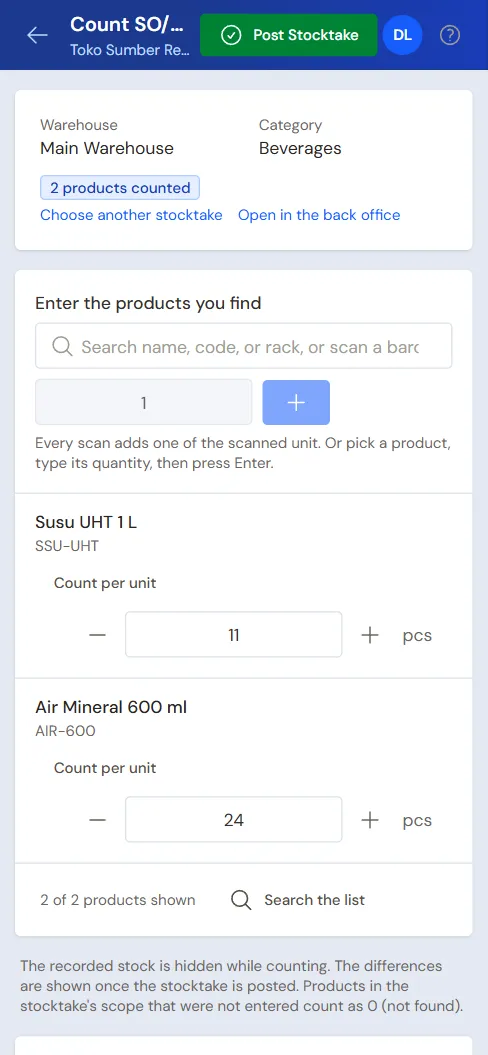
Every scan adds one of the unit scanned. Scanning a Box barcode adds 1 Box, scanning the product code adds 1 base unit. Entering the same product again adds to its count.
Every count is saved by itself as you type. You can carry on with the stocktake at any time: open the stocktake, then press Count.
Picked the wrong product
Press the trash icon at the end of the product's row. Its count is removed and the line leaves the list. Pressed it by mistake? Choose Undo in the message that shows for a moment. Emptying the quantity box (not typing 0) does the same.
A product that is not counted still counts as 0 when the stocktake is posted, if it is in the stocktake's scope. To count only some products, create the stocktake with a specific category.
Goods with several units
- Goods with a main unit are counted in that unit, for example 17 Packs. The loose sticks go in the second box, if there are any.
- Use Count per unit to count, for example, 3 boxes and 5 pieces. Vende adds them up in the base unit.
The recorded stock is hidden
While counting, the stock recorded in Vende is not shown. The counter counts what is there, without being swayed by the figure in the system. The difference only shows after the stocktake is posted.
Saving or posting
- Save Draft saves the stocktake's Note. The counts themselves are already saved as you type.
- Post Stocktake locks the count once every product has been counted.
Important: On posting, products within the stocktake that were not entered count as 0, which means not found. Make sure every product has been counted before posting.
Counting on paper
Prefer to write it down first? Open the stocktake, then press Print Counting Sheet. When you are done, enter the results on the counting screen. The same sheet can also be printed from the list of stocktakes with the printer icon at the end of a row.
Tip: Count while the shop is quiet or closed. Sales during the count make the counted and recorded stock hard to compare.
Supporting reading
Articles on the background and the arithmetic.
- Cara Stok Opname Toko Kecil Tanpa Perlu Tutup Seharian Cara menghitung stok toko kecil per bagian, tanpa menutup toko seharian, dan apa yang dilakukan dengan selisihnya.
- Barang Tidak Laku di Toko: Cara Mengenalinya dan Menghabiskannya Cara menemukan barang yang sudah berbulan-bulan tidak terjual, menghitung uang yang tertahan, dan lima cara menghabiskannya, dari diskon sampai paket gabungan, tanpa merusak harga barang lain.
- Stok Barang Selisih Terus? 7 Penyebab dan Cara Memeriksanya Tujuh penyebab stok di catatan tidak sama dengan stok di rak, dan cara menelusuri satu barang sampai ketemu sumber selisihnya.