
Stock card and product history
Trace every time one product came in and went out, with its documents, to find out why its stock changed.
On this page
Does the stock of one product not add up? The stock card shows every time that product came in and went out, with the document that caused it.
Opening the stock card
- Open Reports → Stock Card.
- Under Product, type the product's name or code, then choose it.
- Choose Warehouse, or leave it empty for every warehouse.
- Fill in From and Until.
The report is worked out again every time you change a filter.
While the Product variants feature is on, a parent product can be picked too (marked all variants). Its card holds the movements of all its variants, with a Variant column on each line.
Reading the stock card
The stock card starts from the Opening Balance, the quantity before the period. Then every movement shows as one row:
- Date and Description, for example Sale, Purchase, Transfer in or Adjustment out;
- Document: the number of the note or document. Press the number to open that document;
- Warehouse, when you look at every warehouse;
- In, Out and the running Balance;
- Cost Price per Unit, the average cost price when the goods moved. This column shows only to holders of Sensitive Reports, while Show cost is on.
The last row is the Closing Balance.
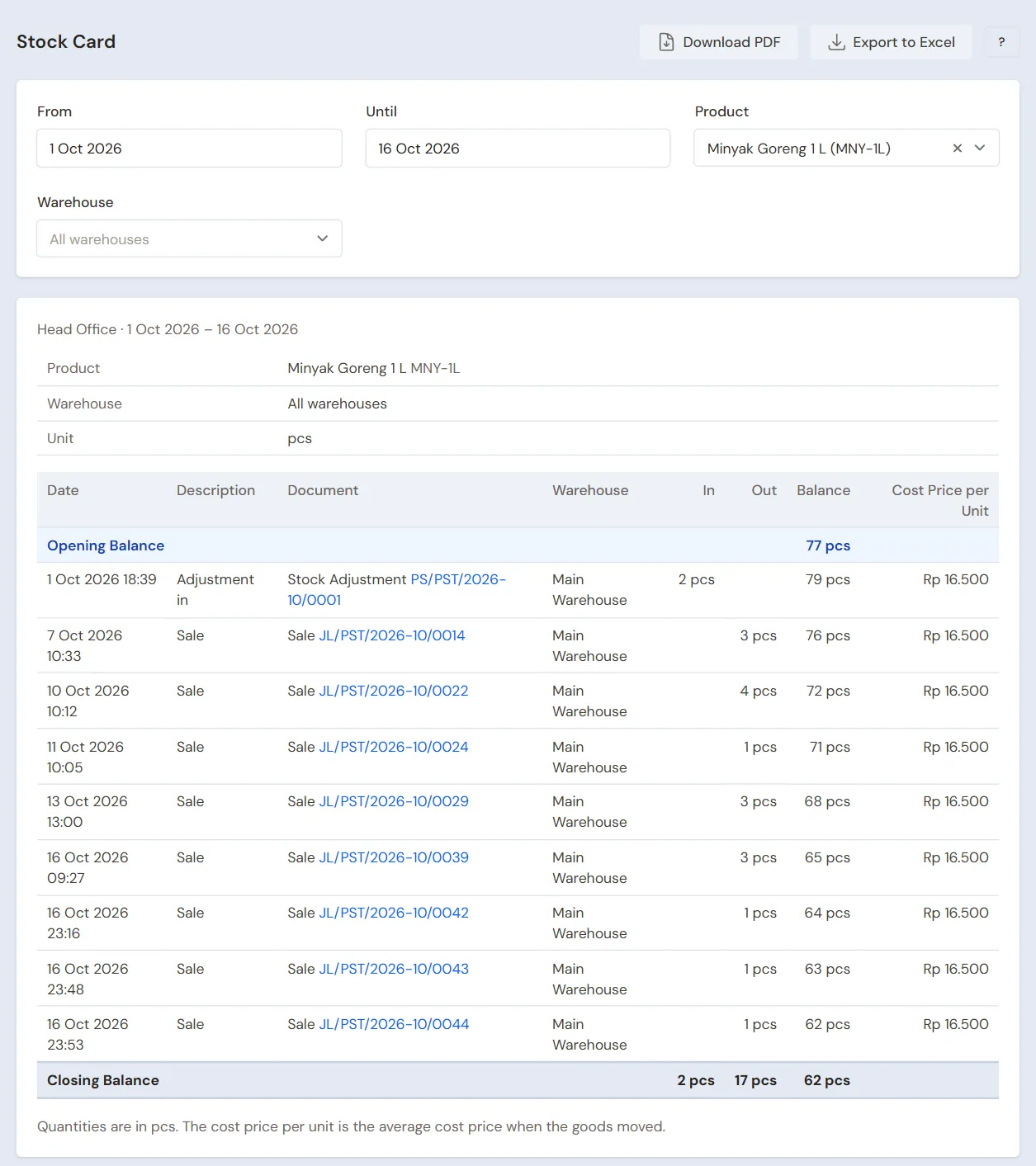
Example: Opening Balance 20 pcs. A purchase of 50 pcs comes in, the balance is 70. A sale of 3 pcs goes out, the balance is 67.
Goods that have a main unit are written in that unit, for example 17 Packs 12 Sticks. Other goods are written in the base unit.
Downloading
Press Download PDF to print or send the stock card. The Export to Excel button shows when the extra Excel export feature is on.
To print the stock card without cost prices, switch off Show cost first. See Printing stock without cost prices.
Other stock reports
- Reports → Stock: the quantity and value of every product in every warehouse at the end of the chosen day.
- Reports → Negative Stock History: the items that went negative in a warehouse, when they started and when they were covered, with the goods that went out meanwhile. Outgoing lines recorded while the stock was negative are also marked Negative stock on the stock card.
- Reports → Stock Movement Summary: per product, the opening stock, what came in and went out by kind, and the closing stock, with their values.
- The product page under Master Data → Products shows the current Stock per Warehouse.
Lines per kind of document
To see all the lines of one kind of document, open the Transaction Details menu:
- Purchase Lines: goods bought and returned to suppliers;
- Stock Adjustment Lines: goods added or taken off, including opening stock and stocktake results;
- Stock Transfer Lines: goods moved between warehouses;
- Stocktake Lines: the counts of posted stocktakes.
Tip: Stock only changes through documents, for example sales, purchases, adjustments and transfers. Stocktake results also go in through adjustments. When the stock does not match the goods on the shelf, find the document on the stock card, then fix that document or record a stock adjustment.
Supporting reading
Articles on the background and the arithmetic.
- Kartu Stok: Apa Itu dan Cara Memakainya di Toko Kartu stok adalah riwayat masuk dan keluar satu barang. Cara membuatnya, contoh isinya, dan cara membacanya untuk menemukan sebab stok berubah.
- Cara Menghitung HPP Toko Dagang dengan Contoh Angka HPP toko dagang dihitung dari stok awal, pembelian, dan stok akhir. Contoh angka lengkap sampai laba kotor.
- Stok Barang Selisih Terus? 7 Penyebab dan Cara Memeriksanya Tujuh penyebab stok di catatan tidak sama dengan stok di rak, dan cara menelusuri satu barang sampai ketemu sumber selisihnya.