
Understanding a product's Price List
Set wholesale prices, prices per customer group and prices per branch in one place, and know which price the till uses.
On this page
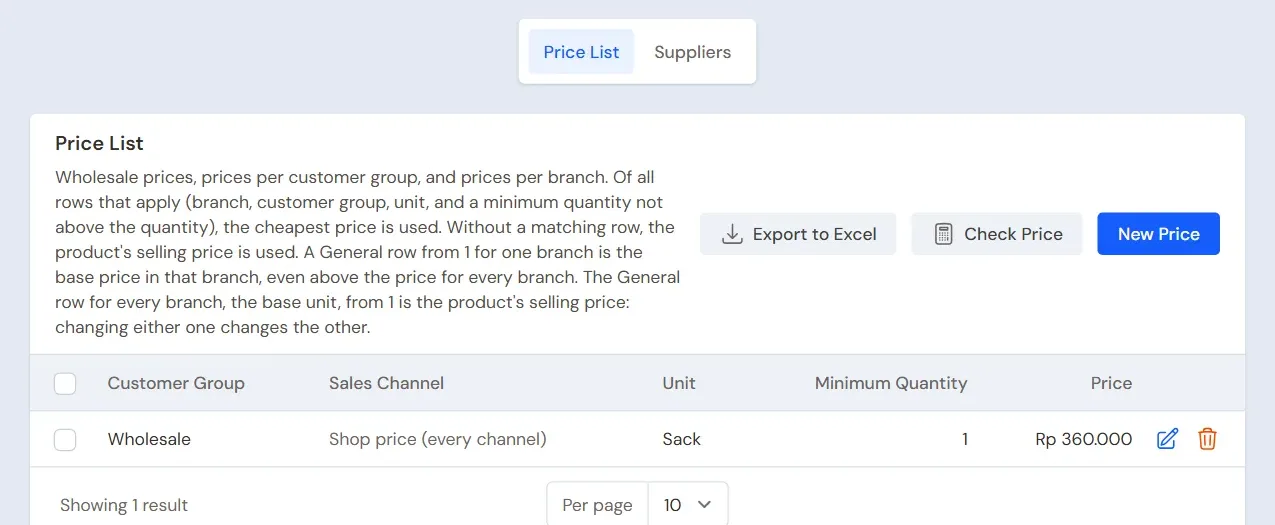
Every product has a Selling Price. When one product has several prices, for example a wholesale price or a price for one branch, those prices are recorded in the Price List tab.
Opening the Price List
- Open Master Data → Products, then press the product.
- Scroll down below the form. The Price List tab is underneath, next to the Suppliers tab.
Each row has these fields:
- Branch: leave it empty to apply in every branch.
- Customer Group: leave it empty to apply to every customer.
- Sales Channel: leave it empty for the shop's own price.
- Unit: the unit being priced, for example Pieces or Box.
- Minimum Quantity: this price applies from this quantity.
- Price: the price of one of that unit.
Branch, Customer Group, Sales Channel and a Minimum Quantity above 1 come with extra features: several branches, customer group prices, sales channels and quantity prices. A field whose feature is off is not shown. Contact the Vende team if you need one.
Adding a price row
- In the Price List tab, press New Price.
- Fill in only the fields you need. Leave the rest empty.
- Press Create.
Example: Gula Pasir 1 kg has a selling price of Rp 15.000. You add a row with Customer Group Wholesale, Unit Pieces, Minimum Quantity 1, Price Rp 14.000. Wholesale customers then pay Rp 14.000.
Is there already a price with the same branch, group, channel, unit and minimum quantity? Change that row instead. Vende refuses duplicate rows.
Which price the till uses
The till checks every row that matches the note: its branch, its customer group, its unit and its quantity. Of all the matching rows, the cheapest price is used. When no row matches, the product's Selling Price is used.
Two more things to know:
- The row for every branch, every customer (General), the base unit, from 1 is the product's Selling Price itself. Changing either one changes the other.
- Customers of a specific group never pay more than an ordinary buyer. When the General price is cheaper, the General price is used.
The exception is a branch price. A General row from 1 for one branch is the base price in that branch, even when it is higher. See Prices per branch.
Checking a price before you sell
- In the Price List tab, press Check Price.
- Choose Branch, then a Customer Group or one Customer.
- Choose Unit and fill in Quantity.
Vende shows the price the sales screen will use, with where that price comes from. When you choose one customer, their Special Prices are counted too.
Other ways to fill in prices
- Quantity prices are easier to fill in in the table under the Selling Price. See Quantity prices.
- The prices of many products can be changed at once with Bulk Price Change and Quick Price Edit.
- A price worked out from the cost can be made automatic. See Automatic prices.
Tip: When you change the General price of a unit, leave Move group prices along on. The group prices, quantity prices and branch prices of that unit then move by the same amount.
Supporting reading
Articles on the background and the arithmetic.