
Setting up the receipt
Set the closing words, the letter size, the unit prices, the logo, and the copies of the receipt on the Print page, then check the preview before saving.
On this page
The receipt is the till note printed on a thermal printer or sent through WhatsApp. Its content is set in Settings → Print, the same page as the paper and the look of every document, for the whole shop.
Setting up the receipt
-
Open Settings → Print.
-
In the For every document section, fill in Closing words, for example "Thank you for your visit". This sentence is printed at the bottom of the receipt.
-
Fill in WhatsApp number on receipts if needed. Leave it empty to use the WhatsApp number from Settings → Shop. Turn Show the logo on or off. When the logo is on, pick the Logo size for printing through RawBT.
-
In the Documents section, pick Sales note. The Thermal receipt look part appears under its default paper.
-
There, choose Normal, Medium, or Large for the header, item, and bill total letters. Turn on Print the bill total in bold, Leave a blank line between items, or Show unit prices if needed.
-
To turn off the address, phone, or WhatsApp on the receipt, use Shown in the letterhead in the Document top part of the same document. The receipt top follows it. The receipt of a note still owed on follows the same part under When not yet paid (Invoice).
-
Beside the fields, choose Thermal receipt 58 mm or Thermal receipt 80 mm in the preview paper choice to see the receipt.
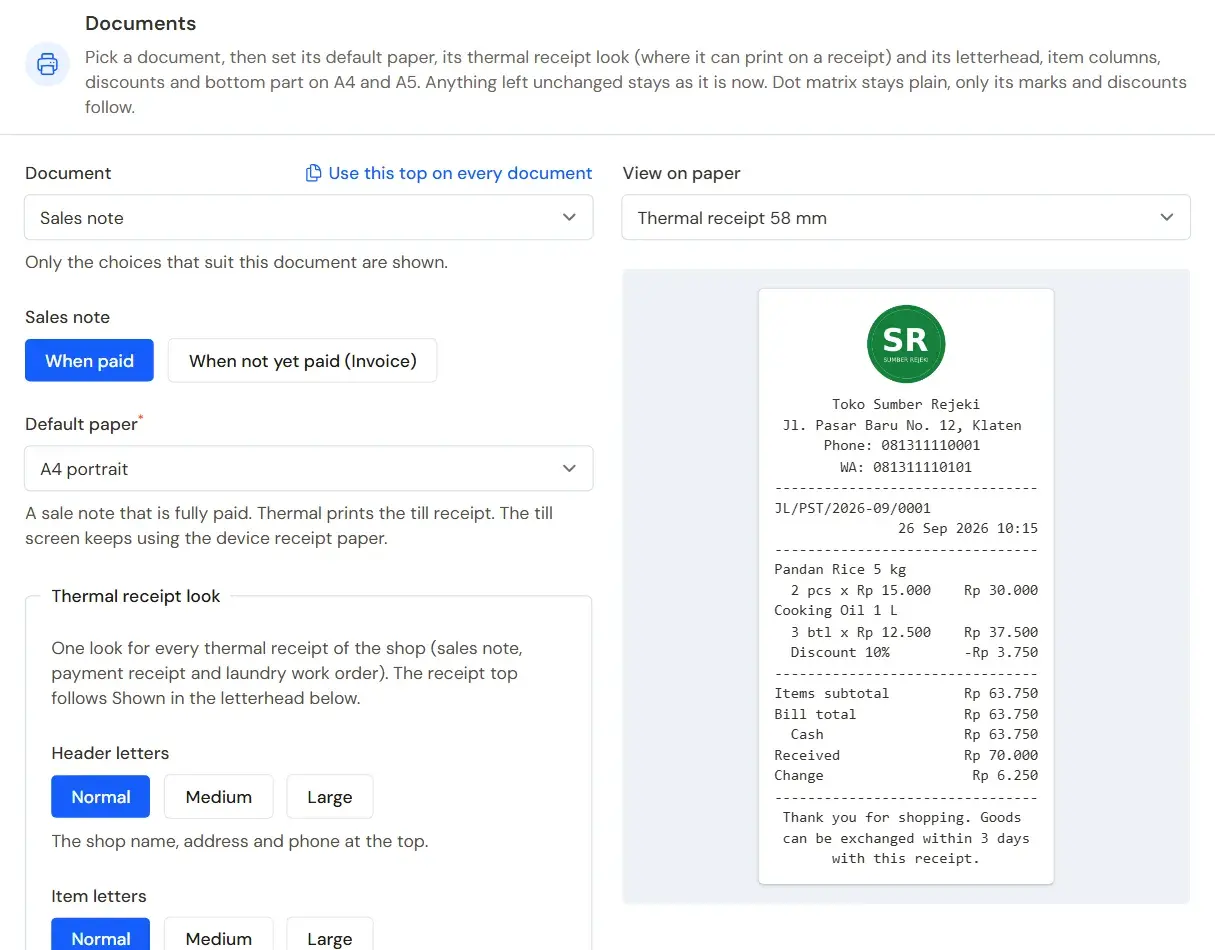
The receipt preview before saving -
Press Save changes.
The preview uses the same receipt builder as the real receipt, so what you see in the preview is what is printed. The thermal receipt look is one for every document that can print on a receipt: the sales note, the payment receipt, and the laundry order. The settings apply the same to the receipt on the till screen, to receipts reprinted from the note page, and to Bluetooth printers (RawBT). The text sent through WhatsApp stays plain.
The name, address, and phone at the top of the receipt come from Settings → Shop. See Filling in the shop details and logo.
Letter size
Medium prints letters twice as high but as wide as Normal ones, so a line holds the same number of letters and the layout does not change. Large prints letters twice as wide and twice as high, so one line holds half as many letters. A long item name continues on the next line. The size is chosen per part: Header letters (shop name, address, phone), Item letters (name, quantity, price, and discount of each line), and Bill total letters.
Discounts and prices on the receipt
The discount display on the receipt follows the Sales note choice in the Discounts part of the same page, so the note and the receipt always match. The receipt of a note still owed on follows the When not yet paid (Invoice) choice. The receipt preview already uses that choice. See Setting up the print layout.
A note not yet paid on the receipt
A sales note that is not yet paid (Invoice) may be printed on receipt paper too. Its receipt prints NOT PAID, the remaining bill, the due date, and the bank accounts the customer can transfer to. Choose its paper and look in Sales note, in the When not yet paid (Invoice) part. The bank accounts print when Bank accounts for transfers in its bottom part is ticked.
Printer
The Printer section is closed and rarely needs opening. It belongs to the printer, not to one document, so every document uses it. Leave the defaults when the receipt already prints neatly.
- Letters per line: how many letters fit on one line of the printer, for 58 mm paper (32 or 42) and 80 mm paper (42, 48, or 64). Change it when lines are cut off or broken in the printout and set it to the number of letters your printer really prints per line (see its manual); it does not make the letters smaller. Payment receipts, laundry slips, and table QR slips use it too.
- Blank lines before cutting: empty space at the end of a RawBT receipt so it is not cut right at the last line. The default is 3.
- Copies: how many times the receipt is printed at once through RawBT. The browser print dialog has its own copies box.
The default of every choice matches the receipt printed until now, so your shop's receipts do not change until you change them.
The logo on the receipt
The logo shows on the receipt screen and when printed on an ordinary printer. Through the RawBT app, the till receipt, payment receipt and laundry slip start with the logo in black and white, fitted to 58 or 80 mm paper and as tall as the Logo size in Settings → Print says: Small (about 10 mm), Medium (about 15 mm, the default) or Large (about 20 mm). Logo size appears under Show the logo when the logo is on, and the preview follows it. The logo never goes wider than the paper and is never enlarged past its own size, so a small logo stays small. An SVG logo is not printed through RawBT.
Receipts per branch
Each branch may have its own name, WhatsApp number, and closing words on its receipts. Fill them in the Branch receipt section of the branch form in Master Data → Branches. The address and phone of the branch are also printed on that branch's receipts. Fields left empty use the shop's settings.
Paper width and printer
The paper width (58 mm or 80 mm) and the printer of a device are not set on this page. Both are chosen on each till device, on the receipt screen after a sale. That way, each phone or computer can use its own printer. How to do it is in Printing receipts and notes.
Receipts and other documents
The default paper of the sales note, the invoice, the delivery note, the payment receipt, and other documents is chosen on the same page. See Choosing the print paper for each document.