
Stock adjustments
Add or take off stock outside buying and selling, for example goods that are damaged, lost, expired, used yourself or found extra.
On this page
Stock sometimes changes for reasons other than buying and selling. Goods break, get lost, expire or are used by you. Record that change as a stock adjustment, so the stock and the financial reports stay right.
Recording an adjustment
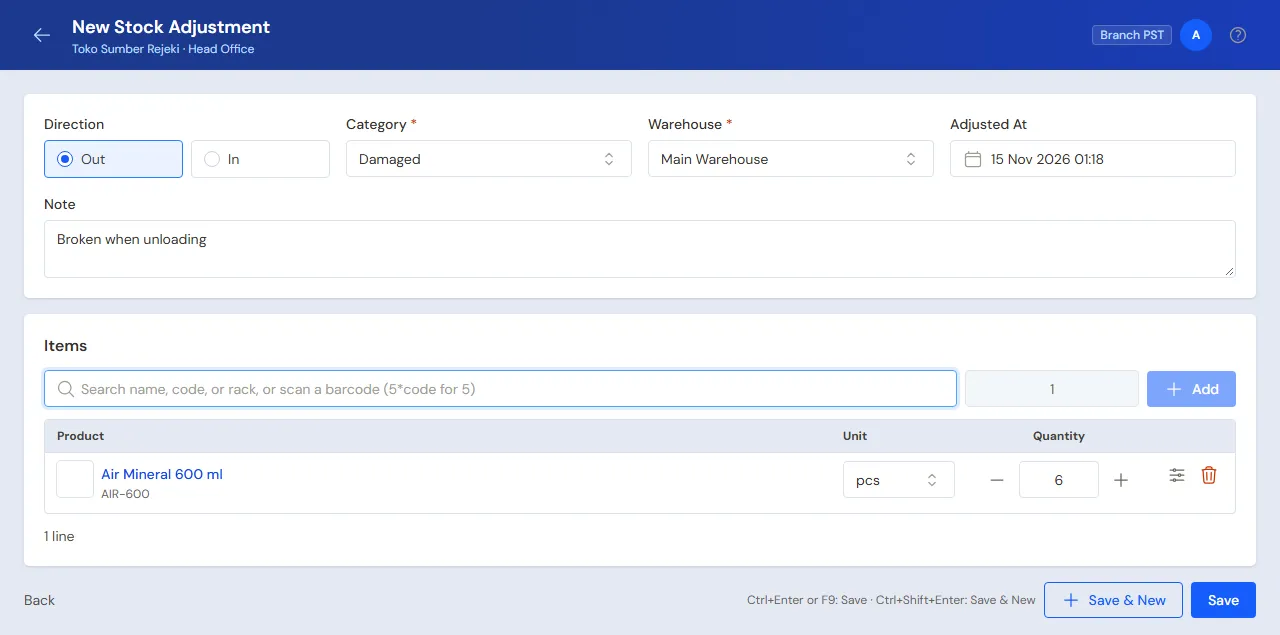
- Open Transactions → Stock Adjustments, then press New Stock Adjustment.
- Choose Direction: In to add stock, Out to take stock off.
- Choose Category, which is the reason, for example Damaged.
- Choose Warehouse and check Adjusted At.
- Search for the product, fill in the quantity, then press Enter. Repeat for other products.
- Fill in Note if needed, for example "broken while unloading".
- Press Save.
The stock changes at once and the adjustment page opens. To record the next adjustment with the same category and warehouse, press Save & New.
Every adjustment shows on the stock card of that product.
Default categories
A new shop already has these categories:
- Out: Damaged, Expired, Lost, Personal use, Used in the shop, Samples/promotion.
- In: Counting surplus, Opening stock.
- Stocktake difference (in and out), used for stocktake results.
- Out: Production use, only in shops with the special feature Staged production. See Production use.
Goods a supplier hands over to replace the loss of its own promo are not recorded here. Record them as a settlement of the claim in Supplier promos, so their value reduces the claim and is not counted twice as income.
The category decides how the value of the goods goes into the financial reports. Damaged goods are recorded as a stock loss. Goods the owner takes are recorded as drawings.
Adding a category
- Open Master Data → Stock Adjustment Categories, then press New Stock Adjustment Category.
- Fill in Name and choose Direction.
- Choose Recorded as. For the out direction: Stock loss, Shop use expense, Taken by the owner (drawings) or Promotion expense. For the in direction: Owner capital added or Other income.
- Press Create.
Recorded as cannot be changed any more once the category is used, so old reports do not change.
Example: the owner brings personal goods into the shop as capital. Make a category "Goods as capital" with Direction In and Recorded as Owner capital added. The goods' value adds to the capital on the Balance Sheet, not to the profit.
Production use
In a factory with Staged production, supplies that are always used but hard to count per production run, such as tape and glue, go out with the category Production use:
- Open Transactions → Stock Adjustments, then press New Stock Adjustment.
- Choose Direction Out and Category Production use.
- Fill in the product, for example 2 rolls of tape, then press Save.
Their value goes into the factory costs of that branch and month by itself, as the line Production use (automatic) in Transactions → Monthly Factory Costs (that line shows only to holders of Sensitive Reports, because it is worked out from the cost price), and is shared over that month's finished goods of production orders in proportion to their cost. Changing or deleting the adjustment works the cost of that month's finished goods out again. A month already closed stays as it is. The category is a system one, so it cannot be deleted and keeps its account.
Value of the goods
Adjusted goods are valued at the average cost price at that moment. Example: 3 bottles of syrup are damaged, with a cost price of Rp 15.000. The stock loss is Rp 45.000. The cost price, the value and the total (on the list, the adjustment's page, Transaction Details and the Excel export) only show to holders of Sensitive Reports; anyone else sees the goods and their quantities only. See Cost price of goods.
Only the Opening stock category asks for a Cost Price per Unit. Fill it in per unit of the line, for example Rp 36.000 per Pack of 16. Vende divides it per stick. Leave it empty to use the recorded cost price. On a narrow screen the cost price moves to the line's details and still shows under the product name with a pencil mark.
Tip: The stock you have when the shop starts using Vende is best recorded under Settings → Opening Balances → Opening Stock.
Batches and serial numbers
Goods that use batches or serial numbers are filled in in the line details: tap or click the product name, written in colour like a link. For stock coming in, fill in the batch number and its expiry date. For stock going out, choose the batch.
Changing or deleting
Open the adjustment under Transactions → Stock Adjustments. Press Edit to change the goods or quantities, or delete it when it was recorded by mistake.
When the change shifts the cost of goods sold of an earlier month, Vende tells you first. You can choose Save Anyway.