
Making a note in invoice mode
Invoice mode fills in a note top to bottom with the keyboard, made for building supply shops, distributors and wholesalers with regular customers.
On this page
In invoice mode, the note is filled in like an invoice: the customer details at the top, the goods in the middle, the payment on the side. Everything can be done with the keyboard.
This screen, titled New sales invoice, opens with New sale when you, your device or the shop has chosen Invoice mode. See Choosing a sales screen. While a note is changed, the Invoice mode button at the top stays, to switch to the till with the same note.
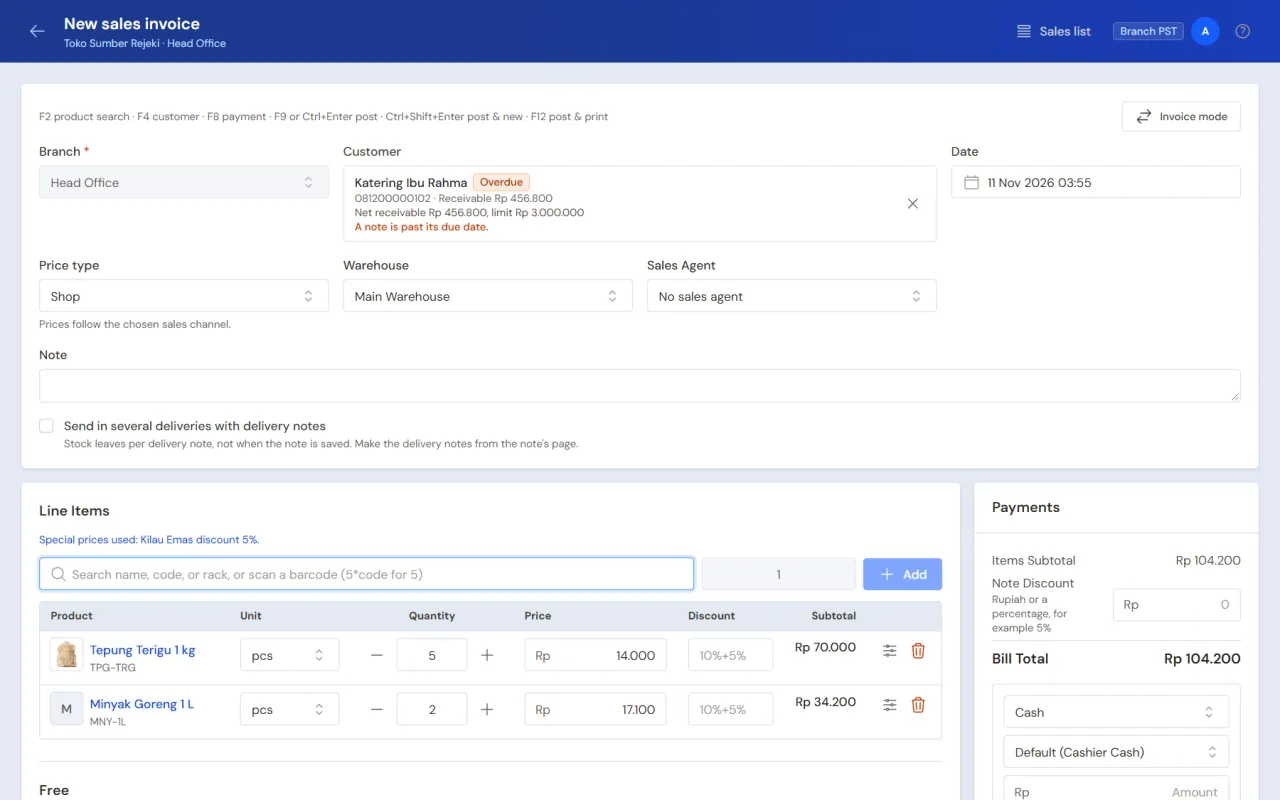
Invoice mode is an extra feature. New wholesale/distributor, building supply, water depot and gas, food factory, drug factory and plastic factory shops get it from the start, and New sale in the wholesale, building supply and factory shops opens Invoice mode straight away, on a phone too (a shop that is already running does not change; a new depot keeps the till as its opening screen). In shops of other types, the Vende team switches it on. If you cannot choose Invoice mode, contact the Vende team to switch it on.
Filling in the note details
- Branch: filled with the branch you are working in.
- Customer: type a name or phone number, then choose. Leave it empty for a walk-in customer, who must pay in full. The customer's receivable is shown too.
- Date: filled with now. You can only choose another date when you are allowed to.
- Price type: the sales channel of this note, for example Shop. Product prices follow the chosen channel. This field shows when the Sales channels feature is on.
- Warehouse: the warehouse the goods come from. When a line is a return, a Return warehouse appears beside it: where the goods brought back go. With Several warehouses on, each line may pick its own warehouse (the Warehouse column on the line, or Details on a phone; shown when the shop has more than one warehouse), so one note can take goods from several warehouses. Left on Note warehouse, the goods leave from the warehouse in the note's header. Stock, serial numbers and Surat Jalan follow the line's warehouse (the batch list and stock hints on this screen still read the note's warehouse), and Profit and Loss per warehouse splits the note by its lines. A return line picks no warehouse. One Surat Jalan leaves one warehouse, so goods from another warehouse go by a Surat Jalan of their own.
- Sales Agent: the sales agent credited with this sale. This field appears when the shop has sales agents. Filled in automatically with the Sales Agent linked to your login (Linked User on the sales agent); you can still change it.
- Note: if needed.
With the keyboard: press F4 for the customer field, then Tab on to the date, price type, warehouse, sales agent and note (Shift+Tab goes back). No such customer yet? Type the name and press Enter: the + Create new choice under the list is highlighted when the name is not listed.
Tick Send in several deliveries with delivery notes when the goods are sent in several trips. See Sending goods in several deliveries with delivery notes.
Filling in the goods
- In the search box, type the product's name, code or rack, or scan the barcode.
- Choose the product with the arrows and Enter.
- Fill in the quantity, then press Enter. A product with more than one unit, such as Dus and pcs, shows unit buttons next to the quantity. The line's price follows the customer, price type and quantity as usual. The unit starts at the product's Selling Unit (or the unit of the barcode scanned). Tap the unit being sold, or press its first letter (D for Dus) or the left and right arrows.
- Press Enter once more to add the line. The search box is ready for the next product.
With the keyboard the order is: product, Enter, quantity, Enter, unit, Enter. When a product has only one unit, Enter on the quantity adds the line at once.
Write 5*code to fill in a quantity of 5 straight away. The newest line is at the top. Selling a raw material? Tick Show raw materials under the search box. See Selling raw materials.
A new line starts in the product's Selling Unit (empty = the base unit); Return and Free lines always start in the base unit. On each line, change the unit, quantity or discount, for example 10%+5%, or 5000/pcs for a cut on each unit, times the quantity. See Discount per unit. You can only change the price when you are allowed to; for other users the price shows without being typable. A note opened again keeps its prices: a line left as it was keeps the price the note was saved with. See What stays as it was. The up and down arrows move between lines in the same column (from the top line to the search box), Tab moves between columns, Enter in a line column returns to the search box, Delete on the product name (or Ctrl+Delete in any column) removes the line. Esc from the note details or the payment also returns to the search box. On a narrow screen, for example a small laptop, some columns such as the price and discount move to the line's details. The price still shows under the product name, and so does a discount once filled in; what you can change has a pencil mark. Tap or click the product name to change them.
When a product is sold in a unit other than its base unit, for example sheets of roofing whose base unit is the metre, the line shows the price of one base unit after the line discount and the customer group discount, such as = Rp 40.000/m for Rp 120.000 per sheet of 3 m. The figure is only there to look at and follows any change to the line's price or discount; the line is still sold in the unit chosen, and the figure is not printed on the receipt or the note. A line in the base unit does not show it.
When a customer is chosen, the Last price to this customer part shows the last price that customer paid per product. Users who may change prices can press Use to take that price.
Returns, free goods and shipping
Under the goods sold are the same parts as on the till:
- Free: goods given without a price. Their stock still goes out. Only those who may give goods away can fill this part, and it is folded while empty (press + Free). For those who may, a sold line has Make it free (on a narrow screen, in the line's details; a service cannot be given free). See Discounts and free goods.
- Returns: goods the customer brings back. This part is folded while empty: press From the original note (or + Returns where returns without the original note are allowed), find the note, then pick the goods. The price is what was paid on that note and the quantity at most what has not come back yet; the unit and price cannot be changed. When the original note was partly paid by redeeming points, that part comes back as the customer's points, not money, as on the till. Those who may return without the original note can also search the product right in the Returns part, at today's price list (tier and customer prices included). When the returns are worth more than the purchase, Payment shows To refund. See Recording a sales return.
- Delivery: the delivery address and shipping, charged to the buyer or borne by the shop, paid to the courier now from a cash account or owed to the courier. This part is there while the Shipping & courier at the till feature is on. On a new sale, once this part is open, the delivery address fills in from the chosen customer: their main delivery address, or the customer's Address when they have no delivery address yet. An address you have typed is never overwritten, and a sale being changed keeps its own.
In a shop with tables, Service type in the note details adds the branch's service charge for dining in, and Tip is in the Payment part, as on the till.
Filling in the payment
In the Payments part:
- Fill in Note Discount if there is one: rupiah (50.000) or a percentage (5%).
- Choose the payment method and the cash account, then fill in the amount.
- Press Paid in full to put the whole rest on the first payment method.
- Press On account when the customer pays later. The whole bill becomes the customer's receivable.
- Press Add a payment method when it is paid two ways.
- The customer has a credit balance? Press Use credit balance. The amount fills in with what is to be paid, at most the credit balance left, and may be lowered. See Using a credit balance while selling.
When part of it becomes a receivable, the Due Date field appears, filled from the customer's payment terms. Only users who may change notes can move it.
Posting the note
- Post (F9 or Ctrl+Enter): the note is saved, the stock and cash are recorded, then the note's page opens for printing.
- Post & New (Ctrl+Shift+Enter): the note is saved, then an empty invoice opens. The customer, branch, warehouse and date stay filled in. When Print is ticked, the note just posted prints in a tab of its own and the empty invoice stays in this tab.
- Print · paper (the tick beside Post): the note prints at once after it is posted, on the paper named beside it. Tap the paper name to change it on this device. The tick and the paper are remembered per device. F12 posts and prints this once, ticked or not. See Printing right after saving.
- Save Draft: the note is saved without posting. The stock and cash do not change yet, and the note can still be changed. The serial numbers already filled in are kept.
A posted note is printed from its page: press Print, then Print PDF for A4, A5 or dot matrix paper. See Printing receipts and notes.
Keyboard shortcuts
The (i) button in the top bar, or the ? key when you are not typing in a field, shows this list. The same keys work on the other document entry screens (quotations, orders, stock adjustments, productions) and on the purchase note: F4 goes to the customer or supplier when the screen has that field, F8 to the payment when the screen takes one; each screen's list names only the keys that work there.
| Key | What it does |
|---|---|
| F2 or / | Go to the product search box |
| F4 | Choose the customer; Tab goes on to the date, price type, warehouse, sales agent, note |
| F8 | Go to the payment part (the first payment amount; Tab to Pay in full and On account) |
| Tab, Shift+Tab | Next or previous field |
| Enter | From the search box: pick the product, type the quantity and unit, add the line; from a line column: back to the search box |
| ↑ ↓ | Move to the line above or below in the same column |
| Delete, Ctrl+Delete | Remove the line (Delete on the product name, Ctrl+Delete in any column) |
| F9 or Ctrl+Enter | Post |
| Ctrl+Shift+Enter | Post & New |
| F12 | Post and print this once |
| Esc | Close the window or list; from the note details or payment, back to the search box |
| ? | Show the list of shortcut keys |
None of these is a browser key (F5, Ctrl+S, Ctrl+W), and a / or ? typed inside a field stays an ordinary character.
What is on the till only
Redeeming points, compounds, menu options and service staff per line are picked on the Till. A note that holds any of those is also changed on the Till; the Edit this note button says why. See What only the till changes.
Tip: A saved note is changed again with Edit this note on its page (or the pencil icon in the sales list). When invoice mode is your choice, the note opens here, except a note only the till writes. See Correcting a wrong note.