
Inviting staff to use Vende
Invite staff by email or create their account yourself, then pick the job title and roles that match their work.
On this page
Each member of staff should have their own account. That way every note is recorded under the name of the person who made it, and everyone only sees the part that is their job.
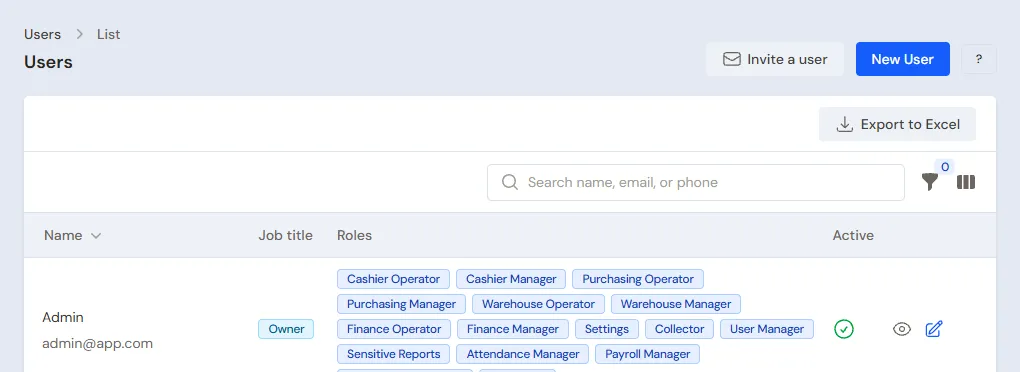
There are two ways to add staff. Both are in Settings → Users.
Important: Verify your email first. Until your email is verified, you cannot add staff. See Verifying your email.
Way 1: invite by email
Use this way when the staff member has their own email.
- Open Settings → Users.
- Press Invite a user.
- Fill in the staff member's Email.
- Pick the Job title that matches their work, for example Cashier. Its roles are ticked at once.
- Press Send invitation.
The staff member receives an email with an Open the invitation button. The link is valid for 7 days.
- A staff member without an account fills in a name and a password, then presses Create the account and enter the shop.
- A staff member who already has a Vende account just signs in, then presses Accept invitation. Your shop appears in their list of shops.
An invited staff member first works at the shop's main branch, which is called Head Office by default. Other branches can be added after they join.
Way 2: create their account yourself
Use this way when the staff member cannot receive the invitation email, or you want to give them their password straight away. The email is still required, because it is used to sign in.
- Open Settings → Users.
- Press New User.
- Fill in Name, Email and a starting Password (at least 8 characters).
- Pick a Job title, then check the Roles and tick the Branches where they work.
- Press Create.
Give that email and password to the staff member. They can change their password themselves in Profile.
Choosing a job title and roles
Roles decide what someone may see and do. A job title is a ready-made set of roles. For an ordinary cashier, the Cashier job title is enough. For someone who only checks, pick Auditor. One person may hold several roles, for example Cashier Operator and Warehouse Operator. Ticks that match no job title make the title Custom.
Every role is explained in Roles and permissions.
When the Staff attendance feature is on, every active staff member can check in from their phone on My Attendance at once, without an extra role. See Staff attendance.
The user limit
The number of active users is limited by your shop's user limit. When inviting, invitations not yet accepted count too. Users who are deactivated do not count. When the limit is reached, the button turns grey. See the usage in Settings → Subscription. Need more users? Contact the Vende team.
The full settings for each staff member, such as the discount limit and sign-in hours, are in Adding and managing users.