
Laundry: washing by weight and by piece
Record laundry coming in on a Laundry Order, move its stages on the Laundry Board, tell the customer on WhatsApp, then bill it at pickup.
On this page
A laundry records every load that comes in as a Laundry Order: who the customer is, the services and their weight, the promised time, and what has been paid. Its stage is moved on the Laundry Board until the laundry is picked up.
This is an extra feature. If its menu is missing, contact the Vende team to switch it on.
1. Set up the services
Every laundry service is a service. Create regular and express as two services, for example Cuci Setrika Reguler and Cuci Setrika Kilat, since their prices and times differ.
- Open Master Data → Services, then press New Service.
- Fill in Name and Price, for example Cuci Setrika Reguler, 7.000.
- Under Unit, pick Kilogram for washing by weight, or Pcs and Pair for washing by piece such as bed covers and shoes.
- Fill in Time taken in minutes, for example 2880 for a 2-day regular wash or 360 for a 6-hour express.
- In the Materials used section, press Add material, choose the supply, then fill in Quantity per service for one unit of the service, for example 0,05 kg of detergent for every kg of laundry.
- Press Create.
Supplies such as detergent, fragrance and plastic bags are ordinary goods in the Laundry Supplies category, bought as purchases. When the laundry is billed, the stock of the supplies under Materials used goes down by its weight, and their cost becomes the cost of the service, so the laundry profit in the reports already takes them off. It works like the materials of any other service. Use that does not follow a service, such as a machine cleaner, is recorded through Transactions → Stock Adjustments with the category Used in the shop.
2. Take in laundry
- Open Transactions → Laundry Board, then press New laundry order.
- Pick the Customer. Their phone number is used for the WhatsApp messages.
- Fill in Laundry Details if needed, for example 3 shirts, 2 trousers and a stain to watch. This field may stay empty.
- Add the services. For washing by weight, the quantity is the weight from the scale, for example 3,5. For washing by piece, it is the number of pieces or pairs. On a phone the service's price moves to the line's details and still shows under its name, and so does a discount once filled in; what you can change has a pencil mark. Tap the service name to change them.
- Promised Ready is filled in from the longest service, whatever the weight. You can still change it.
- If the customer pays now, fill in Paid now with the whole total or part of it, then pick the Cash account and Payment method. Leave it empty when paid at pickup.
- Press Save. The laundry order's page opens.
On that page, press Print Laundry Slip to print a 58 or 80 mm slip. Print Laundry Order on a 58 or 80 mm receipt paper prints this slip too; that paper can be made the shop's choice under Settings → Print. The slip holds the order number, the services, the payment and the promised time. Its lower part is a bag tag with the same order number, to tie to the laundry bag. Send Order (WhatsApp) sends the same order to the customer's WhatsApp. In the list of work orders, the printer icon at the end of a row opens the same paper choice for the printed order as its page.
3. Move its stage
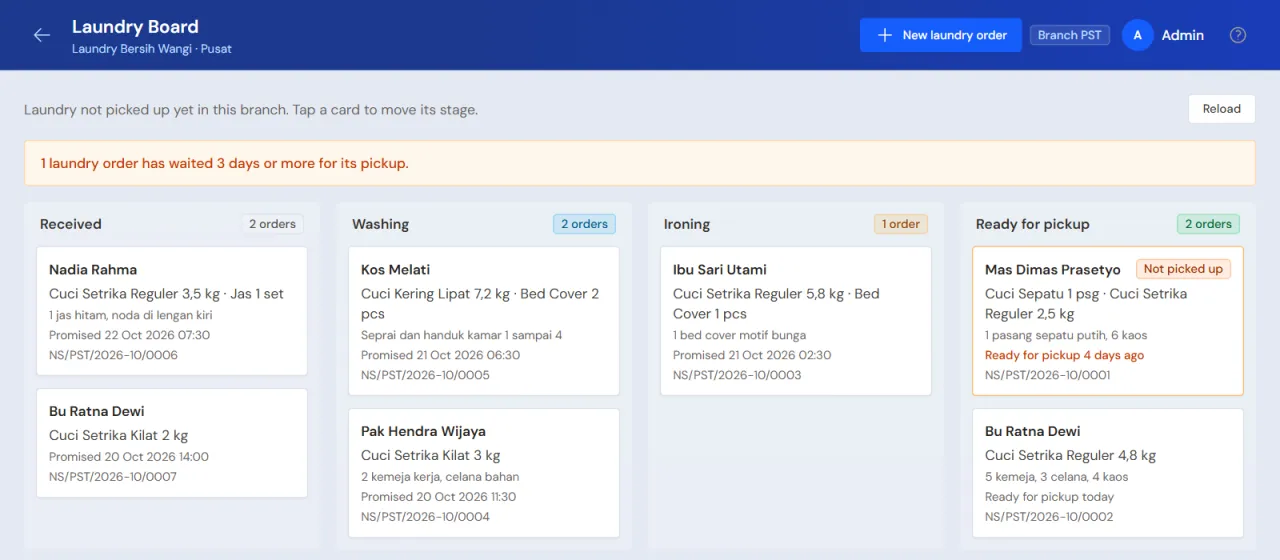
The Laundry Board shows the laundry in four columns: Received, Washing, Ironing and Ready for pickup. The oldest laundry is on top, and a card turns red once its promised time has passed.
- Tap the laundry's card.
- Pick the next stage.
Laundry that needs no ironing may go straight from Washing to Ready for pickup. Laundry that is only ironed may go straight from Received to Ironing. When a stain is left, ready laundry can go back to Washing.
4. Tell the customer
Once the laundry is Ready for pickup, tap its card and press Tell the customer on WhatsApp. WhatsApp opens with the message that the laundry is ready, its total, what was paid and what is paid at pickup. The same button is on the laundry order's page: Tell Ready for Pickup (WhatsApp).
5. Laundry picked up
- Tap the laundry's card, then press Bill at the till. A draft sale note opens at the till, and what was paid in advance is taken off at once.
- Take the rest, or keep it as a receivable when the customer pays later.
- Go back to the Laundry Board, tap the card, then pick Picked up.
Laundry can be marked Picked up only once its sale note is posted.
Laundry left uncollected
Laundry that has been Ready for pickup for 3 days or more without being picked up says Not picked up on its card, and their number shows above the Laundry Board. The list is under Transactions → Laundry Orders, quick tab Left uncollected, with the Waiting for Pickup column. Contact the customers from there.
Supporting reading
Articles on the background and the arithmetic.