
Printing shop guide
A learning path for a printing or advertising shop, new or running: job titles, quotations, orders with a down payment, production, opening balances.
On this page
- A new business
- Who does what
- 1. Shop details and users
- 2. Master data
- 3. First capital and buying
- 4. One order from quotation to paid
- 5. Payables and expenses
- 6. Reports per job title
- 7. Checklists
- A running business
- 1. Master data
- 2. Team practice
- 3. Empty the practice transactions
- 4. Opening balances
- 5. Check before going live
- 6. Going live
This guide is for the team setting up Vende at a printing, screen printing or advertising shop that takes print orders with a down payment, prints from materials in the warehouse, and serves walk-in buyers at the front desk. It has two parts: A new business for a shop just opening, with no stock, receivables or payables from before, and A running business for a shop moving to Vende, with team practice and opening balances. The example is Percetakan Karya Warna. The names of the shop, customers, suppliers and people and all the figures are made up.
What the business looks like:
- Materials: art carton paper by the sheet and flexi banner material by the square metre, bought from suppliers.
- Prints ready to sell: business cards by the pack are printed from a recipe, so their cost comes from the paper, and they are cheaper when bought in bulk.
- Printing services: banners are sold by the square metre and use flexi material, design is sold as a service.
- Office orders: quoted first, paid with a down payment, then settled at pickup.
Work through it from the top. Every step names its menu, who does it, what changes afterwards, and an example with figures.
The features in this guide come with the Printing/screen printing/advertising business type package, except those marked extra. The shop's features show under Settings → Subscription, section This shop's features. If a menu is missing, contact the Vende team.
Tip: Lost on a page? Press the ? button at the top of that page. A short tour shows every field, in Productions too.
A new business
Who does what
This package holds four users, the owner included.
| Part of the shop | Job title in Vende | What they do and open |
|---|---|---|
| Owner | Owner | Every menu, also suppliers, purchases, payments, expenses, opening balances, and Reports → Profit & Loss |
| Customer service | Head Cashier | Customers, quotations, orders with down payments, selling on the till |
| Front desk | Cashier | Customers, selling on the till, orders |
| Machine operator and warehouse | Warehouse Admin | Products, services, production recipes, productions, stock, Reports → Stock |
The designer needs no account: the design service goes on the note through customer service. Every role is explained in Roles and permissions.
1. Shop details and users
Done by the Owner: fill in Settings → Shop (name, address, WhatsApp, logo), then create the accounts in Settings → Users with the Job title of the table above. See Adding and managing users.
The people at Percetakan Karya Warna: Pak Arif (owner), Mbak Wulan (customer service, Head Cashier), Mbak Tika (front desk, Cashier) and Mas Joko (machine operator and warehouse, Warehouse Admin).
2. Master data
A printing shop of this business type already has the product categories Printing Services, Screen Printing Services, Banners and Signage, Design Services, Printing Materials and Inks, the units Metre, Square Metre, Sheet, Ream and Roll, and the expense categories Machine Maintenance and Internet and Phone Credit.
Materials and prints
Warehouse Admin: in Master Data → Products, create every good:
| Good | Category | Base Unit | First cost price | Selling Price |
|---|---|---|---|---|
| Kertas Art Carton 260 g A3+ | Printing Materials | Sheet | Rp 2.500 | Rp 0, a material not for sale |
| Bahan Flexi 280 g | Printing Materials | Square Metre | Rp 9.000 | Rp 0, a material not for sale |
| Kartu Nama 1 Pak (100 cards) | Printing Services | Pack | worked out by production | Rp 35.000 |
On Kartu Nama, fill in the Quantity prices table below the Selling Price: From quantity 10, Price Rp 30.000. An order of 10 packs or more takes that price by itself, on quotations, orders and the till. See Quantity prices.
Ink and machine fluids are hard to count per print, so they are not made products: buying them is recorded as a Machine Maintenance expense (part 5). As a result, the cost of a print in the reports is only its paper and material, and the ink shows in the expenses.
The business cards recipe
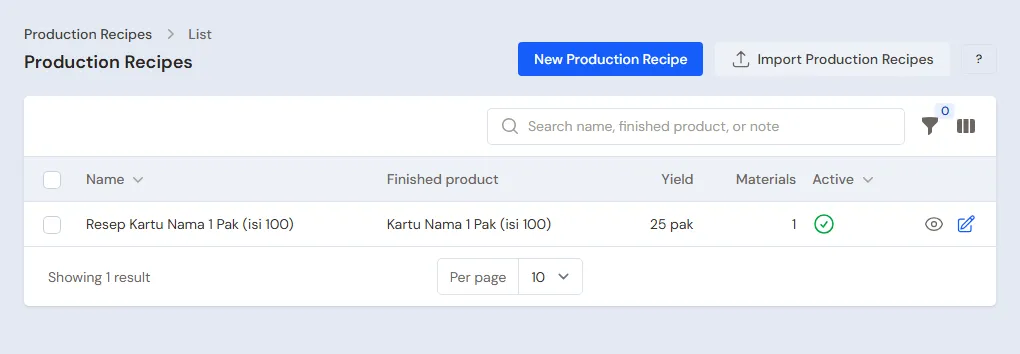
Warehouse Admin: in Master Data → Production Recipes, button New Production Recipe, create the recipe Kartu Nama 1 Pak with the Finished product Kartu Nama 1 Pak, Yield 1, and the material Kertas Art Carton 260 g A3+ 4 sheets. One A3+ sheet holds 25 cards, so one pack takes 4 sheets, and its cost is 4 × Rp 2.500 = Rp 10.000.
Services
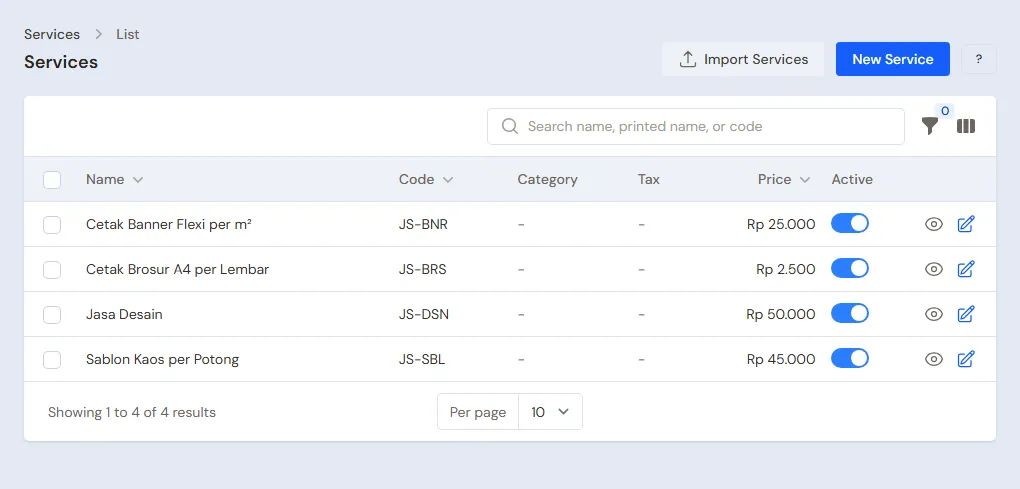
Warehouse Admin: in Master Data → Services, create:
- Cetak Banner Flexi per m² (flexi banner print per square metre) Rp 25.000, in the category Banners and Signage. Under Materials used, press Add material, pick Bahan Flexi 280 g, and enter a Quantity per service of 1. On a note, its quantity is the banner's area in square metres: a 3 × 1 metre banner has a quantity of 3.
- Jasa Desain (design) Rp 50.000, in the category Design Services.
See Adding a service.
Customers and suppliers
- Head Cashier: in Master Data → Customers, register CV Sinar Abadi and Pak Budi with their WhatsApp numbers.
- Owner: in Master Data → Suppliers, register CV Kertas Nusantara (30 days' credit) and Toko Bahan Reklame Jaya.
3. First capital and buying
- The Owner records Rp 20.000.000 of capital into Bank BCA in Transactions → Finance → Owner's Capital.
- The Owner records the note of CV Kertas Nusantara in Transactions → Purchases, 30 days' credit: 200 sheets of Kertas Art Carton × Rp 2.500 = Rp 500.000.
- The Owner records the note of Toko Bahan Reklame Jaya, paid in full from Bank BCA: 50 m² of Bahan Flexi × Rp 9.000 = Rp 450.000.
See Recording a purchase note.
4. One order from quotation to paid
Example: CV Sinar Abadi orders business cards for 20 employees and one office banner.
| Order | Who | Job | The money |
|---|---|---|---|
| 1 | Head Cashier | A Rp 725.000 quotation | None yet |
| 2 | Head Cashier | Made an order, down payment taken | Rp 400.000 transfer |
| 3 | Warehouse Admin | 30 packs of business cards printed | Paper leaves the stock |
| 4 | Head Cashier | The order picked up, its note settled | Rp 325.000 cash |
The quotation
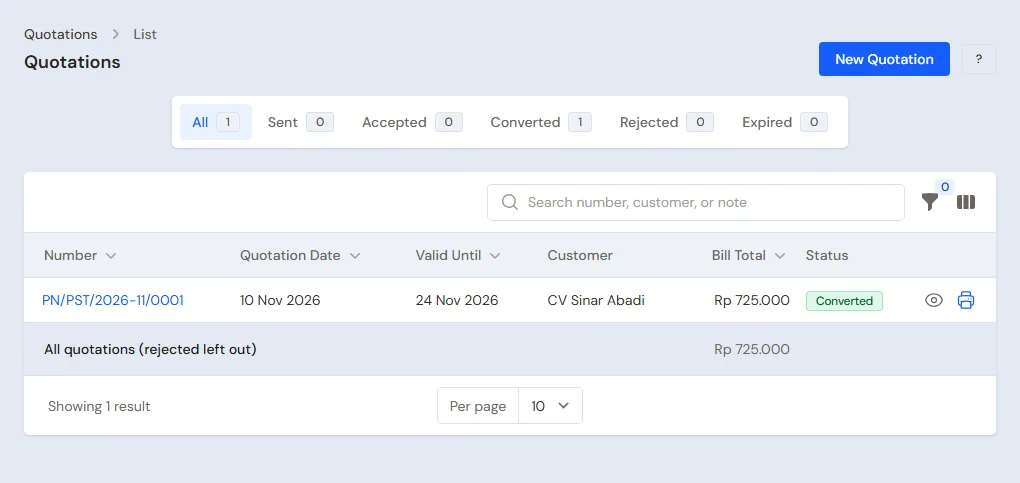
Head Cashier: in Transactions → Quotations, press New Quotation, choose CV Sinar Abadi, then fill in:
| Line | Quantity | Price | Line amount |
|---|---|---|---|
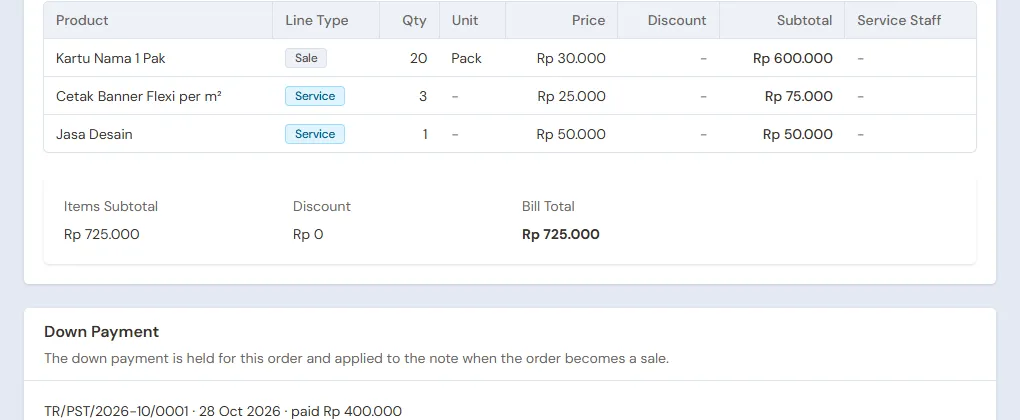
| Kartu Nama 1 Pak | 20 | Rp 30.000 (quantity price) | Rp 600.000 |
| Cetak Banner Flexi per m² | 3 | Rp 25.000 | Rp 75.000 |
| Jasa Desain | 1 | Rp 50.000 | Rp 50.000 |
The total is Rp 725.000. Press Save, then Print PDF and send it to the customer. See Making a price quotation.
The order and its down payment
- Head Cashier: CV Sinar Abadi agrees. Change the quotation's Status to Accepted, then press Convert to Order.
- Head Cashier: on the order's page, press Receive Down Payment, fill in the Amount Rp 400.000 and the Cash Account Bank BCA, then Save Down Payment. See Taking a down payment on an order.
The order holds the down payment; it is not a sale yet.
Printing
Warehouse Admin (Mas Joko): in Transactions → Productions, press New Production, choose the Recipe Kartu Nama 1 Pak, enter the quantity 30 (20 for the order and 10 to sell at the front desk), then save. 120 sheets of paper go out and 30 packs of business cards come into stock at a cost of Rp 10.000 a pack.
The banner needs no Production: its flexi material leaves by itself when its note is saved.
The order picked up
- Head Cashier: once everything is ready, press Mark Ready for Pickup on the order's page. Tell the customer on WhatsApp.
- Head Cashier: at pickup, press Convert to Sale. The draft note opens on the till with the Rp 400.000 down payment already taken off. CV Sinar Abadi pays Rp 325.000 in cash, then press Save transaction. The order becomes Completed.
The front desk
The Cashier (Mbak Tika) serves walk-in buyers on the till through Transactions → Sales, button New sale. Example: Pak Budi prints a 2 m² banner (Cetak Banner Flexi per m² quantity 2, Rp 50.000) and buys 2 packs of business cards from stock (Rp 70.000), so Rp 120.000 in cash. See Recording a sale on the till.
5. Payables and expenses
- The Owner pays CV Kertas Nusantara before the due date in Transaction Details → Purchase Payments: Rp 500.000 from Bank BCA. See Paying what you owe suppliers.
- The Owner records ink and machine fluids in the category Machine Maintenance, and the rent, electricity and salaries, in Transactions → Finance → Expenses. See Recording shop expenses.
6. Reports per job title
| Report | What it shows | Opened by | When |
|---|---|---|---|
| Transactions → Sales Orders | The orders not picked up yet and their down payments | Head Cashier | Every day |
| Reports → Stock | The paper, flexi material and business cards ready to sell | Warehouse Admin | Every day |
| Transaction Details → Production Lines | Every production with its materials and cost | Warehouse Admin | Every week |
| Reports → Payables | What is owed to suppliers, with due dates | Owner | Every week |
| Reports → Profit & Loss | Sales of prints and services, the cost of paper and materials, ink and other expenses | Owner | Every month |
7. Checklists
- Every day: the Head Cashier records every order with its down payment. The Warehouse Admin records every production on the day of printing.
- Every week: the Head Cashier tells the customers whose orders are Ready for pickup. The Owner reads Payables.
- Every month: the Warehouse Admin counts the paper and materials with a stocktake. The Owner reads Profit & Loss.
A running business
This part is for the team moving a printing shop already running to Vende: there is already paper and material in stock, orders whose down payment was received but not printed yet, offices owing money, and debts to suppliers. The order is always the same:
- Fill in the master data.
- Practise transactions until everyone is used to them.
- Empty the practice transactions.
- Fill in the opening balances on the first day.
- Go live.
The opening balances come last on purpose, so the practice does not upset their figures. The examples in this part use Percetakan Karya Warna from the new business part.
1. Master data
Do Who does what, 1. Shop details and users and 2. Master data above. Also register every customer whose order is not finished or who still owes money, every supplier still owed, and every good still in stock.
Master data is not deleted when the practice transactions are emptied.
2. Team practice
Work in a practice shop of the type Printing/screen printing/advertising with all four accounts. Every step names who and what must show.
Practice 1: master data
- Owner: shop details, the three users and both suppliers.
- Mas Joko (Warehouse Admin): the three goods with the business cards' quantity price, the business cards recipe, and both services.
- Head Cashier: both customers.
Practice 2: one order and the front desk
- Owner: Rp 20.000.000 of capital and both purchase notes as in part 3.
- Head Cashier: CV Sinar Abadi's quotation as in part 4.
- Check: Kartu Nama comes in at Rp 30.000 a pack.
- Head Cashier: make it an order and take the Rp 400.000 down payment.
- Warehouse Admin: the production of 30 packs of business cards.
- Check: in Reports → Stock, 80 sheets of paper and 30 packs of business cards are left.
- Head Cashier: the order picked up and settled.
- Cashier: Pak Budi's sale as in part 4.
After Practice 2 this must show:
| Report | What must show | Opened by |
|---|---|---|
| Reports → Cash Balance | Bank BCA Rp 20.000.000 − Rp 450.000 + Rp 400.000 = Rp 19.950.000; Cashier Cash Rp 325.000 + Rp 120.000 = Rp 445.000 | Owner |
| Reports → Payables | CV Kertas Nusantara Rp 500.000 | Owner |
| Reports → Stock | Paper 80 sheets, flexi 50 − 3 − 2 = 45 m², business cards 30 − 20 − 2 = 8 packs | Warehouse Admin |
| Reports → Profit & Loss | Sales Rp 725.000 + Rp 120.000 = Rp 845.000, cost of goods sold 22 packs × Rp 10.000 + 5 m² × Rp 9.000 = Rp 265.000 | Owner |
Practice 3: opening balances
Fill in the opening balances with the example of part 4 below, check them as in part 5, then empty again.
3. Empty the practice transactions
Done by the Owner in Settings → Empty Transactions, button Empty All Transactions. Quotations, orders with their down payments, productions, notes, purchases, payments, expenses, capital and opening balances are deleted. Products with their quantity prices, production recipes, services and their materials, customers, suppliers, cash accounts, users and settings stay. Vende makes a full backup first. See Emptying transactions or all data.
4. Opening balances
Example: Percetakan Karya Warna starts using Vende for real on Monday, 2 November.
Stock, receivables, payables
Done by the Owner in Settings → Opening Balances, with As of that day. See Entering opening cash, stock, receivables and payables.
- Opening Stock: Kertas Art Carton 260 g A3+ 150 Sheets at Rp 2.500, Bahan Flexi 280 g 30 Square Metres at Rp 9.000. Business cards ready to sell, if any, are counted too at a cost of Rp 10.000 a pack. This example has none.
- Opening Receivables: SD Tunas Bangsa Rp 450.000 for last month's report books, with its due date.
- Opening Payables: CV Kertas Nusantara Rp 300.000 with its due date.
Orders not printed yet
Opening Balances has no tab for orders whose down payment was received. The way to do it with what is there:
- Their paper and materials are still in the warehouse, so they are counted in Opening Stock.
- The Head Cashier makes the order on the first day in Transactions → Sales Orders, button New Sales Order, with the agreed goods and quantities.
- The down payment already received is recorded with Receive Down Payment, into the cash account that now holds the money, dated the first day.
- The Owner fills in that account's Opening Cash with the money counted less that down payment.
Example: Klinik Sehat Bersama ordered 10 packs of business cards, so Rp 30.000 × 10 = Rp 300.000 at the quantity price, and transferred a Rp 150.000 down payment last week. Its order is made this morning with a Rp 150.000 down payment into Bank BCA.
What follows:
- Bank BCA is the same as the account, and the order holds Rp 150.000 as its down payment.
- The Warehouse Admin prints it in Transactions → Productions with the recipe Kartu Nama 1 Pak, quantity 10: 40 sheets of paper go out, so 110 are left.
- At pickup, Convert to Sale opens a Rp 300.000 note with the Rp 150.000 down payment taken off, and Klinik Sehat Bersama transfers another Rp 150.000.
- Reports → Profit & Loss records Rp 300.000 with a cost of 40 × Rp 2.500 = Rp 100.000 on the note's day.
Opening cash
The Owner fills in the Opening Cash tab for every account. Example: the Bank BCA account holds Rp 10.000.000 on the morning of the first day, Rp 150.000 of it Klinik Sehat Bersama's down payment, so the Opening Cash of Bank BCA is Rp 9.850.000. Cashier Cash takes the money counted, for example Rp 400.000.
5. Check before going live
| Report | What must show | Opened by |
|---|---|---|
| Reports → Cash Balance | Bank BCA Rp 10.000.000 and Cashier Cash Rp 400.000, the same as the money counted | Owner |
| Reports → Stock | Paper 150 sheets, flexi 30 m² | Warehouse Admin |
| Reports → Receivables | SD Tunas Bangsa Rp 450.000 | Owner |
| Reports → Payables | CV Kertas Nusantara Rp 300.000 | Owner |
| Transactions → Sales Orders | Klinik Sehat Bersama's Rp 300.000 order with a Rp 150.000 down payment | Head Cashier |
A figure is different? The Owner corrects its line in Settings → Opening Balances before real transactions are recorded.
6. Going live
From that day every quotation, order, production, sale, purchase and payment is recorded in Vende as in the new business part, with the same checklists.
Checks in the first week:
- Warehouse Admin: the paper in Reports → Stock matches the shelf after every production.
- Head Cashier: every order picked up has been converted to a sale.
- Owner: Reports → Profit & Loss for the first week holds only the sales and expenses since the first day.