
Furniture shop guide
A learning path for a furniture shop, new or running: job titles, sofas per colour, tables made in the workshop, down payments, delivery notes, opening stock.
On this page
- A new business
- Who does what
- 1. Shop details and users
- 2. Master data
- 3. Starting capital and purchases
- 4. One table to order from down payment to delivery
- 5. Payables, expenses and cancelled orders
- 6. Reports per job title
- 7. Checklists
- A running business
- 1. Master data
- 2. Practice for the team
- 3. Emptying the practice transactions
- 4. Opening balances
- 5. Check before going live
- 6. Going live
This guide is for the team setting up Vende at a furniture shop that sells ready-made furniture from its showroom, makes furniture to order in its own workshop, and delivers to the buyer's home. It has two parts: A new business for a shop just opening, with no stock, receivables or payables from before, and A running business for one moving to Vende, with team practice and opening balances. The example is Mebel Jati Makmur. The names of the shop, customers, suppliers and people and all the figures are made up.
What the business looks like:
- Ready-made furniture: sofas in two colours bought in full from a craftsman, shown in the showroom.
- Furniture to order: teak dining tables made in the workshop from teak boards and wood finish. The carpenter is paid a piece rate per table.
- Orders: the buyer pays a down payment, the rest when the goods are delivered.
- Delivery and service: goods go out in the shop's car with a delivery note; customers' old furniture can be refinished as a service.
Work through it from the top. Every step names its menu, who does it, what changes afterwards, and an example with figures.
The features in this guide come with the Furniture business type package, except those marked extra. The shop's features show under Settings → Subscription, section This shop's features. If a menu is missing, contact the Vende team.
Tip: Lost on a page? Press the ? button at the top of that page. A short tour shows every field, on the order and delivery note pages too.
A new business
Who does what
This package holds four users, the owner included.
| Part of the shop | Job title in Vende | What they do and open |
|---|---|---|
| Owner | Owner | Every menu, also opening balances and Reports → Profit & Loss |
| Shop head | Store Head | Suppliers, purchase notes, piece-rate wages, banking the till cash, payments, Reports → Cash Balance, Reports → Receivables and Reports → Payables |
| Workshop and store room | Warehouse Admin | Products and materials, recipes, Transactions → Productions, receiving goods, Transactions → Delivery Notes, stocktakes and Reports → Stock |
| Showroom | Cashier | Selling at the till, customers, Transactions → Sales Orders, down payments, notes from delivery notes, Transaction Details → Sale Lines |
Every role is explained in Roles and permissions.
1. Shop details and users
Done by the Owner: fill in Settings → Shop (name, address, WhatsApp, logo), then make the accounts in Settings → Users with the Job title from the table above. See Adding and managing users.
The people at Mebel Jati Makmur: Pak Darmo (owner), Mas Arif (shop head, Store Head), Pak Karyo (workshop and store room, Warehouse Admin) and Mbak Wati (showroom, Cashier). The driver, Pak Udin, needs no account: he takes the printed delivery note.
2. Master data
A shop of this business type already has the product categories Living Room, Bedroom, Dining Room, Office Furniture and Made-to-order Furniture, the units Unit and Set besides Pcs and Litre, and the expense categories Piece-rate Wages and Fuel.
Workshop materials
Warehouse Admin: in Master Data → Product Categories, make the category Bahan Bengkel. Then in Master Data → Products, make every material with the Type Raw Material:
| Material | Category | Base Unit |
|---|---|---|
| Papan Jati 2 m | Bahan Bengkel | Pcs |
| Plitur Jati | Bahan Bengkel | Litre |
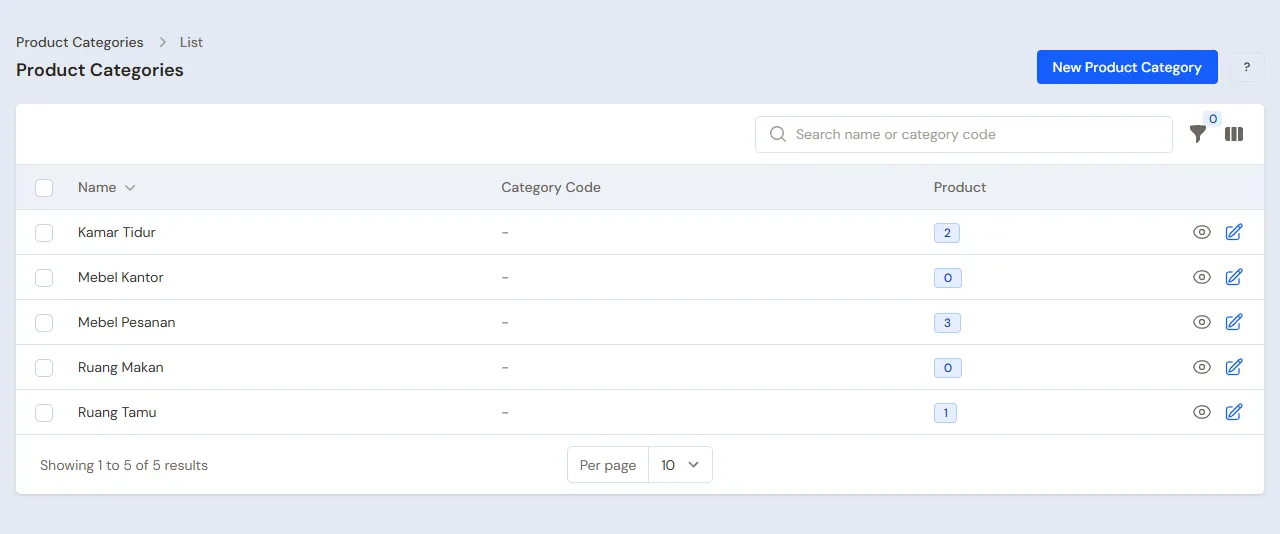
Ready-made and made-to-order furniture
Warehouse Admin: in Master Data → Products, make:
| Product | Category | Base Unit | Selling Price |
|---|---|---|---|
| Sofa Minimalis 3 Dudukan | Living Room | Unit | Rp 3.500.000 |
| Meja Makan Jati 160 cm | Made-to-order Furniture | Unit | Rp 4.000.000 |
Sofa Minimalis 3 Dudukan has variants: in the Variants section, switch on Has variants (size, colour and more), fill in the Option name Colour with the values Abu-abu and Krem, then press Make variant combinations. See Product variants.
The Warehouse Admin does not see Cost Price, because the cost of goods shows only to the Owner and holders of Sensitive Reports. Leave it: the sofas' cost comes from the purchase note in part 3, and the table's cost is worked out from its materials when it is produced. See Cost price of goods.
The dining table recipe
The Warehouse Admin in Master Data → Production Recipes, button New Production Recipe: fill in the name Meja Makan Jati 160 cm, Finished product Meja Makan Jati 160 cm, Yield 1 Unit, then under Materials per recipe add 6 Pcs of Papan Jati 2 m and 2 Litres of Plitur Jati. Press Create.
The refinishing service
Warehouse Admin: in Master Data → Services, press New Service, fill in Name Plitur Ulang Kursi and Price Rp 250.000. Under Materials used, add 1 Litre of Plitur Jati, then press Create. See Adding services.
Suppliers and customers
- Store Head: in Master Data → Suppliers, list UD Kayu Jati Lestari with Payment Terms (days) 30, and Perajin Sofa Jepara.
- Cashier: in Master Data → Customers, list Bu Rini with her home address. This address is printed on the delivery note.
3. Starting capital and purchases
- The Owner records capital of Rp 20.000.000 into Bank BCA in Transactions → Finance → Owner's Capital, then the Store Head moves Rp 300.000 to Cashier Cash as change money in Transactions → Finance → Cash Transfers.
- The Store Head records the invoice of UD Kayu Jati Lestari in Transactions → Purchases, without a payment: 12 Pcs of Papan Jati 2 m × Rp 250.000 = Rp 3.000.000 and 4 Litres of Plitur Jati × Rp 75.000 = Rp 300.000, so Rp 3.300.000. Switch off All goods have been received, because the wood is unloaded at the workshop.
- The Warehouse Admin (Pak Karyo) opens Transactions → Receive Goods, presses Receive on that invoice, checks the quantities that came, then presses Save Receipt. This screen shows no purchase prices.
- The Store Head records the note of Perajin Sofa Jepara, paid in full from Bank BCA: 2 units of every colour of Sofa Minimalis 3 Dudukan, 4 × Rp 2.500.000 = Rp 10.000.000.
See Recording a purchase note and Receiving goods that arrive in parts.
4. One table to order from down payment to delivery
| Day | Who | Work |
|---|---|---|
| Day 1 | Cashier | Bu Rini's order and down payment |
| Days 1 to 10 | Warehouse Admin | The table is made in the workshop, then its production recorded |
| Day 10 | Store Head | The carpenter's piece-rate wage |
| Day 12 | Warehouse Admin | Delivery note and delivery |
| Day 12 | Cashier | The note from the delivery note, the down payment taken off |
The order and the down payment
- Cashier (Mbak Wati): in Transactions → Sales Orders, press New Sales Order, choose Bu Rini, fill in the Pickup Date in 12 days, add 1 Meja Makan Jati 160 cm (Rp 4.000.000), then press Save.
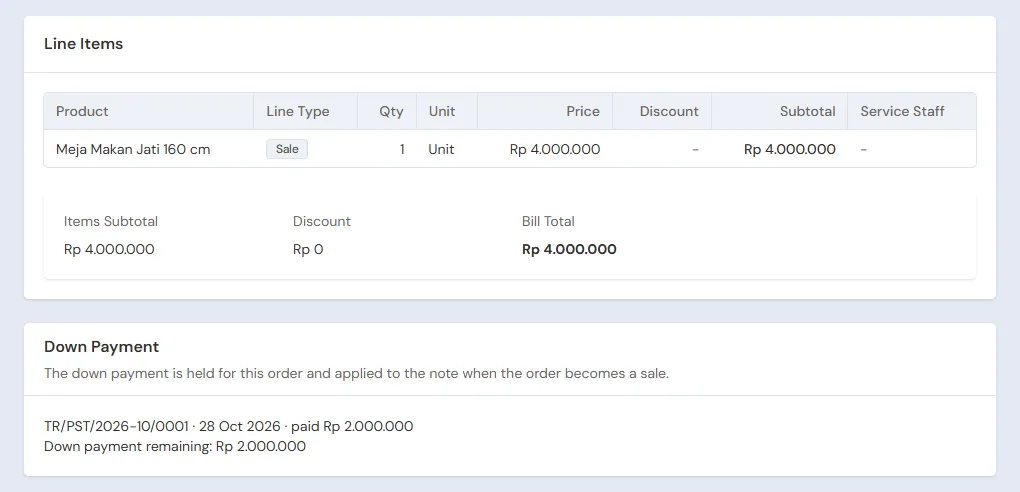
- Cashier: on the order page, press Receive Down Payment, fill in Amount Rp 2.000.000, Cash Account Bank BCA, Payment Method transfer, then press Save Down Payment. See Receiving down payments on orders.
The down payment is not a sale yet. The order holds it until its note is made. See Recording sales orders.
The table is made in the workshop
Warehouse Admin: when the table is finished, open Transactions → Productions, press the new button, choose the Recipe Meja Makan Jati 160 cm, fill in the quantity 1, then save. The materials used come from the recipe: 6 boards × Rp 250.000 = Rp 1.500.000 and 2 litres of finish × Rp 75.000 = Rp 150.000, so the table costs Rp 1.650.000. The board and finish stock goes down, and 1 table comes into stock.
The Store Head pays the carpenter's piece rate of Rp 600.000 from Bank BCA in Transactions → Finance → Expenses, category Piece-rate Wages. The wage is not part of the table's cost; Profit & Loss shows it as an expense. See Recording shop expenses.
Delivering with a delivery note
- Warehouse Admin: open Transactions → Delivery Notes, press Make Delivery Note, choose Bu Rini's order, then press Continue.
- Fill in the Delivery Date, the Driver Pak Udin and the Vehicle, check the Delivery Address, then press Save Delivery Note and print it for the driver.
The table leaves the stock on the delivery date. See Sending goods in parts with delivery notes.
The note and the payment
Cashier: open Bu Rini's order, press Make Note from Delivery Notes, choose its delivery note, then press Make Draft Note. The draft note opens at the order's price, Rp 4.000.000. When it is posted, the Rp 2.000.000 down payment is taken off the note, so Bu Rini pays the remaining Rp 2.000.000. She pays when the table arrives, by transfer into Bank BCA.
Selling in the showroom and the service
Open the till with New sale on the Dashboard.
- Cashier: a buyer takes Sofa Minimalis 3 Dudukan - Krem home in their own car, Rp 3.500.000 by transfer into Bank BCA.
- Cashier: a customer has an old chair refinished, Plitur Ulang Kursi Rp 250.000 in cash. One litre of finish leaves the stock.
See Recording sales on the till.
Closing and banking the till cash
The Store Head (Mas Arif) counts the drawer: Rp 300.000 change money + Rp 250.000 = Rp 550.000. The Rp 250.000 is moved to Owner Cash in Transactions → Finance → Cash Transfers. A drawer holding less or more than counted is recorded in Transactions → Finance → Cash Adjustments. See Moving money between cash accounts.
5. Payables, expenses and cancelled orders
- The Store Head pays UD Kayu Jati Lestari before the due date in Transaction Details → Purchase Payments: Rp 3.300.000. See Paying what you owe suppliers.
- The Store Head records the delivery car's petrol in Transactions → Finance → Expenses, category Fuel, and rent, electricity and salaries too.
- A buyer who pays later is recorded with Unpaid on the note, and the Store Head records the payment in Transaction Details → Sale Payments. See Recording payments of unpaid notes.
- An order that falls through is cancelled with Cancel Order, and its down payment is Refunded or Forfeited. See When the order is cancelled.
6. Reports per job title
| Report | What it holds | Opened by | When |
|---|---|---|---|
| Transactions → Sales Orders | The orders not yet delivered and their down payments | Cashier | Every day |
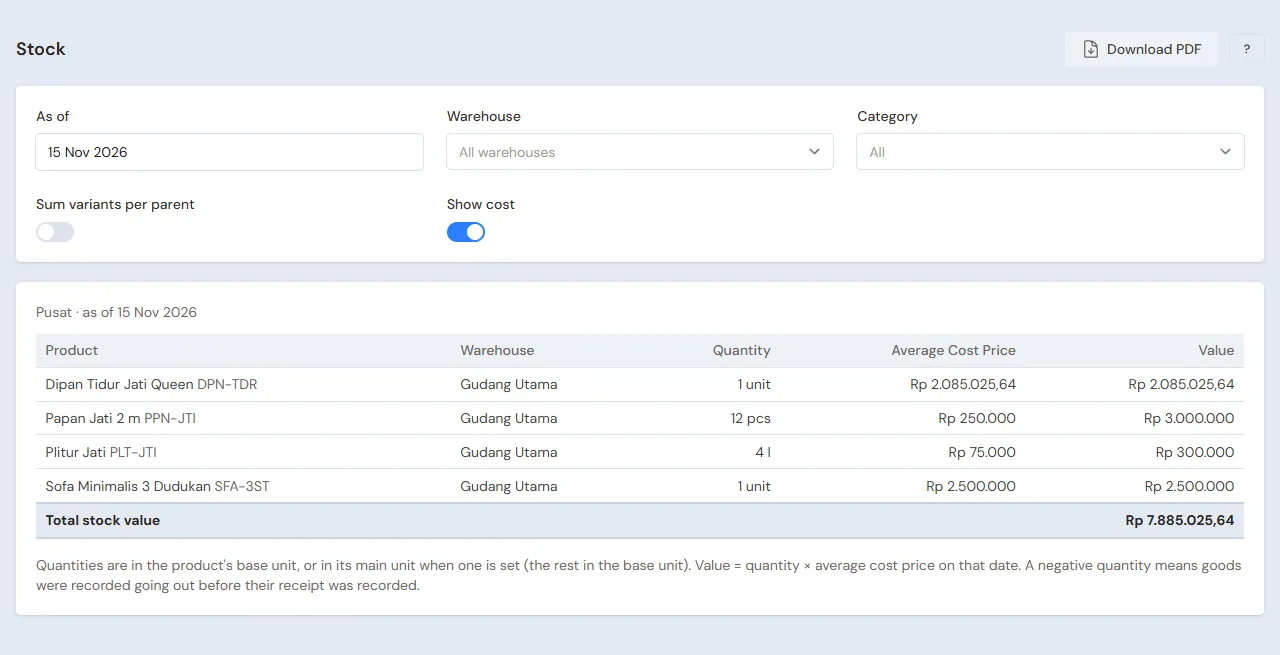
| Reports → Stock | Ready-made furniture per colour, boards and finish | Warehouse Admin | Every week |
| Transaction Details → Production Lines | The tables made and their materials | Warehouse Admin | Every week |
| Reports → Cash Balance | The drawer, Owner Cash and the bank | Store Head | Every day |
| Reports → Payables | What is owed to the wood supplier and when | Store Head | Every week |
| Reports → Profit & Loss | Sales, cost of goods sold, piece-rate wages, fuel and other expenses | Owner | Every month |
7. Checklists
- Every day: the Cashier records every order and its down payment. The Warehouse Admin records the production when a piece is finished and the delivery note when goods leave. The Store Head counts the drawer and banks the money.
- Every week: the Store Head pays the piece-rate wages and the suppliers when due. The Cashier checks orders delivered but without a note yet on the tab Waiting for a Note in Transactions → Delivery Notes.
- Every month: the Warehouse Admin counts the stock with a stocktake. The Owner reads Profit & Loss. See Counting stock with a stocktake.
A running business
This part is for the team moving a running furniture shop to Vende: furniture in the showroom, boards in the workshop, a table being made, orders with their down payment paid, and payables to the wood supplier. The order is always the same:
- Enter the master data.
- Practise transactions until every part is used to them.
- Empty the practice transactions.
- Enter the opening balances on the first day.
- Go live.
The opening balances come last on purpose, so the practice does not spoil their figures. The examples in this part use Mebel Jati Makmur from the new business part.
1. Master data
Work through the parts Who does what, 1. Shop details and users and 2. Master data above. Also list every piece of furniture and material still in stock, every recipe of furniture made to order, every customer whose order is not yet delivered, and every supplier still owed. The master data is not deleted when the practice transactions are emptied.
2. Practice for the team
Work in a practice shop of the Furniture type with the four accounts. Every step names who does it and what must show.
Practice 1: master data
- Owner: the shop details and the three users.
- Check: Mbak Wati sees no purchase menus and no money reports.
- Warehouse Admin: the category Bahan Bengkel, both materials, both pieces of furniture with their colours, the dining table recipe and the refinishing service.
- Store Head: both suppliers. Cashier: Bu Rini with her address.
Practice 2: one order and a day of selling
- Owner: capital of Rp 20.000.000.
- Store Head: the transfer of Rp 300.000 to Cashier Cash and both purchase notes. Warehouse Admin: receive the wood and the finish.
- Cashier: Bu Rini's order of Rp 4.000.000 and the down payment of Rp 2.000.000 into Bank BCA.
- Check: on the order page, the Down Payment part shows a down payment remaining of Rp 2.000.000.
- Warehouse Admin: the production of 1 table from the recipe, then the delivery note to Bu Rini.
- Check: in Transaction Details → Production Lines, the table costs Rp 1.650.000. Opened by the Warehouse Admin.
- Store Head: the piece-rate wage of Rp 600.000 from Bank BCA.
- Cashier: the note from the delivery note, the remaining Rp 2.000.000 by transfer, the sofa for Rp 3.500.000, and the refinishing for Rp 250.000 in cash.
- Store Head: the transfer of Rp 250.000 from Cashier Cash to Owner Cash.
After Practice 2 this must show:
| Report | What must show | Opened by |
|---|---|---|
| Reports → Cash Balance | Cashier Cash Rp 300.000; Owner Cash Rp 250.000; Bank BCA Rp 20.000.000 − Rp 300.000 − Rp 10.000.000 + Rp 2.000.000 − Rp 600.000 + Rp 2.000.000 + Rp 3.500.000 = Rp 16.600.000 | Store Head |
| Reports → Payables | UD Kayu Jati Lestari Rp 3.300.000 | Store Head |
| Reports → Stock | Papan Jati 2 m 6, Plitur Jati 1 litre, Sofa Minimalis 3 Dudukan 3 (Abu-abu 2, Krem 1), Meja Makan Jati 160 cm 0 | Warehouse Admin |
| Reports → Profit & Loss | Net sales Rp 4.000.000 + Rp 3.500.000 + Rp 250.000 = Rp 7.750.000, cost of goods sold Rp 1.650.000 + Rp 2.500.000 + Rp 75.000 = Rp 4.225.000, Piece-rate Wages Rp 600.000 | Owner |
The finish: 4 litres bought, 2 litres for the table, 1 litre for the refinishing, so 1 litre is left.
Practice 3: opening balances
Enter the opening balances with the example of part 4 below, check them as in part 5, then empty them again.
3. Emptying the practice transactions
Done by the Owner in Settings → Empty Transactions, button Empty All Transactions. Sales orders and their down payments, delivery notes, sale notes, purchases and their goods receipts, productions, stock adjustments, payments, cash transfers, capital, expenses and opening balances are deleted. Products with their variants, materials, recipes, services, customers, suppliers, cash accounts, users and settings stay. Vende makes a full backup first. See Emptying transactions or all data.
4. Opening balances
Done by the Owner in Settings → Opening Balances on the morning of the first day, with As of that day, before the shop opens. See Entering opening cash, stock, receivables and payables.
- Opening Stock: one row per piece of ready-made furniture and colour, for example Sofa Minimalis 3 Dudukan - Abu-abu 1 Unit at Rp 2.500.000, and per material, for example Papan Jati 2 m 10 Pcs at Rp 250.000.
- Opening Payables: UD Kayu Jati Lestari Rp 1.500.000.
- Opening Cash: the money counted in every account less the down payments of orders not yet delivered (see below). For example Bank BCA holds Rp 12.000.000, Rp 2.000.000 of it Pak Bowo's down payment, so the opening cash of Bank BCA is Rp 10.000.000.
Furniture being made
Opening Balances has no tab for half-made goods. Enter the materials not yet turned into furniture in Opening Stock, as if still unused: the table being made for Pak Bowo uses 6 boards and 2 litres of finish, so those boards and that finish are counted in Opening Stock. When the table is finished, the Warehouse Admin records its production as in part 4, and its materials leave the stock.
Orders with a down payment already paid
Opening Balances has no tab for orders or down payments. Orders whose down payment is paid but whose goods are not yet delivered are recorded on the first day:
- The Cashier makes the order in Transactions → Sales Orders as in part 4, for example Pak Bowo: 1 Meja Makan Jati 160 cm, Rp 4.000.000.
- The Cashier presses Receive Down Payment with the down payment Pak Bowo already paid, Rp 2.000.000, into the cash account that keeps the money, with the Date of the first day.
That down payment is already in Bank BCA, so the Opening Cash of Bank BCA is written as Rp 12.000.000 − Rp 2.000.000 = Rp 10.000.000. Once the down payment is recorded, Reports → Cash Balance shows Rp 12.000.000, the same as the bank balance. When the table is delivered and its note is made from the delivery note, the Rp 2.000.000 down payment is taken off and Pak Bowo only pays Rp 2.000.000.
5. Check before going live
| Report | What must show | Opened by |
|---|---|---|
| Reports → Cash Balance | The money counted in every account, Bank BCA Rp 12.000.000 | Store Head |
| Transactions → Sales Orders | Pak Bowo's order Open with a down payment remaining of Rp 2.000.000 | Cashier |
| Reports → Stock | The count of furniture and materials, the materials of the table being made included | Warehouse Admin |
| Reports → Payables | UD Kayu Jati Lestari Rp 1.500.000 | Store Head |
| Reports → Profit & Loss | No sales from down payments yet | Owner |
The figures differ? The Owner corrects the row in Settings → Opening Balances before any real transaction is recorded.
6. Going live
From that day every order, down payment, production, delivery note, sale, purchase and payment is recorded in Vende as in the new business part, with the same checklist. In the first week the Warehouse Admin matches Reports → Stock with the showroom and the workshop, and the Owner checks that Reports → Profit & Loss only holds sales and costs since the first day.