
Minimarket guide
A learning path for a minimarket or supermarket, new or running: batches and price labels, member prices, promotions, points, one till day, opening balances.
On this page
- A new business
- Who does what
- 1. Shop details and users
- 2. Master data
- 3. Starting capital, buying and price labels
- 4. One till day
- 5. The distributor's payable
- 6. Expired goods and stocktakes
- 7. Reports per job title
- 8. Checklist
- A running business
- 1. Master data
- 2. Practice for the team
- 3. Emptying the practice transactions
- 4. Opening balances
- 5. Check before going live
- 6. Going live
This guide is for the team setting up Vende at a minimarket, department store or supermarket that sells hundreds of barcoded goods from its shelves, with cashiers taking turns and members collecting points. It has two parts: A new business for a minimarket just opening, with no stock, receivables or payables from before, and A running business for one moving to Vende, with team practice and opening balances. The example is Sentosa Mart. The names of the minimarket, customers, suppliers and people and all the figures are made up.
What the business looks like:
- Goods: drinks, milk, snacks, staples and toiletries, some with an expiry date per batch, sold per piece or per carton.
- Buying: from a distributor with 14 days to pay. Every item that comes in gets a price label on the shelf.
- Selling: two cashiers take turns at one till. Registered members get a member price on some goods and points on every purchase.
- Promotions: buy 2 get 1 free on some goods for two weeks.
Work through it from the top. Every step names its menu, who does it, what changes afterwards, and an example with figures.
The features in this guide come with the Department store/minimarket/supermarket business type package, except those marked extra. The shop's features show under Settings → Subscription, section This shop's features. If a menu is missing, contact the Vende team.
Tip: Lost on a page? Press the ? button at the top of that page. A short tour shows every field, on the till and Print Labels screens too.
A new business
Who does what
This package holds five users, the owner included.
| Part of the minimarket | Job title in Vende | What they do and open |
|---|---|---|
| Owner | Owner | Every menu, also the points settings, opening balances and Reports → Profit & Loss |
| Store head | Store Head | Suppliers and purchase notes, member prices, promotions, point categories, expenses, cash transfers, payments, Reports → Cash Balance, Reports → Payables, Reports → Stock |
| Store room and shelves | Warehouse Admin | Products and units, batches, price labels, stock adjustments, stocktakes, Reports → Stock |
| Morning and afternoon cashiers | Cashier | The till: sales, new members, redeeming points, returns |
Every role is explained in Roles and permissions.
1. Shop details and users
Done by the Owner: fill in Settings → Shop (name, address, WhatsApp, logo), then create the accounts in Settings → Users with the Job title of the table above. See Adding and managing users.
The people at Sentosa Mart: Pak Hendra (owner), Bu Rina (store head, Store Head), Mas Bayu (store room and shelves, Warehouse Admin), Dika (morning cashier, Cashier) and Wulan (afternoon cashier, Cashier).
2. Master data
A shop of this business type already has the product categories Staple Foods, Beverages, Snacks, Spices and Seasonings, Frozen Food, Dairy Products, Toiletries, Household Supplies, Baby Supplies and Cigarettes, the units Carton, Box and Sachet Strip, and the expense categories Internet and Phone Credit, Shopping Bags and Equipment Maintenance.
Goods with barcodes, cartons and batches
Warehouse Admin: in Master Data → Products, create every item with the Type Finished Goods. The Code is filled in by scanning the barcode on the pack.
| Item | Category | Base Unit | Cost Price | Selling Price | Other Units | Batches |
|---|---|---|---|---|---|---|
| Susu UHT Cokelat 200 ml (chocolate milk) | Dairy Products | Pieces | Rp 4.000 | Rp 5.500 | Carton of 24 | Yes |
| Air Mineral 600 ml (mineral water) | Beverages | Pieces | Rp 2.500 | Rp 3.500 | Carton of 24, Selling Price Rp 75.000 | No |
| Biskuit Kelapa 120 g (coconut biscuits) | Snacks | Pieces | Rp 6.000 | Rp 8.500 | Yes |
- The carton's barcode goes in the Barcode column of the Carton row under Other Units, so scanning a carton adds one carton at once.
- For goods with an expiry date, turn on Track batches & expiry in the Tracking section. See Batches and expiry dates.
- Fill in a Minimum Stock so goods running low are flagged, for example Air Mineral 600 ml 48 pcs. See Minimum stock and stock alerts.
Hundreds of goods go in faster with an Excel import. See Importing and exporting products with Excel.
Quantity prices
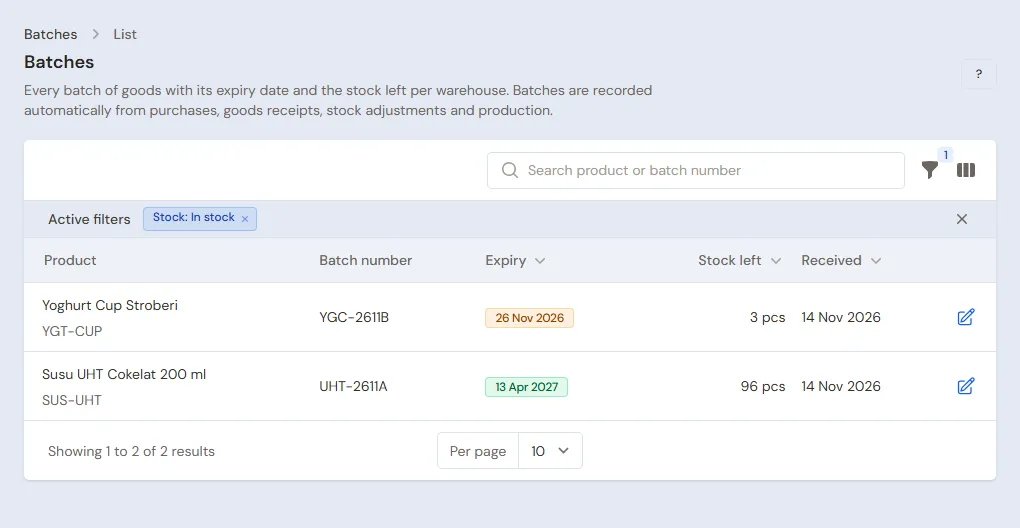
Warehouse Admin: open Air Mineral 600 ml, then in the Quantity prices table fill in From quantity 12 and the price Rp 3.200. A buyer of 12 bottles or more pays Rp 3.200 a bottle, while a carton uses the carton's selling price of Rp 75.000. See Quantity prices.
Members and member prices
- Store Head: in Master Data → Customer Groups, create the group Member. See Setting up customer groups.
- Store Head: open Susu UHT Cokelat 200 ml, tab Price List, press New Price, pick the Customer Group Member, the Unit Pieces and the Price Rp 5.000. See Prices per customer group.
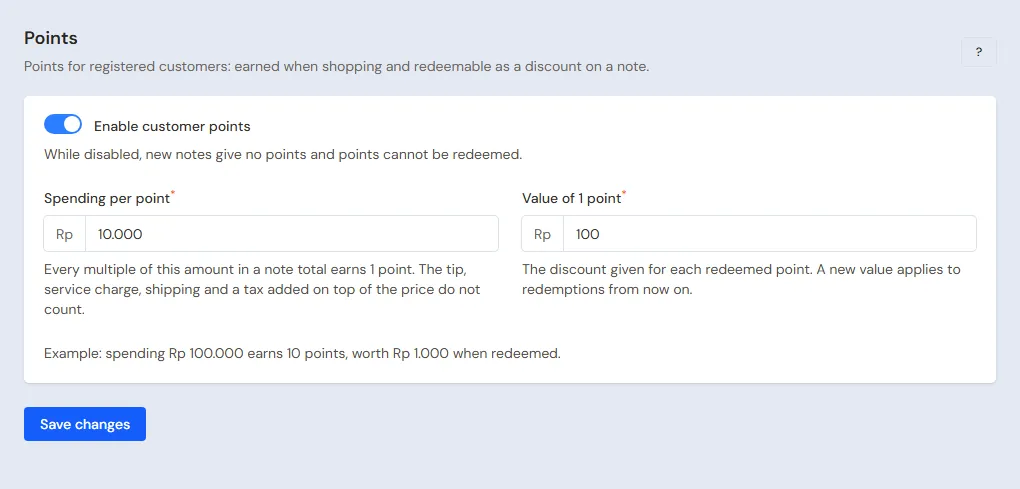
- Owner: in Settings → Points, turn on Enable customer points, fill in Spending per point 10.000 and Value of 1 point 100. See Giving and redeeming customer points.
Members are registered by the cashier on their first purchase (part 4). A member card already printed gets its number in Member code, so a scanned card picks its member at once.
Buy 2 get 1 free
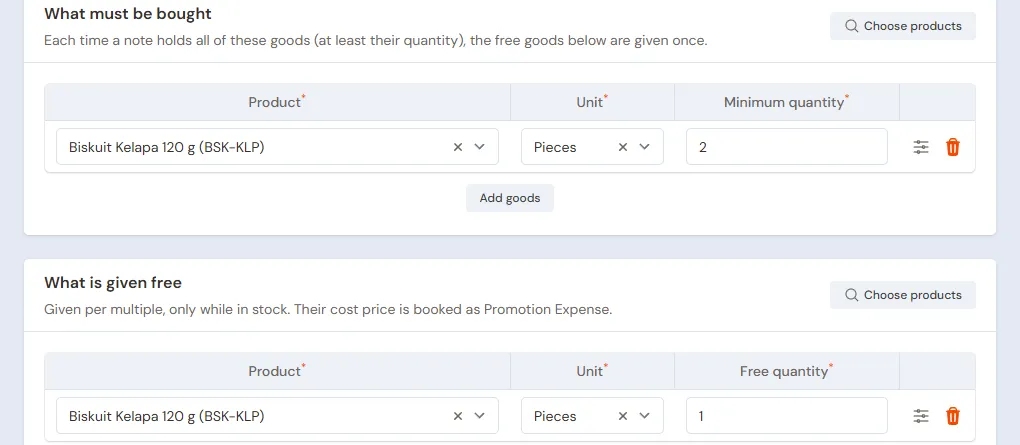
Store Head: in Master Data → Promotions, press New Promotion:
- Fill in the Name Biskuit Kelapa beli 2 gratis 1, Starts today and Ends two weeks from now.
- Under What must be bought, add Biskuit Kelapa 120 g with the Minimum quantity 2.
- Under What is given free, add Biskuit Kelapa 120 g with the Free quantity 1.
- Press Create, check the rule, then turn on Active. A new promotion is always off.
The cashier presses nothing: the free goods are added by themselves when the note is saved, while they are in stock. The cost of the free goods is booked as Promotion Expense. See Automatic promotions.
Suppliers and cash accounts
- Store Head: in Master Data → Suppliers, list Distributor Mitra Abadi with Payment Terms (days) 14. See Adding suppliers.
- Owner: in Master Data → Cash Accounts, use Cashier Cash for the till drawer and Bank BCA for QRIS and deposits. See Cash accounts and bank accounts.
3. Starting capital, buying and price labels
- The Owner records capital of Rp 50.000.000 into Bank BCA in Transactions → Finance → Owner's Capital.
- The Store Head records the note of Distributor Mitra Abadi in Transactions → Purchases, 14 days to pay: 10 Cartons of Susu UHT Cokelat 200 ml × Rp 96.000 = Rp 960.000, 20 Cartons of Air Mineral 600 ml × Rp 60.000 = Rp 1.200.000, and 60 Pieces of Biskuit Kelapa 120 g × Rp 6.000 = Rp 360.000. That is Rp 2.520.000, unpaid. In the line details of the milk and the biscuits, fill in the batch number and expiry from the pack, for example SU-2611 and 30 April 2027. See Recording a purchase note.
- The Warehouse Admin prints shelf labels in Master Data → Print Labels: Source Purchase note, pick that note, Number of labels One label per product, press Take Goods, then Preview & Print. See Printing price labels and barcodes.
- The Store Head moves Rp 500.000 of change money from Bank BCA to Cashier Cash in Transactions → Finance → Cash Transfers.
- The Store Head records shopping bags of Rp 150.000 from Bank BCA in Transactions → Finance → Expenses, category Shopping Bags.
The stock afterwards: Susu UHT 240 pcs of batch SU-2611, Air Mineral 480 pcs and Biskuit Kelapa 60 pcs. The payable to Distributor Mitra Abadi is Rp 2.520.000, due in 14 days.
4. One till day
| Time | Work | Who |
|---|---|---|
| 07.00 | Open the till, check the change money | Cashier |
| Morning | Sales, promotions, new members | Cashier |
| 15.00 | The afternoon cashier takes over | Cashier |
| Afternoon | Damaged and expired goods | Warehouse Admin |
| 22.00 | Deposit the drawer money at the bank | Store Head |
A sale with a promotion
The Cashier (Dika) opens the till with New sale on the Dashboard or in Transactions → Sales, then scans every item. The first buyer takes 2 Susu UHT Cokelat 200 ml (Rp 11.000) and 2 Biskuit Kelapa 120 g (Rp 17.000). When the note is saved, one free Biskuit Kelapa is added under Promotions. The buyer pays Rp 28.000 in cash.
The biscuit stock goes down by 3. The cost of the free biscuit, Rp 6.000, becomes Promotion Expense in the Profit & Loss. See Recording a sale at the till.
A new member and her points
Bu Lina wants to become a member.
- Cashier: press New customer (the plus icon) next to the Customer field, fill in the Name Bu Lina, the WhatsApp number and the Customer group Member, then press Save and choose.
- Scan 6 Susu UHT Cokelat 200 ml and 12 Air Mineral 600 ml. The milk takes the member price, 6 × Rp 5.000 = Rp 30.000, and the water the quantity price, 12 × Rp 3.200 = Rp 38.400. That is Rp 68.400.
- Press Pay, pick Bank BCA with the method QRIS, then press Save transaction.
Bu Lina earns 6 points, worth Rp 600. When she shops again, the cashier fills in Redeem points in the total details, and their value comes off what is to be paid at once. Every point earned is booked as Points Expense, so 6 points add Rp 600 of Points Expense to the Profit & Loss.
The afternoon cashier
The Cashier (Wulan) signs in with her own account on the same device and carries on. An afternoon buyer takes 1 Carton of Air Mineral 600 ml: scanning the carton's barcode adds one carton at once, Rp 75.000 in cash.
Every note records its cashier's name. Cash counts and shift handovers with the Cashier report are the extra feature Cash Count & Cashier Shifts. Without it, the drawer is counted once at the end of the day. See Shift handover and the Cashier report.
Returns
Goods a buyer brings back are recorded by the cashier at the till with Add return from their original note. A return without the original note can only be recorded by a permitted user, for example the Store Head. See Recording a sales return.
Closing the shop
- The Store Head counts the drawer. It must hold Rp 500.000 + Rp 28.000 + Rp 75.000 = Rp 603.000, the same as Cashier Cash in Reports → Cash Balance.
- The Store Head deposits the cash takings of Rp 103.000 at Bank BCA with Transactions → Finance → Cash Transfers. The Rp 500.000 of change stays in the drawer.
A difference in the drawer is recorded with Transactions → Finance → Cash Adjustments. See Recording a cash difference with a Cash Adjustment.
5. The distributor's payable
The Store Head pays Distributor Mitra Abadi's note of Rp 2.520.000 before its due date under Transaction Details → Purchase Payments. Damaged goods from the distributor go back with a purchase return. See Paying a supplier and Returning goods to a supplier.
6. Expired goods and stocktakes
- The Warehouse Admin finds the batches about to expire in Master Data → Batches with the expiry filter, then puts them at the front of the shelf. The bell also reminds of them some days before; the number of days is set by the Owner in Settings → Alerts, field About to Expire.
- Goods past their date are taken out by the Warehouse Admin in Transactions → Stock Adjustments, direction Out, category Expired, with their batch. For example: 3 Susu UHT of batch SU-2611 × Rp 4.000 = Rp 12.000 become a loss. See Stock adjustments.
- Once a month, or rack by rack in turns, the Warehouse Admin counts the stock in Transactions → Stocktakes. See Counting stock with a stocktake.
A sale always takes the batch that expires first, so the older milk leaves first.
7. Reports per job title
| Report | What it holds | Opened by | When |
|---|---|---|---|
| Reports → Cash Balance | The till drawer and the bank balance | Store Head | Every evening |
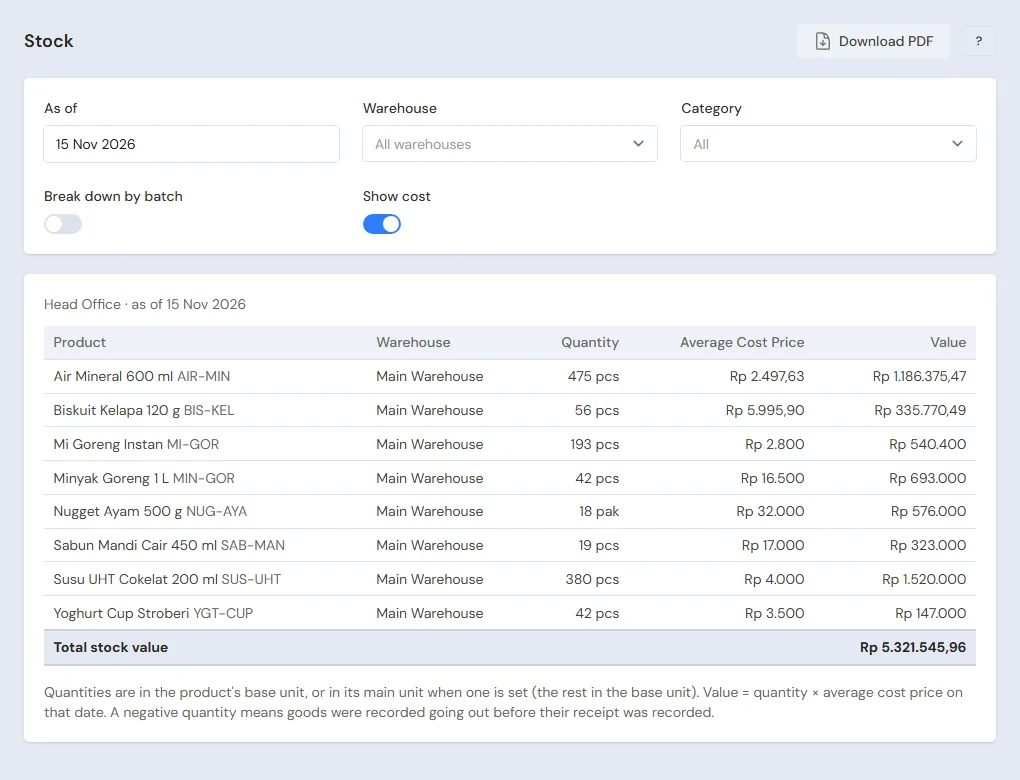
| Reports → Stock | Stock per item, per batch, and goods under their minimum stock | Warehouse Admin | Every day |
| Reports → Payables | Distributor notes not paid yet and their due dates | Store Head | Every week |
| Reports → Profit & Loss | Sales, cost of goods sold, Promotion Expense, Points Expense, expired goods and expenses | Owner | Every month |
One member's points balance is in Transactions → Point Adjustments, button Customer Points History. Opened by the Cashier when a member asks.
8. Checklist
- Every day: the Cashier scans every item and registers new members. The Store Head matches the drawer with the Cash Balance and deposits it at the bank.
- Every week: the Warehouse Admin checks the batches about to expire and prints labels for goods just in or whose price changed. The Store Head reads Payables.
- Every month: the Warehouse Admin takes stock. The Store Head checks the promotions that ended. The Owner reads the Profit & Loss.
A running business
This part is for the team moving a running minimarket to Vende: hundreds of goods on the shelves and in the store room with their batches, members with points from the old program, and payables to distributors. The order is always the same:
- Enter the master data.
- Practise transactions until every part is used to them.
- Empty the practice transactions.
- Enter the opening balances on the first day.
- Go live.
The opening balances come last on purpose, so the practice does not spoil their figures. The examples in this part use Sentosa Mart from the new business part.
1. Master data
Work through the parts Who does what, 1. Shop details and users and 2. Master data above. Goods and members from the old program are imported from Excel, the members with their Member code. See Importing and exporting products with Excel and Importing customers from Excel. The master data is not deleted when the practice transactions are emptied.
2. Practice for the team
Work in a practice shop of the Department store/minimarket/supermarket type with the five accounts.
Practice 1: master data
- Owner: the shop details, the four users and the points settings.
- Check: Dika and Wulan see neither Purchases nor reports in the sidebar.
- Mas Bayu (Warehouse Admin): the three items with their barcodes and Cartons, batches, and the quantity price of the water.
- Store Head: Distributor Mitra Abadi, the Member group with the member price of the milk, and the biscuit promotion.
- Check: at the till, 2 Biskuit Kelapa give 1 free when the note is saved.
Practice 2: one till day
- Owner: the capital of Rp 50.000.000.
- Store Head: the purchase note of Rp 2.520.000 with batches, the Cash Transfer of Rp 500.000 and the shopping bags of Rp 150.000.
- Warehouse Admin: print the labels of that purchase note.
- Cashier: the promotion note of Rp 28.000 in cash, the member Bu Lina Rp 68.400 by QRIS, then the afternoon cashier's 1 Carton of Air Mineral Rp 75.000 in cash.
- Store Head: deposit Rp 103.000 at Bank BCA with a Cash Transfer.
After Practice 2 this must show:
| Report | What must show | Opened by |
|---|---|---|
| Reports → Cash Balance | Bank BCA Rp 50.000.000 − Rp 500.000 − Rp 150.000 + Rp 68.400 + Rp 103.000 = Rp 49.521.400, Cashier Cash Rp 500.000 | Store Head |
| Reports → Payables | Distributor Mitra Abadi Rp 2.520.000 | Store Head |
| Reports → Stock | Susu UHT 232 pcs of batch SU-2611, Air Mineral 444 pcs, Biskuit Kelapa 57 pcs | Warehouse Admin |
| Reports → Profit & Loss | Sales Rp 171.400, cost of goods sold Rp 134.000, Promotion Expense Rp 6.000, Points Expense Rp 600, Shopping Bags Rp 150.000 | Owner |
Bu Lina's points history shows 6 points. Opened by the Cashier in Transactions → Point Adjustments, button Customer Points History.
Practice 3: opening balances
Enter the opening balances with the example of part 4 below, the members' points included, check them as in part 5, then empty them again.
3. Emptying the practice transactions
Done by the Owner in Settings → Empty Transactions, button Empty All Transactions. Sale notes, the points earned and point adjustments, purchases, batches, stock adjustments, stocktakes, payments, expenses, cash transfers, capital and opening balances are deleted. Products with their units, barcodes and prices, the Member group, promotions, customers, suppliers, cash accounts, users and the points settings stay. Vende makes a full backup first. See Emptying transactions or all data.
4. Opening balances
Done by the Owner in Settings → Opening Balances on the morning of the first day, before the shop opens, with As of that day. See Entering opening cash, stock, receivables and payables.
- Opening Stock: the count of every rack and the store room, through Import Opening Stock from Excel. Goods with batches take one row per batch with its Batch number and Expiry, for example Susu UHT Cokelat 200 ml 120 Pieces of batch SU-2609 and 72 Pieces of batch SU-2611, at a cost of Rp 4.000.
- Opening Payables: one row per distributor note not paid yet, for example Distributor Mitra Abadi Rp 1.800.000 with its due date.
- Opening Cash: the change money in the drawer in Cashier Cash, for example Rp 500.000, and the Bank BCA balance, for example Rp 35.000.000.
- Opening Receivables: only when a customer really owes money, for example an office that shops monthly.
Members' points from the old program
Opening Balances has no points tab. The members' points still valid are recorded with point adjustments on the first day:
- Store Head: in Master Data → Point Adjustment Categories, create the category Poin Awal (opening points).
- Store Head: in Transactions → Point Adjustments, press New Point Adjustment for every member who still has points: pick the Customer, the Category Poin Awal, Add, then fill in the Points. For example: Bu Lina 150 points and Pak Joko 80 points.
- Record them before the shop opens, so the points can be redeemed on the first note.
Important: Every point added is booked as Points Expense, like the points from a purchase. So Reports → Profit & Loss of the first day shows Points Expense of 230 × Rp 100 = Rp 23.000 without any sales, and a Points Liability of Rp 23.000 waiting to be redeemed. When those points are redeemed, there is no expense again. Keep this figure in mind when reading the first month's profit.
Make sure Value of 1 point in Settings → Points is the same as in the old program before the points go in.
5. Check before going live
| Report | What must show | Opened by |
|---|---|---|
| Reports → Cash Balance | Cashier Cash Rp 500.000 and Bank BCA Rp 35.000.000 | Store Head |
| Reports → Stock | Susu UHT 192 pcs: 120 of batch SU-2609 and 72 of batch SU-2611 | Warehouse Admin |
| Reports → Payables | Distributor Mitra Abadi Rp 1.800.000 | Store Head |
| Reports → Profit & Loss | Only Points Expense of Rp 23.000 | Owner |
Bu Lina's points history shows 150 points. Opened by the Cashier in Transactions → Point Adjustments, button Customer Points History.
The figures differ? The Owner corrects the row in Settings → Opening Balances, and the Store Head corrects the point adjustment, before any real transaction is recorded.
6. Going live
From that day every sale, purchase and label is recorded in Vende as in the new business part, with the same checklist. In the first week the Warehouse Admin matches Reports → Stock with the shelves, and the Cashier checks the points of members who ask against the points on their old card.