
General factory guide
A learning path for a factory, new or running: job titles, master data, material POs, one order from quotation to paid, team practice and opening balances.
On this page
- A new business
- Who does what
- 1. Shop details and users
- 2. Master data
- 3. Starting capital and purchases
- 4. One order from quotation to paid in full
- 5. Receivables and payables
- 6. Wages, makloon and factory costs
- 7. Returns and spoiled goods
- 8. Reports per job title
- 9. Checklist
- A running business
- 1. Master data
- 2. Practice for the team
- 3. Emptying the practice transactions
- 4. Opening balances
- 5. Check before going live
- 6. Going live
This guide is for the team setting up Vende at a factory that makes goods from materials in several work stages. It has two parts: A new business for a factory just starting, with no stock, receivables or payables from before, and A running business for a factory moving to Vende, with team practice and opening balances. The example is Pabrik Sandal Karya, which is also what the Run demo button fills a shop of this type with (Running the demo in a new shop); the demo makes far fewer pairs, so its monthly factory costs are smaller than the figures here. The names of the factory, customers, suppliers and people and all the figures are made up. A factory with other work stages, for example an eyelash factory (sanding, oven at a makloon, tying, packing), works the same way with its own stages and figures.
What the factory looks like:
- Products: black and blue rubber flip-flops, sold per pair or per kodi (20 pairs) to distributors and shops.
- Materials: rubber sheets, sandal straps, plastic bags and kodi cartons, ordered from suppliers with purchase orders (POs). Glue is shared by all sandals.
- Warehouses: a materials warehouse, a production warehouse (where production is recorded), a finished goods warehouse and a returns warehouse.
- Production: three stages. Cutting Soles and Packing are done by piece-rate workers, Fitting Straps is sent to an outside craftswoman (makloon). The press machine operator is paid monthly.
- Selling: a distributor asks for a quotation, orders with a down payment, and the goods leave in parts with delivery notes and are billed on credit.
Work through it from the top. Every step names its menu, who does it, what changes afterwards, and an example with figures.
The features in this guide come with the General factory/manufacturing business type package, except those marked extra. The shop's features show under Settings → Subscription, section This shop's features. If a menu is missing, contact the Vende team.
Tip: Lost on a page? Press the ? button at the top of that page. A short tour shows every field, on the Production Board too.
A new business
Who does what
Everyone gets one job title in Vende and only sees the menus of their work. This package holds six users, the owner included.
| Part of the factory | Job title in Vende | What they do and open |
|---|---|---|
| Owner | Owner | Every menu: shop details, users, cash accounts, capital, opening balances, and Reports → Profit & Loss |
| Head of production and warehouse | Warehouse Admin | Products, recipes, production workers, production orders, makloon, receiving output, stock transfers, monthly factory costs, Reports → Stock and Reports → Worker Output & Wages |
| Floor supervisor | Production | The Production Board: the output of every worker per stage. Does not open products, prices or stock |
| Sales admin | Head Cashier | Customers, groups and Special Prices, quotations, orders and down payments, delivery notes, notes |
| Purchasing admin | Purchasing Admin | Suppliers, purchase orders, purchase notes, receiving goods |
| Finance admin | Finance Admin | Customer and supplier payments, wages and makloon payments, expenses, Reports → Receivables, Reports → Payables, Reports → Cash Balance |
Keep in mind:
- Piece-rate workers who record nothing in Vende need no account. They are only listed under Master Data → Production Workers.
- The Finance Admin does not see profit. A finance person who reads Reports → Profit & Loss gets the job title Finance Head.
- One person may do several jobs. A Warehouse Admin who also buys materials gets the extra role Purchasing Operator, and their job title becomes Custom.
Every role is explained in Roles and permissions.
1. Shop details and users
Done by the Owner.
- Open Settings → Shop. Fill in the name, address, WhatsApp number and logo. They are printed on quotations, notes and delivery notes. See Shop details and logo.
- Open Settings → Users and create an account for everyone with the Job title of the table above. See Adding and managing users.
The people at Pabrik Sandal Karya: Pak Hendra (owner), Mas Bagus (head of production and warehouse, Warehouse Admin), Bu Tati (floor supervisor, Production), Mbak Sari (sales admin, Head Cashier), Mas Joni (purchasing admin, Purchasing Admin) and Bu Ratna (finance admin, Finance Admin).
2. Master data
A shop of this business type already has the product categories Finished Products, Raw Materials, Supporting Materials, Packaging and Spare Parts, units such as Set, Box, Carton, Sheet, Metre and Roll, and the expense categories Piece-rate Wages, Machine Maintenance and Fuel. Goods, customers and suppliers are entered by you. A lot of data? Products, customers, suppliers and recipes can be imported from Excel. See Importing data from Excel.
Warehouses
Done by the Warehouse Admin in Master Data → Warehouses.
A new shop of this business type already has four warehouses at branch Pusat, so there is nothing to create. The sample shop below is Indonesian, so the walkthrough uses the Indonesian names:
- Gudang Barang Jadi (Finished Goods Warehouse): the first warehouse, so every new order, note and delivery note uses it.
- Gudang Bahan (Materials Warehouse): where materials and packaging are kept and where purchase orders for materials are received.
- Gudang Produksi (Production Warehouse): where production is done. The Production warehouse field of Production Orders and Productions already shows it. Other branches choose theirs under Default Production Warehouse in Master Data → Branches.
- Gudang Retur (Returns Warehouse): Warehouse Kind Return, left out of the minimum stock warnings.
A shop created before this only has Gudang Utama. Rename it to Gudang Barang Jadi, then press New Warehouse for Gudang Bahan and Gudang Produksi (Warehouse Kind Regular) and pick their branch under Branches Allowed.
See Managing warehouses.
Units, materials and finished goods
Done by the Warehouse Admin.
- In Master Data → Units, create the units Pasang (pair) and Kodi.
- In Master Data → Products, create every material with the Type Raw Material:
| Material | Unit | First cost price | Used |
|---|---|---|---|
| Lembaran Karet EVA Hitam (black rubber sheet) | Sheet | Rp 40.000 | 1 sheet for 10 pairs of soles |
| Tali Sandal Hitam (black straps) | Pasang | Rp 1.500 | 1 pair of straps per pair of sandals |
| Plastik Kemasan Sandal (plastic bag) | Pcs | Rp 200 | 1 per pair |
| Dus Kodi (kodi carton) | Pcs | Rp 3.000 | 1 per 20 pairs |
| Lem Karet (rubber glue) | Kaleng (create the unit) | Rp 60.000 | Shared, see Monthly factory costs |
- Create the finished good Sandal Jepit Karet Hitam with the Category Finished Products, the base unit Pasang and the Selling Price Rp 15.000, then under Other Units add Kodi holding 20 Pasang. See Other units and the main unit.
The cost price of a finished good is left empty: Vende works it out from the recipe, wages, makloon and factory costs.
Production recipes and work stages
Done by the Warehouse Admin in Master Data → Production Recipes.
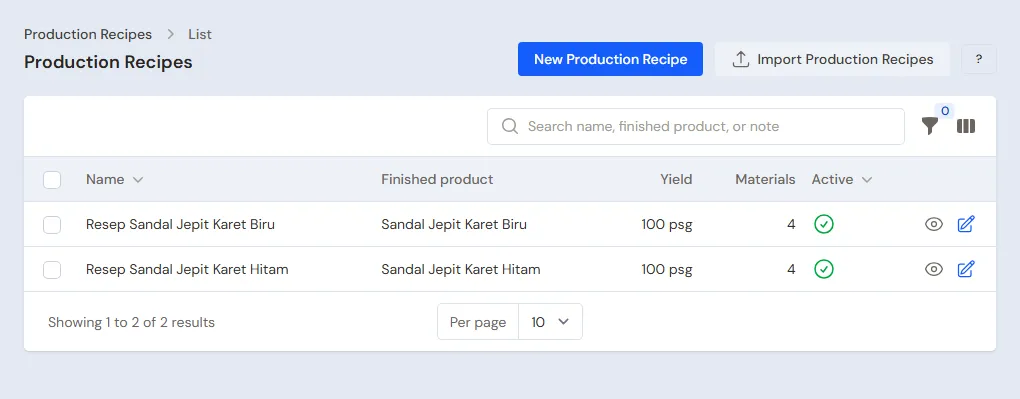
- Create a recipe with the Name Sandal Jepit Karet Hitam, the Finished product Sandal Jepit Karet Hitam and the Yield 100.
- Under Materials per recipe, add 10 Lembaran Karet EVA Hitam, 100 Tali Sandal Hitam, 100 Plastik Kemasan Sandal and 5 Dus Kodi. The choices list raw materials first, then finished goods marked (finished goods); typing in the search box still searches all of them, and the product the recipe makes is not offered.
- Under Production stages, press Add stage three times: Potong Sol (cutting soles) with a Piece-rate wage per unit of Rp 300, Pasang Tali (fitting straps) with Makloon switched on and Rp 500, then Packing Rp 200.
- Press Create.
The materials of 100 pairs cost Rp 400.000 + Rp 150.000 + Rp 20.000 + Rp 15.000 = Rp 585.000, so Rp 5.850 a pair. With Rp 500 of piece-rate wages for cutting and packing and Rp 500 of makloon, the cost before factory costs is Rp 6.850 a pair.
Production workers and the makloon craftswoman
- Warehouse Admin: in Master Data → Production Workers, list Pak Ujang (cutting soles) and Bu Iin (packing).
- Purchasing Admin: in Master Data → Suppliers, list the outside craftswoman Bu Sumi. A makloon worker is a supplier, and her fee becomes a makloon payable.
The press operator, Pak Dedi, is paid monthly, so he is not listed here.
Customers, groups and credit limits
Done by the Head Cashier.
- In Master Data → Customer Groups, create the group Distributor. Under Credit Limit, enter a total receivable of at most Rp 10.000.000 and an oldest note of at most 30 days.
- In Master Data → Customers, create UD Sumber Langkah in the Distributor group with 30 days to pay, and Toko Sepatu Mekar without a group.
- The Warehouse Admin enters the group price on the product: open Sandal Jepit Karet Hitam, tab Price List, add a price for Distributor, unit Pasang, Price Rp 12.000.
See Prices per customer group and Managing customer receivables.
Suppliers and cash accounts
- Purchasing Admin: list CV Karet Prima (rubber sheets, 30 days to pay) and Toko Tali Sejahtera (straps, bags, cartons) in Master Data → Suppliers.
- Owner: in Master Data → Cash Accounts, make sure there is Bank BCA for transfers and Kas Tunai Pemilik.
3. Starting capital and purchases
Starting capital
The Owner records the capital paid in under Transactions → Finance → Owner's Capital: Rp 50.000.000 into Bank BCA. See Owner's capital.
Purchase orders for materials
The Purchasing Admin, once the distributor's order is in (part 4):
- Open Transactions → Purchase Orders, create an order, and pick the Supplier CV Karet Prima and the Warehouse Gudang Bahan.
- Add 60 Sheets of Lembaran Karet EVA Hitam × Rp 40.000 = Rp 2.400.000 and save. Press Print PDF and send it to the supplier.
- Also order from Toko Tali Sejahtera: 600 Tali Sandal Hitam × Rp 1.500 = Rp 900.000, 600 Plastik Kemasan Sandal × Rp 200 = Rp 120.000 and 30 Dus Kodi × Rp 3.000 = Rp 90.000, so Rp 1.110.000.
A purchase order adds no stock and records no payable yet. See Purchase orders.
Goods arriving in parts
CV Karet Prima sends 40 sheets today and 20 sheets two days later:
- Purchasing Admin: on its order, press Convert to Purchase when the supplier's invoice arrives. A purchase note of Rp 2.400.000 is made and becomes a payable due in 30 days.
- Press Receive Goods on that note, enter Quantity Received 40 and press Save Receipt. When the other 20 sheets arrive, press Receive Goods again.
- The order of Toko Tali Sejahtera is converted and received in full at once, and paid in full from Bank BCA with Payment Now Rp 1.110.000.
The stock grows on the day the goods are received. See Receiving goods that arrive in parts.
4. One order from quotation to paid in full
Example: UD Sumber Langkah asks for 600 pairs of Sandal Jepit Karet Hitam at the distributor price of Rp 12.000, so Rp 7.200.000.
| Day | Work | Who |
|---|---|---|
| 2 November | Quotation | Head Cashier |
| 3 November | Order and 30% down payment | Head Cashier |
| 3 November | Purchase orders for materials | Purchasing Admin |
| 5 to 12 November | Production order, output, makloon, receiving output | Warehouse Admin and Production |
| 13 and 16 November | Delivery notes of 400 and 200 pairs | Head Cashier |
| 16 November | Note from the delivery notes | Head Cashier |
| 14 December | Payment of the rest | Finance Admin |
Quotation
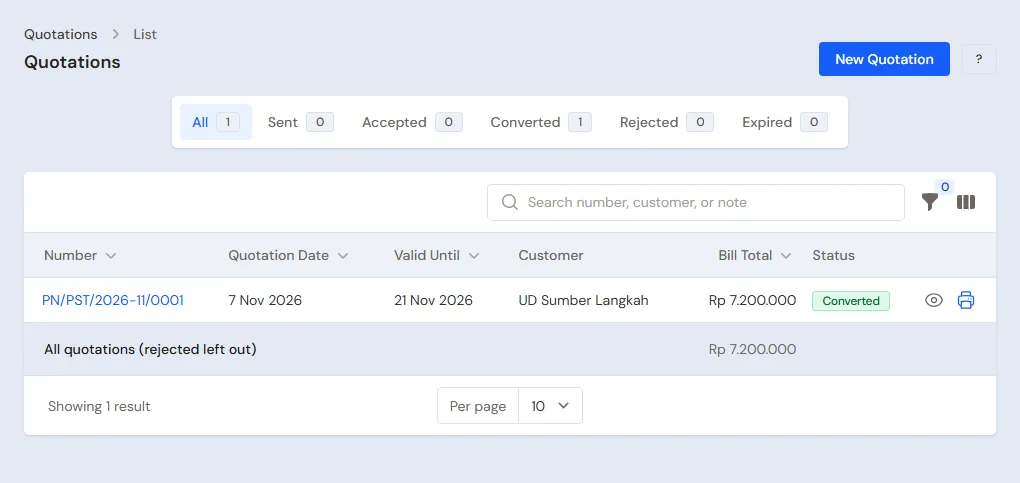
Head Cashier: in Transactions → Quotations, create a quotation for UD Sumber Langkah with 600 Pasang Sandal Jepit Karet Hitam (the Distributor price of Rp 12.000 fills in by itself) and Valid Until 16 November, then save. Press Print PDF and send it by WhatsApp. A quotation changes no stock, cash or receivable. See Making a quotation.
Order and down payment
Head Cashier:
- On the quotation, press Convert to Order. Enter the Pickup Date 16 November.
- On the order, press Receive Down Payment: Amount Rp 2.160.000 (30%), Cash Account Bank BCA, Payment Method Transfer, then Save Down Payment.
Bank BCA grows by Rp 2.160.000, but there is no income yet: the down payment is held by the order until its note is made. See Receiving an order down payment.
Production order
Warehouse Admin:
- Move the materials to be used from Gudang Bahan to Gudang Produksi in Transactions → Stock Transfers: 60 sheets, 600 straps, 600 bags and 30 cartons. See Transferring stock between warehouses.
- Open Transactions → Production Orders and create an order. The Owner can also make it straight from the sales order, button Buat Perintah Produksi (New Production Order).
- Pick the Recipe Sandal Jepit Karet Hitam. Its three stages and their wages are copied from the recipe.
- Leave the Production warehouse at Gudang Produksi, because the materials were moved there. Enter the Planned quantity 600, the Target date 12 November and the Customer UD Sumber Langkah.
- Save.
A production order changes no stock yet. It shows on the Production Board straight away.
Output on the Production Board
Production (Bu Tati), on a tablet or phone on the floor:
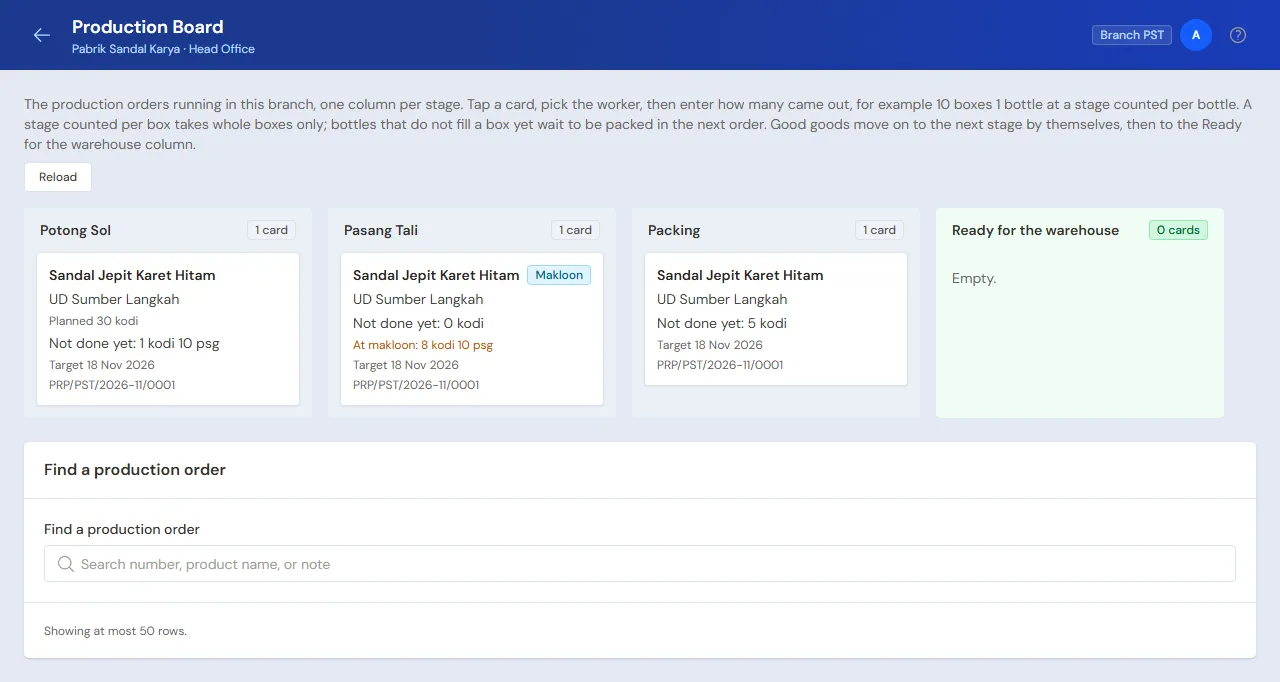
- Open Transactions → Production Board. Every order is a card in the column of its stage.
- Tap its card at the stage Potong Sol. Under Record output, pick the Worker Pak Ujang, enter a good quantity of 600 and press Save output. If some are spoiled, enter the Finished goods rejected and choose under Rejected goods: thrown away, reworked or second grade.
Pak Ujang's wage is recorded: 600 × Rp 300 = Rp 180.000, a wage payable until it is paid.
Sending to and receiving from makloon
Warehouse Admin:
- Open the order in Transactions → Production Orders and press Send to Makloon. Pick the stage Pasang Tali, the Tailor or subcontractor (supplier) Bu Sumi and the Quantity sent 600. An empty Fee per unit uses the Rp 500 of the stage.
- When the sandals come back, press the Receive Goods icon (a box with a down arrow) on that dispatch, enter 600 good and save.
The makloon fee of 600 × Rp 500 = Rp 300.000 becomes a makloon payable to Bu Sumi. The sandals move on to Packing, and Bu Tati records Bu Iin's output of 600 on the Production Board: 600 × Rp 200 = Rp 120.000.
Finished goods into the warehouse
Warehouse Admin:
- On the order, press Receive Goods, enter the Finished goods 600, tick Finish this production order, then press Put into the warehouse.
- Open Transactions → Stock Transfers and move the 600 Pasang Sandal Jepit Karet Hitam from Gudang Produksi to Gudang Barang Jadi. See Transferring stock between warehouses.
Afterwards the materials in Gudang Produksi are used up (60 sheets, 600 straps, 600 bags, 30 cartons) and the 600 pairs are in Gudang Barang Jadi. The Owner sees the cost under Finished goods cost on the order page: materials Rp 3.510.000, piece-rate wages Rp 300.000 and makloon Rp 300.000, so Rp 4.110.000 or Rp 6.850 a pair before factory costs.
If the receipt is wrong, press Cancel on the finished goods row of the order. If some of the goods were already sold, Vende names the stock that goes below zero before you agree, and cancelling is still allowed. The cost of the notes that used those goods is worked out again. The same goes when you take back a work record that put second-grade goods into stock and those goods were already sold.
An order that is wrong from top to bottom does not need to be undone piece by piece: on its page press Delete everything. The confirmation lists the receipts, work and makloon dispatches that are undone and the stock that comes back, then everything is undone at once and the order is deleted. Refused if its wages or makloon were paid (delete the payment first in Wages & Makloon Payment), the month is closed, or another order took its leftovers.
Delivery notes in parts and the note
Head Cashier:
- On 13 November, on the order, press Make Delivery Note, enter 400 pairs from Gudang Barang Jadi and print it for the driver. The stock leaves when the delivery note is made.
- On 16 November, make the second delivery note for the other 200 pairs.
- On the order, press Make Note from Delivery Notes, pick both delivery notes, then Make Draft Note. Press Pay: Taken from the order down payment shows Rp 2.160.000. Press Unpaid, then Save transaction.
Afterwards Rp 7.200.000 − Rp 2.160.000 = Rp 5.040.000 becomes UD Sumber Langkah's receivable, due in 30 days. A note over the group's credit limit is held in the payment window until the Reason for passing the credit limit is filled in. See Sending goods in parts with delivery notes and, for many shops in one trip, Delivering with the daily delivery run.
5. Receivables and payables
- The Finance Admin records UD Sumber Langkah's transfer on 14 December in Transaction Details → Sale Payments: Rp 5.040.000 into Bank BCA. See Paying a note.
- The Finance Admin pays CV Karet Prima before the due date in Transaction Details → Purchase Payments: Rp 2.400.000. See Paying a supplier.
- The Finance Admin reads Reports → Receivables and Reports → Payables every week.
6. Wages, makloon and factory costs
Piece-rate wages and makloon fees
The Finance Admin, every Saturday:
- Open Transactions → Wages & Makloon Payments and press New Wages & Makloon Payment.
- Pick Paid to Worker wages and the Worker Pak Ujang. Below it shows what is still owed, Rp 180.000. Pick the cash account, enter the amount and save. Repeat for Bu Iin, Rp 120.000.
- For Bu Sumi, pick Paid to Makloon fee and the makloon supplier Bu Sumi: Rp 300.000.
Whoever may open the worker's page and pay wages, the Owner for example, has a shortcut: Pay wages on the worker's page (Master Data → Production Workers, open Pak Ujang) opens the same screen with Pak Ujang and Rp 180.000 already filled in. Bu Sumi's makloon can also be paid with Pay on her supplier page.
When work is recorded without choosing a Worker, its wage is still counted and recorded as No name. Paid to then offers Wages without a name to pay it all at once, and Reports → Worker Output & Wages has a row for it. The worker can be named later: in the Work output table on the order's page, press Name the worker. This works while the wage has not been paid as No name and the month is not closed.
The Warehouse Admin and the Owner read the output and wages of every worker in Reports → Worker Output & Wages.
Monthly factory costs
- The Finance Admin records Pak Dedi's salary of Rp 3.000.000 and the factory electricity of Rp 900.000 in Transactions → Finance → Expenses.
- The Warehouse Admin takes the glue used that month out of Gudang Bahan in Transactions → Stock Adjustments: direction Out, category Production use, 5 Kaleng Lem Karet (5 × Rp 60.000 = Rp 300.000). See Production use.
- The Warehouse Admin opens Transactions → Monthly Factory Costs, picks the Month November and enters Fixed wages Rp 3.000.000 and Factory costs (overhead) Rp 900.000.
All the costs of that month (Rp 3.000.000 + Rp 900.000 + Rp 300.000 = Rp 4.200.000) are shared over the finished goods that came into stock that month, in proportion to their cost. Example: 6.000 pairs worth Rp 41.100.000 came in that month, so the costs are about 10% and every pair grows by about Rp 700, to about Rp 7.550. UD Sumber Langkah's order leaves a gross profit of about Rp 7.200.000 − 600 × Rp 7.550 = Rp 2.670.000. Without Monthly Factory Costs the costs are still in the Profit & Loss, only not in the cost of the finished goods.
7. Returns and spoiled goods
- Sandals spoiled at a stage are recorded on the Production Board with the Finished goods rejected. Their materials are carried by the good sandals.
- Sandals that are good at one stage but not yet taken by the next when the order is finished become a leftover between stages (semi-finished stock with its wages). Another sandal order in the same warehouse takes them through the stage card on the Production Board (Take leftover, when that order already has goods waiting at that stage) or Take leftovers between stages on the order's page. Leftovers nobody has taken are listed under Transactions → Stage Leftovers with their age and wages. If they will not be used, press Discard leftover (one at a time or several at once): their wages and materials become a Stock Loss of that month, Work in Process is clean again, and it can be undone with Undo discard while the month is still open.
- Materials spoiled beyond the recipe, for example 1 rubber sheet torn while cutting, are recorded under Spoiled materials at Receive Goods (pick Lembaran Karet EVA Hitam, Quantity spoiled 1). They leave stock too and their value goes into the cost of the sandals.
- A distributor returns faulty sandals: the Head Cashier records a return from its note. See Sales returns.
- Faulty materials go back to the supplier through the Purchasing Admin. See Returns to the supplier.
8. Reports per job title
| Report | What it holds | Opened by | When |
|---|---|---|---|
| Reports → Stock | Materials and finished goods per warehouse | Warehouse Admin | Every day |
| Reports → Worker Output & Wages | Good and rejected output per stage, wages, paid and unpaid | Warehouse Admin | Every Saturday |
| Reports → Receivables | Every customer's bills and their age | Finance Admin | Every week |
| Reports → Payables | Supplier payables and their due dates | Finance Admin | Every week |
| Reports → Cash Balance | Money in every cash account | Finance Admin | Every day |
| Reports → Profit & Loss | Sales, cost of goods sold, wages, makloon and expenses | Owner | Every month |
9. Checklist
- Every day: Production records the output before going home. The Warehouse Admin receives the finished output and moves it to Gudang Barang Jadi. The Head Cashier makes delivery notes for goods that leave.
- Every week: the Finance Admin pays wages and makloon, then reads Receivables and Payables. The Purchasing Admin checks the purchase orders not received in full.
- Every month: the Warehouse Admin records the glue used, fills in Monthly Factory Costs, then counts the materials. The Owner reads the Profit & Loss.
A running business
This part is for the team moving a factory that is already running to Vende. The factory already has money, stock of materials and finished goods, distributor receivables, supplier payables and orders being made. The order is always the same:
- Enter the master data.
- Practise transactions until every part is used to them.
- Empty the practice transactions.
- Enter the opening balances on the first day.
- Go live.
The opening balances come last on purpose, so the practice does not spoil their figures. The examples in this part use Pabrik Sandal Karya from the new business part.
1. Master data
Work through the parts Who does what, 1. Shop details and users and 2. Master data above. For a running business, also:
- List every customer who still owes money and every supplier still owed. Both are used in the opening balances.
- A makloon worker whose fee is still unpaid is listed as a supplier too.
- Many goods, customers, suppliers and recipes are imported from Excel. See Importing data from Excel.
The master data is not deleted when the practice transactions are emptied later.
2. Practice for the team
The team practises step by step with the data of Pabrik Sandal Karya, in a practice shop of the General factory/manufacturing type, with the six accounts of the job title table. Every step names who does it and what must show. If what shows is different, find the missed step before going on.
Practice 1: master data
- Owner: fill in the shop details and create the five users.
- Check: Bu Tati only sees the Production Board and Production Orders. Bu Ratna does not see the Profit & Loss.
- Mas Bagus (Warehouse Admin): the units Pasang, Kodi and Kaleng, the five materials, and Sandal Jepit Karet Hitam with the unit Kodi.
- Check: in Master Data → Products, Sandal Jepit Karet Hitam has the units Pasang and Kodi (20 Pasang).
- Mas Bagus: create the recipe Sandal Jepit Karet Hitam and the workers Pak Ujang and Bu Iin.
- Check: the recipe has the stages Potong Sol Rp 300, Pasang Tali (makloon) Rp 500 and Packing Rp 200.
- Mas Joni (Purchasing Admin): create the suppliers CV Karet Prima, Toko Tali Sejahtera and Bu Sumi.
- Head Cashier: create the group Distributor with its credit limit and the customer UD Sumber Langkah. Mas Bagus enters the Distributor price of Rp 12.000.
- Check: a new quotation for UD Sumber Langkah fills in Rp 12.000 a pair. Delete it without saving.
Practice 2: one order
- Owner: capital of Rp 50.000.000 into Bank BCA.
- Mas Joni: both purchase orders, convert them to purchases, receive 40 then 20 rubber sheets, and pay Toko Tali Sejahtera in full.
- Check: Reports → Stock shows 60 rubber sheets, 600 straps, 600 bags and 30 cartons in Gudang Bahan. Opened by the Warehouse Admin.
- Head Cashier: the quotation, the order and the down payment of Rp 2.160.000 as in part 4.
- Mas Bagus: transfer the materials to Gudang Produksi, then the production order of 600 pairs. Bu Tati: Pak Ujang's output of 600 at Potong Sol. Mas Bagus: send 600 to Bu Sumi and receive 600 back. Bu Tati: Bu Iin's output of 600 at Packing. Mas Bagus: receive the 600 and transfer them to Gudang Barang Jadi.
- Check: Reports → Worker Output & Wages shows Pak Ujang Rp 180.000 and Bu Iin Rp 120.000 unpaid. Opened by the Warehouse Admin.
- Head Cashier: the delivery notes of 400 and 200 pairs, then the note from both.
- Finance Admin: pay Pak Ujang's and Bu Iin's wages, Bu Sumi's makloon fee, and UD Sumber Langkah's Rp 5.040.000.
After Practice 2 this must show:
| Report | What must show | Opened by |
|---|---|---|
| Reports → Cash Balance | Bank BCA Rp 50.000.000 − Rp 1.110.000 + Rp 2.160.000 − Rp 600.000 + Rp 5.040.000 = Rp 55.490.000 | Finance Admin |
| Reports → Payables | CV Karet Prima Rp 2.400.000 | Finance Admin |
| Reports → Receivables | Empty | Finance Admin |
| Reports → Stock | 0 pairs in Gudang Barang Jadi, no sheets, straps, bags or cartons in Gudang Bahan and Gudang Produksi | Warehouse Admin |
| Reports → Profit & Loss | Sales Rp 7.200.000 and cost of goods sold Rp 4.110.000 | Owner |
In this practice wages and makloon are paid from Bank BCA. The Profit & Loss only holds factory costs once Monthly Factory Costs is filled in.
Practice 3: opening balances
Enter the opening balances with the example figures of part 4 below, check them as in part 5, then empty them again.
3. Emptying the practice transactions
Done by the Owner in Settings → Empty Transactions, button Empty All Transactions. Do not use Empty All Data, which deletes the master data too.
| Deleted | Kept |
|---|---|
| Quotations, orders with their down payments, delivery notes and notes | Products with their units and latest cost price |
| Purchase orders, purchases and goods received | Recipes with their stages, wages and makloon marks |
| Production orders, output, makloon dispatches, wages and makloon payments | Production workers, customers, groups, suppliers |
| Monthly factory costs, stock adjustments, stock transfers, payments, expenses, capital, opening balances | Warehouses, cash accounts, users and settings |
Afterwards the stock and the balance of every cash account are zero. Vende makes a full backup first. See Emptying transactions or all data.
4. Opening balances
Done by the Owner in Settings → Opening Balances on the morning of the first day, with As of that day. See Entering opening cash, stock, receivables and payables.
Before the first day, finish the sandals being made, count them as stock, and pay the old piece-rate wages and makloon fees. Opening Balances has no field for work in progress or unpaid wages.
Stock
In the tab Opening Stock, press Add opening stock for every good in every warehouse:
| Warehouse | Product | Quantity | Cost Price per Unit |
|---|---|---|---|
| Gudang Bahan | Lembaran Karet EVA Hitam | 25 Sheets | Rp 40.000 |
| Gudang Bahan | Tali Sandal Hitam | 300 Pasang | Rp 1.500 |
| Gudang Barang Jadi | Sandal Jepit Karet Hitam | 400 Pasang | Rp 7.550 |
The cost of the finished goods comes from the old books: materials, wages and factory costs per pair.
Receivables, payables and cash
- Opening Receivables: one row per unpaid note, with its due date. Example: Toko Sepatu Mekar Rp 1.500.000.
- Opening Payables: CV Karet Prima Rp 2.000.000.
- Opening Cash: the money counted in every account on the morning of the first day, for example Bank BCA Rp 35.000.000 and Kas Tunai Pemilik Rp 2.000.000.
Orders already running
A distributor order whose down payment came in before the first day is recorded as a new order on the first day, with Receive Down Payment of what was received into the cash account that holds the money now. That account's Opening Cash is the money counted less that down payment, so the money is not counted twice.
5. Check before going live
| Report | What must show | Opened by |
|---|---|---|
| Reports → Cash Balance | Bank BCA and Kas Tunai Pemilik equal to the money counted | Finance Admin |
| Reports → Stock | Materials and finished goods per warehouse as in the opening stock table | Warehouse Admin |
| Reports → Receivables | Toko Sepatu Mekar Rp 1.500.000 | Finance Admin |
| Reports → Payables | CV Karet Prima Rp 2.000.000 | Finance Admin |
The figures differ? The Owner corrects the row in Settings → Opening Balances before any real transaction is recorded.
6. Going live
From that day every quotation, order, production, delivery note and payment is recorded in Vende as in the new business part, with the same checklist.
First week checks:
- Warehouse Admin: the stock in Reports → Stock matches the warehouse count.
- Finance Admin: payments of old receivables and payables bring down Reports → Receivables and Reports → Payables.
- Owner: Reports → Profit & Loss only holds sales and costs since the first day.