
Factory dismantling and reconditioning guide
A factory dismantling team's learning path, new or running: roles, factory project, shared price, costs, mechanic wages, selling, reports, opening balances.
On this page
- A new business
- Who does what
- 1. Shop details and users
- 2. Master data
- 3. A factory from survey to purchase
- 4. Buy Factory: the price shared over the items
- 5. Items found later
- 6. Dismantling and reconditioning costs
- 7. Moving cost between items
- 8. Selling
- 9. Reports by job title
- 10. Checklist
- A running business
- 1. Master data
- 2. Practice for the team
- 3. Empty the practice transactions
- 4. Opening balances
- 5. Check before starting
- 6. Start for real
This guide is for the team setting up Vende at a factory dismantling business: buying a closed factory for one price, taking it apart, then selling the machines, pipes, panels and scrap, some as they are and some after reconditioning. It has two parts: A new business for a business that has just opened, with no factory, receivables or old payables, and A running business for a business moving to Vende, with practice for the team and opening balances. The example is Bongkaran Mesin Cikarang. The business, factory, buyer, supplier and people names and all figures are made up.
The business in short:
- One factory, one price: you pay the factory seller one price for everything. Vende shares that price over each machine and item, so each item has a cost of its own.
- Costs raise the cost of the goods: crane, trucks, the dismantling gang, spare parts and repair wages go into the cost of the item they are for, so the profit on each item is worked out from its real cost.
- Mechanic wages: a piece-rate mechanic is recorded per job as a debt and paid at once after several jobs. A monthly mechanic is paid a salary.
- Three ways to sell: as it is, after reconditioning, or before it is repaired with a down payment and the rest at pickup.
- Scrap and copper: weighed and sold by the kilo, pipe by the metre.
- Profit and loss per factory: one report shows the cost basis, sales and profit of each factory.
Work from the top. Every step names its menu, who does it, what changes afterwards and example figures.
The features in this guide come with the Factory dismantling & reconditioning business type package, except those marked as extra. The shop's features are listed in Settings → Subscription, under This shop's features. If a menu is missing, contact the Vende team.
Tip: Lost on a page? Press the ? button at the top of that page. A short tour shows every field.
A new business
Who does what
This package holds four users, the owner included.
| Part of the business | Job title in Vende | What they do and open |
|---|---|---|
| Owner | Owner | Every menu, also Reports → Dismantling Project Profit and Loss and Reports → Profit & Loss |
| Factory buying | Purchasing Admin | Transactions → Dismantling Projects, suppliers and purchase notes |
| Sales | Head Cashier | Customers, Transactions → Sales Orders and selling at the till |
| Warehouse | Warehouse Admin | Products and Reports → Stock |
Each role is explained in Roles and access rights.
Example people at Bongkaran Mesin Cikarang: Pak Rudi (owner), Dewi (Head Cashier) and Wawan (Purchasing Admin, Warehouse Admin and Finance Admin).
1. Shop details and users
Done by the Owner: fill in Settings → Shop (name, address, WhatsApp, logo), then create accounts in Settings → Users with the Job title from the table above. See Adding and managing users.
2. Master data
This business type already has the product categories Machines, Pipes and Fittings, Panels and Transformers, Tanks and Vessels, Equipment, Spare Parts and Scrap Metal, the units Unit, Set, Meter and Rod, and the expense categories Factory Survey Costs, Loading and Unloading, Transport and Piece Wages.
The Purchasing Admin adds in Master Data → Suppliers: the factory seller (for example PT Benang Emas, in liquidation), the mechanic, the dismantling foreman and the spare parts shop. A mechanic paid by the job is added as a supplier, because the wage becomes a debt paid with a Purchase Payment.
The Warehouse Admin adds in Master Data → Products only the goods sold again and again: spare parts bought at a shop, and goods sold by a measure, which are scrap by the kg, copper by the kg and acid-resistant pipe by the metre. Example products:
| Product | Category | Unit | Cost price | Selling price |
|---|---|---|---|---|
| Bearing SKF 6310 | Spare Parts | pcs | Rp 180.000 | Rp 260.000 |
| V-Belt B-80 | Spare Parts | pcs | Rp 65.000 | Rp 95.000 |
| Oli Pelumas Industri 20 L | Spare Parts | pcs | Rp 950.000 | Rp 1.250.000 |
| Kontaktor Magnet 65 A | Panels and Transformers | pcs | Rp 420.000 | Rp 590.000 |
| Pipa PVDF Tahan Asam H2SO4 2 inci | Pipes and Fittings | meter | Rp 0 | Rp 320.000 |
| Besi Tua Campuran | Scrap Metal | kg | Rp 0 | Rp 5.200 |
| Tembaga Bekas Kabel | Scrap Metal | kg | Rp 0 | Rp 92.000 |
The cost of the pipe, scrap and copper is Rp 0 because it comes from the factory's purchase price. Machines and the other items of a factory need no product: Vende makes one for each item when the factory is bought.
3. A factory from survey to purchase
The Purchasing Admin in Transactions → Dismantling Projects → Create: fill in the factory name, seller, location and Price shared by: Expected sell price (the most usual), Weight or A figure typed per item. List the items you can see at the survey, one row per item, with the Expected sell price of the whole row. Scrap or pipe sold by the kilo or the metre is given an existing product in Existing item, with the quantity in that product's unit.
Example, the textile factory PT Benang Emas: Picanol looms #1 and #2 expected Rp 95.000.000 each, a compressor Rp 120.000.000, a generator Rp 150.000.000, a boiler Rp 80.000.000, an electrical panel Rp 45.000.000, a transformer Rp 60.000.000, 120 metres of acid-resistant pipe Rp 36.000.000, 8,000 kg of scrap Rp 40.000.000 and 600 kg of copper Rp 54.000.000. That is Rp 775.000.000 expected, and Offer price is filled in with Rp 400.000.000 to compare.
Fill in the Specifications of each important item (material, size, pressure, length; one per line): the search box of the project list searches them, and the photo of a unit is kept on its product card. For example the compressor with a 10 bar pressure and 75 kW, or the PVDF pipe of 2 inch diameter and 120 m. Searching "10 bar" then finds the factory that has such a unit.
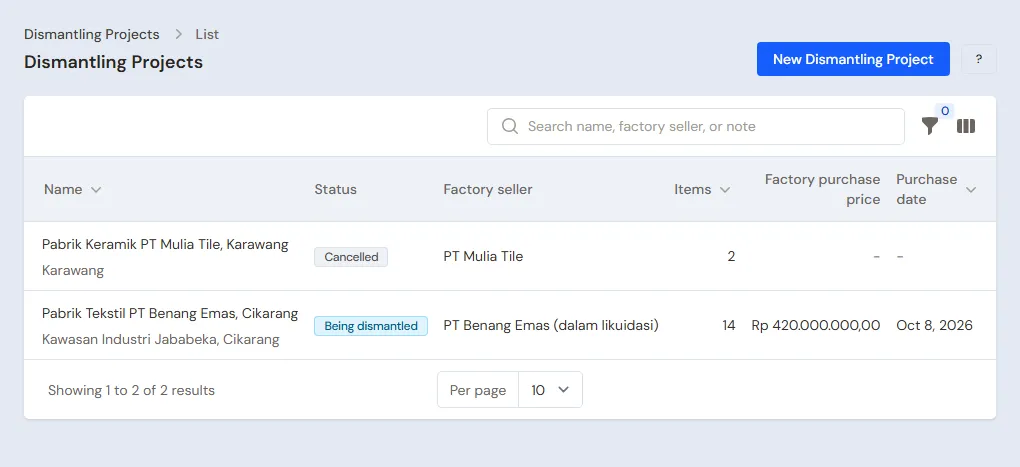
A factory that is not bought after all gets the status Cancelled. The survey and the trip are recorded with Record Survey Cost on its project page (this shop's example: the ceramic factory PT Mulia Tile, Rp 1.800.000). It becomes an expense in the category Factory Survey Costs, stays visible in the Survey costs part of that project, and goes into the cost of no item.
4. Buy Factory: the price shared over the items
Done by the Purchasing Admin on the project page: press Buy Factory. Fill in the Price of the whole factory (for example Rp 420.000.000), the supplier (the factory seller) and a cash account if anything is paid now (fill in Paid now when only part is paid). What is not paid becomes a debt to the seller.
What changes afterwards:
- Vende shares Rp 420.000.000 over the items by their expected sell price, to the cent. Loom #1 gets 95 of 775 of the price, about Rp 51.483.871, and so on. All the shares add up to Rp 420.000.000.
- Each item without a product gets a product of its own with stock 1, costing its share.
- One purchase note is written in Transactions → Purchases, and stock and the payable change like an ordinary purchase.
If the seller also sells the land and the building and the Fixed Assets feature is on, open Land and buildings bought too in the same form. For example the land of the Cikarang warehouse Rp 90.000.000 with a salvage value of Rp 90.000.000 (land is not depreciated, so its salvage value equals its price), paid from the bank account. It becomes a Fixed Asset apart from the price of the machines and is not shared over the items.
The project page shows each item with its Share of the price. A purchase from a company or at auction takes VAT, tax and auction fees the same way as an ordinary purchase note.
5. Items found later
While dismantling, items turn up that were not seen at the survey. Press Add Found Items on the project page and fill in the items with their expected price. The purchase price of the factory does not change, so it is shared again over all items and the items already there get a smaller share. The earlier share stays in each item's history. An item that proves unsellable is given the figure 0, so it gets no share.
Example: a vacuum pump is found in the back warehouse, expected Rp 25.000.000. Every item's share drops a little, and the cost of goods already sold is worked out again.
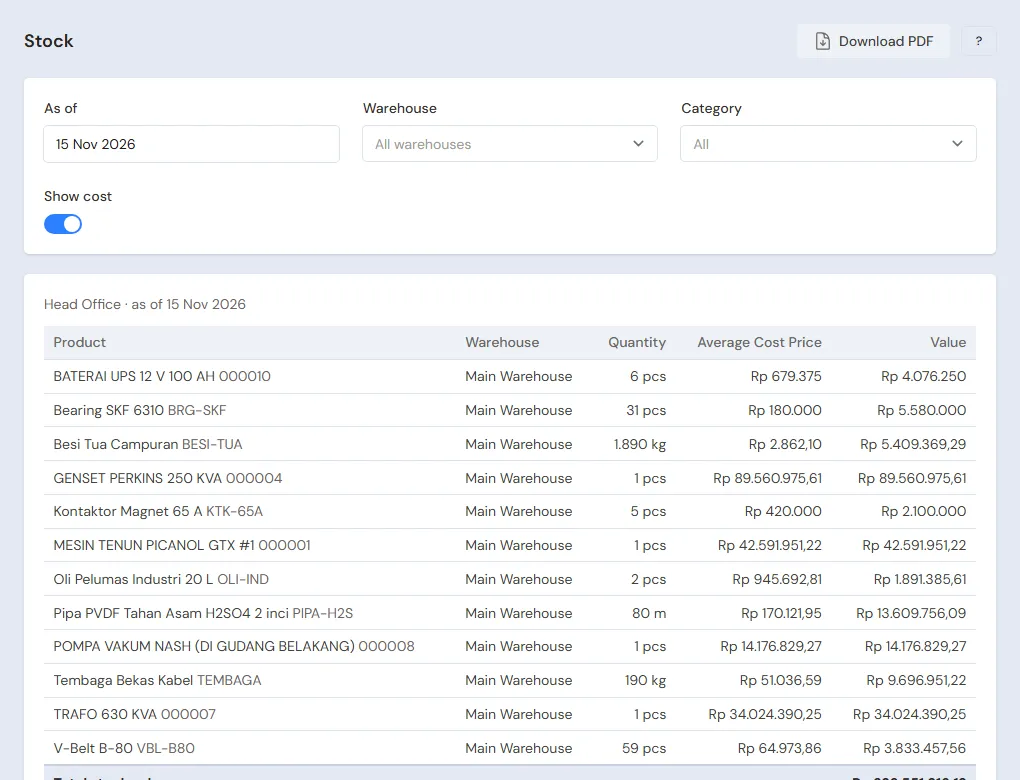
An industrial 40 kVA UPS in the control room is found later too, expected at Rp 20.000.000. What happens to it is in the part Moving cost between items.
6. Dismantling and reconditioning costs
Press Record Cost on the project page for each expense:
| Cost | For items | Paid |
|---|---|---|
| Crane for 3 days, Rp 18.000.000 | All items | From a cash account |
| Hauling truck, Rp 9.000.000 | All items | From a cash account |
| Bearing for loom #2, Rp 7.500.000 | Loom #2 only | From a cash account |
| Repair wage for loom #2, Rp 6.000.000 | Loom #2 only | Not paid yet: owed to Tukang Anto |
A cost for all items is shared by the value of the items. A cost for one or a few items stays on those items, also after the price is shared again. Both raise the cost of the goods, and the profit on goods already sold is worked out again. A spare part bought just for one machine is recorded the same way.
A wage not yet paid is a debt to that mechanic. After several jobs the Finance Admin pays them at once in Transaction Details → Purchase Payments: pick the mechanic, then tick the costs paid. See Paying supplier debts. A monthly mechanic is paid as a Salary expense (or through Payroll, an extra feature the Vende team turns on) and is not shared over the items. Investor or partner money per factory has no feature of its own yet: record the money as a Loan or Capital and share the profit from the project report.
7. Moving cost between items
Three buttons on the project page move cost without money moving. The journals, the Balance Sheet and the Profit and Loss do not change: only the cost of each item in the Stock Card does.
| Case | Button | Example in this shop | Result |
|---|---|---|---|
| A spare part from own stock | Fit Spare Part | 4 SKF 6310 bearings from stock fitted to Picanol #1 | The bearings leave stock at their average cost (4 x Rp 180.000 = Rp 720.000) and the cost of Picanol #1 goes up by Rp 720.000. If the bearing's cost changes later, the cost of Picanol #1 follows |
| Cannibalising between machines | Cannibalise Between Machines | The drive motor of Picanol #1 fitted to Picanol #2, worth Rp 12.000.000 | The cost of Picanol #1 goes down Rp 12.000.000, the cost of Picanol #2 goes up Rp 12.000.000. The project's total cost is the same |
| Splitting a unit | Split Unit | The 40 kVA industrial UPS found in the control room is split: 16 batteries worth Rp 10.870.000, the rest becomes 90 kg of scrap | The batteries become a new item with a cost of Rp 10.870.000 (Rp 679.375 each) and are sold one by one. The rest of the UPS cost (about Rp 471.000, close to the scrap's market price) moves to the scrap, and the UPS leaves stock |
The Cost moves part of the project page records the source, destination and value of each move, so where each part came from can be traced. A unit cannot give more than its cost, and a spare part fitted must be in stock.
8. Selling
Factory goods are sold at the till or on a sale note like other goods, at the price you set in Master Data → Products.
- As it is: the electrical panel is sold for Rp 52.000.000 to PT Plastik Nusa Raya. Its cost is only its share of the price and of the shared costs.
- After reconditioning: loom #2 is sold for Rp 118.000.000. Its cost already includes the bearing and the repair wage, so the gross profit follows that cost.
- Before it is repaired: the Head Cashier records a Transactions → Sales Orders order for the generator with a down payment, for example Rp 30.000.000 as a deposit. The rest is paid when the generator is collected. A buyer who cancels: cancel the order and choose whether the down payment is forfeited or refunded.
- By the metre and by the kilo: 40 metres of acid-resistant pipe sell at Rp 320.000 a metre. 6,200 kg of scrap and 410 kg of copper are weighed, then sold by the kilo to the scrap dealer.
- A repair that failed: the boiler that cannot be repaired is sold as scrap for Rp 12.000.000. The loss against the boiler's cost shows in the report.
9. Reports by job title
| Report | What it shows | Opened by | Read |
|---|---|---|---|
| Reports → Dismantling Project Profit and Loss | Purchase price, costs, cost basis, sales, cost of goods, profit, left on the shelf and cost recovered of each factory | Owner | At each month end, and before buying the next factory |
| Reports → Stock | Factory goods not sold yet and their value | Warehouse Admin | Weekly |
| Reports → Payables | What is owed to the factory seller and the mechanics | Owner | Weekly |
10. Checklist
- The factory is bought with Buy Factory, not an ordinary purchase note, so the price is shared.
- A cost that belongs to one unit is recorded by picking its item.
- A spare part from stock, a part from another machine and a part from a split unit are moved with their buttons, not recorded as an ordinary cost or stock adjustment. Fitted a spare part by mistake? Use Undo Spare Part: the part goes back to stock and the unit's cost goes down. Its stock adjustment cannot be deleted alone from Stock Adjustments.
- Piece-rate wages are recorded per job and paid at once.
- Scrap, copper and pipe are sold by the kilo or the metre.
- The Dismantling Project Profit and Loss report is opened at each month end.
A running business
1. Master data
Suppliers, products by measure and cash accounts are set up as in A new business, step 2. A factory still being dismantled when you move to Vende is recorded as in steps 3 and 4 with the price really paid, so the cost of its items is right.
2. Practice for the team
The practice uses the example data above. Practice 1, master data: the Purchasing Admin creates three example suppliers and the Warehouse Admin creates the scrap product by the kg.
Check: the three suppliers are in Master Data → Suppliers and the scrap uses the unit kg.
Practice 2, transactions:
- The Purchasing Admin creates the project Textile factory PT Benang Emas with five items, then presses Buy Factory with the price Rp 420.000.000.
- The Purchasing Admin presses Record Cost for the crane Rp 18.000.000 on all items, and a repair wage of Rp 6.000.000 on one machine, not paid yet.
- The Purchasing Admin presses Add Found Items for a pump.
- The Head Cashier sells the repaired machine, and records an order with a down payment that is then cancelled.
- The Finance Admin pays the mechanic's wages in Transaction Details → Purchase Payments.
Check: the Owner opens Reports → Dismantling Project Profit and Loss. The purchase price is Rp 420.000.000, the costs Rp 24.000.000 and the cost basis Rp 444.000.000. The mechanic's debt is settled in Reports → Payables.
Practice 3, opening balances: the Owner fills in the opening balances as below.
3. Empty the practice transactions
The Owner opens Settings → Empty Transactions to delete the practice projects, notes, payments and stock. Master data (suppliers, customers, products) stays. See Empty Transactions.
4. Opening balances
Fill in Settings → Opening Balances as in Entering opening cash, stock, receivables and payables: cash, what is still owed to the factory seller or the mechanics, buyers' receivables and the stock still there. The opening stock of factory goods is entered at its cost, including the costs already paid.
5. Check before starting
- The cost of each item in Reports → Stock looks right.
- The debts to the seller and the mechanics match your records.
- The cash in each account matches the money you hold.
6. Start for real
Start with the next factory using Buy Factory. In the first week, compare Reports → Dismantling Project Profit and Loss with your own records.